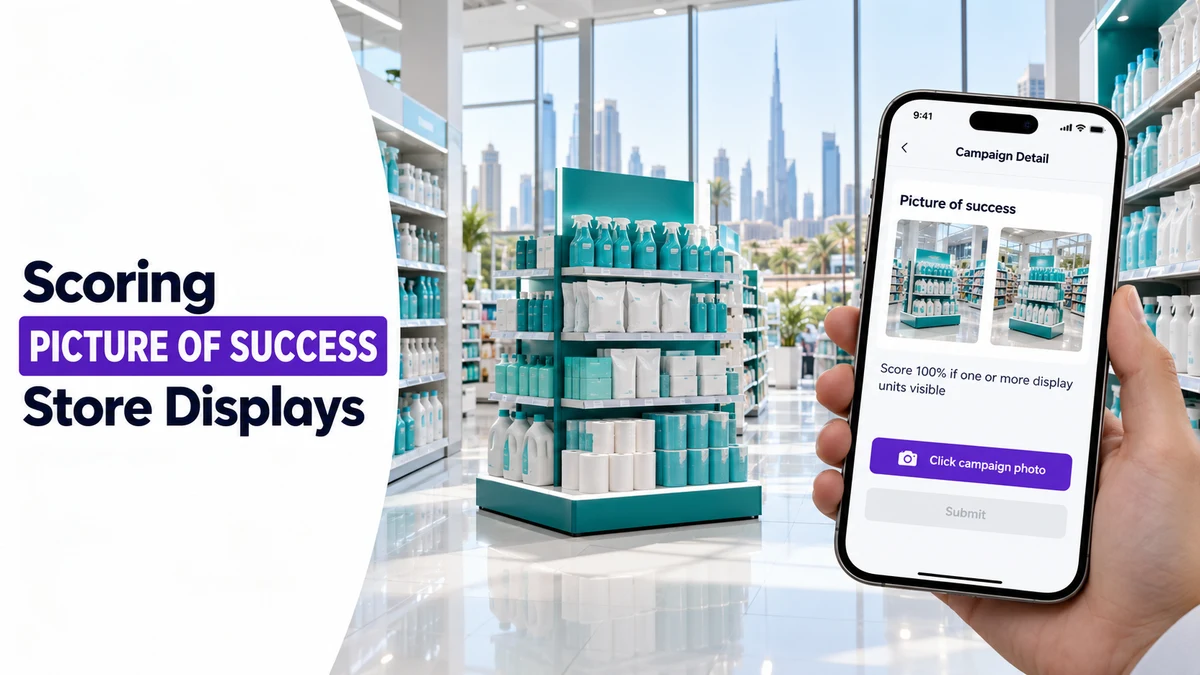
A picture of success is the reference photo a field rep sees before shooting a campaign display, paired with a plain rule for how it will be scored.
This post covers how 1Channel's retail merchandising module sets that standard, captures the rep's photos, and lets an auditor score every display the same way across the UAE.
It suits teams in FMCG, consumer durables and electronics, cosmetics and personal care, and retail and modern trade running endcaps, standees and shelf strips.
What a Campaign Needs Before Reps See It
Every display check starts as a campaign, set up once by the merchandising team and then pushed to the field.
| Campaign element | What the team sets | Why it matters |
|---|---|---|
| Name and dates | A name in a consistent pattern, plus a start and end date | Keeps each push easy to find and closes it on time |
| Store and POSM lists | Upload a text file of store codes and POSM codes | Any code that does not match is listed back, so typos surface early |
| Parameters and weights | Each parameter gets a weight, a written guideline and an image of success | Auditors score against a fixed rule, not a personal opinion |
| Campaign validation | No validation, or campaign is mandatory | Decides whether a visit can close without the campaign |
Two Display Checks, Scored the Same Way
The same reference travels from the rep's phone to the auditor's screen, which is what keeps scoring consistent.
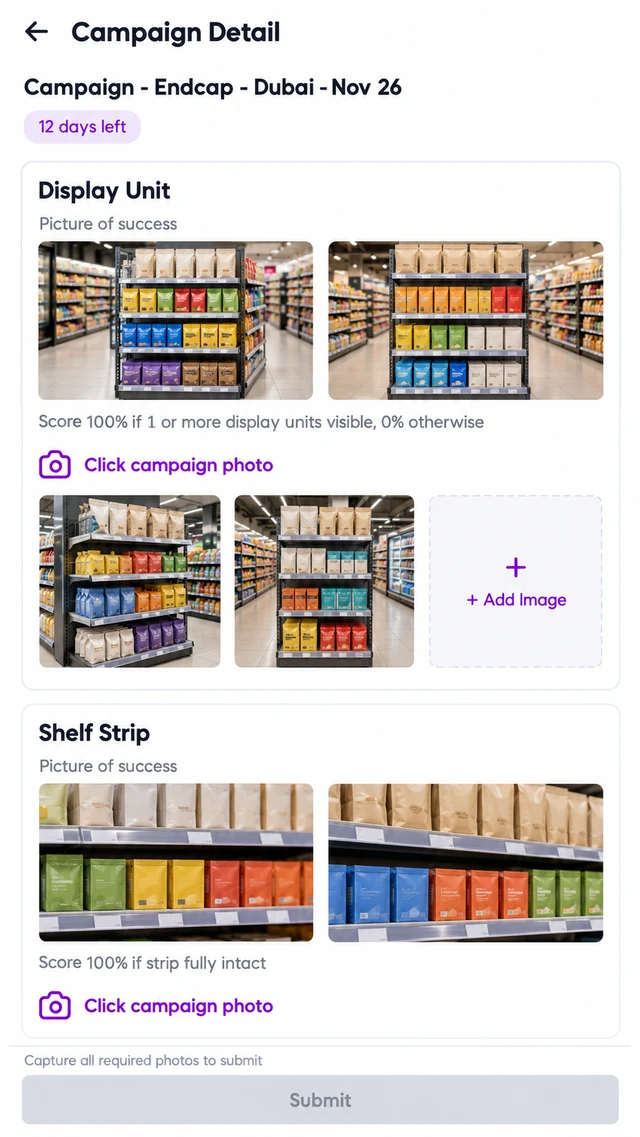
Example: a field executive opens an endcap campaign at a supermarket in Dubai.
The app shows two picture-of-success photos and a rule: 100% if one or more display units are visible, 0% otherwise.
Submit stays disabled until every required photo is captured, so nothing goes in half done.
Example: an auditor then opens that Dubai visit from the Campaign Audit screen.
The submitted photo sits beside the reference, with one row per parameter: display unit visible, price tag placement, and shelf strip.
The auditor enters a score and a short comment for each, such as "Tag too low".
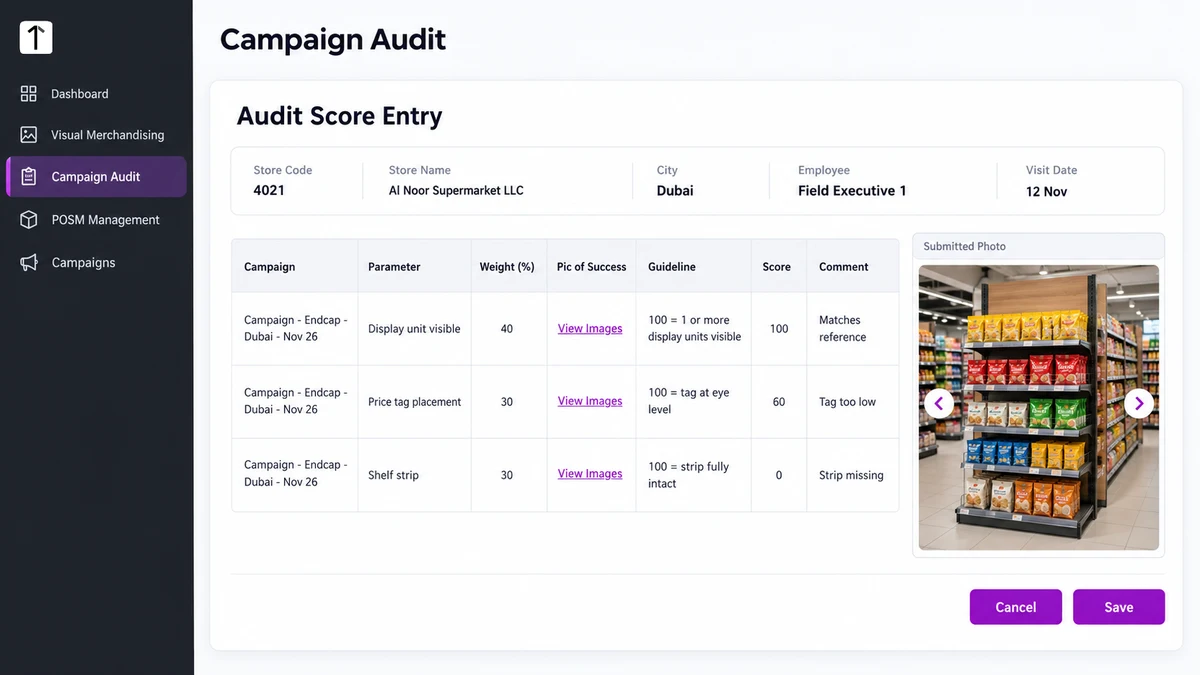
If an outlet runs two campaigns at once, the same visit shows one scored row for each campaign and parameter.
Where Image Recognition Helps the Review
1Channel's AI image recognition reads these same photos, so a reviewer does not have to open every one.
It scores how closely a display matches the approved layout, and prompts the rep to retake a shot when it is not confident in the photo.
The retake happens during the same visit, before a weak photo reaches an auditor.
Matching Campaign Windows to UAE Retail Peaks
Start and end dates let a team run a Ramadan push and a Dubai Shopping Festival push as two separate campaigns.
Each one carries its own reference photos and scoring rules, and the rep's campaign card shows how many days remain.
How 1Channel Keeps Display Scoring Consistent
1Channel's retail merchandising module ties the campaign, the reference photo, the scoring rule and the audit into one flow.
The rep and the auditor work from the same picture of success, so a score means the same thing at every outlet.
Score Every Campaign Display Against the Same Reference
See how 1Channel tracks POSM and campaign displays with reference photos, guided capture and audit scoring in one platform.
Explore POSM Tracking →Points to Remember
- Write the rule next to the photo. A reference image without a scoring rule still leaves room for argument.
- Weight the parameters. A missing display unit should not cost the same as a slightly low price tag.
- Check uploaded codes. Unmatched store and POSM codes are listed back, so fix them before launch.
- Let the rep see the standard first. A rep who knows how a photo will be scored shoots a better one.
- Use dates for UAE peaks. Keep Ramadan and Dubai Shopping Festival pushes as separate campaigns.
Note: Software screens may vary based on your business structure and configured workflows.