If you are running a small business, freelancing, or building a startup in Malaysia and need a way to track sales leads without paying for software, this guide is for you. We will walk through a completely free method to set up a working lead management system using Google Forms and Google Sheets.
This approach works well for businesses handling up to 10 to 15 new leads per day. It gives you a structured way to capture leads, track follow-ups, manage status updates, and share data with your team, all without spending a single ringgit on software.
Table of Contents
Benefits of This Free Lead Management Setup
- Zero cost: Uses only free Google tools that come with any Google account.
- Easy to set up: No technical skills required. You can have it running in under 30 minutes.
- Real-time data: Leads are captured instantly when someone fills out the form and appear immediately in your spreadsheet.
- Mobile accessible: Both the form and the sheet work on desktop and mobile browsers, as well as the Google Sheets app.
- Team collaboration: Share the spreadsheet with your sales team so everyone can update lead statuses and follow-up notes in real time.
- Customisable: Add or remove fields based on what your business actually needs to track.
Step-by-Step Guide to Setting Up Your Free Lead Tracker
Step 1: Create a Google Form for lead collection
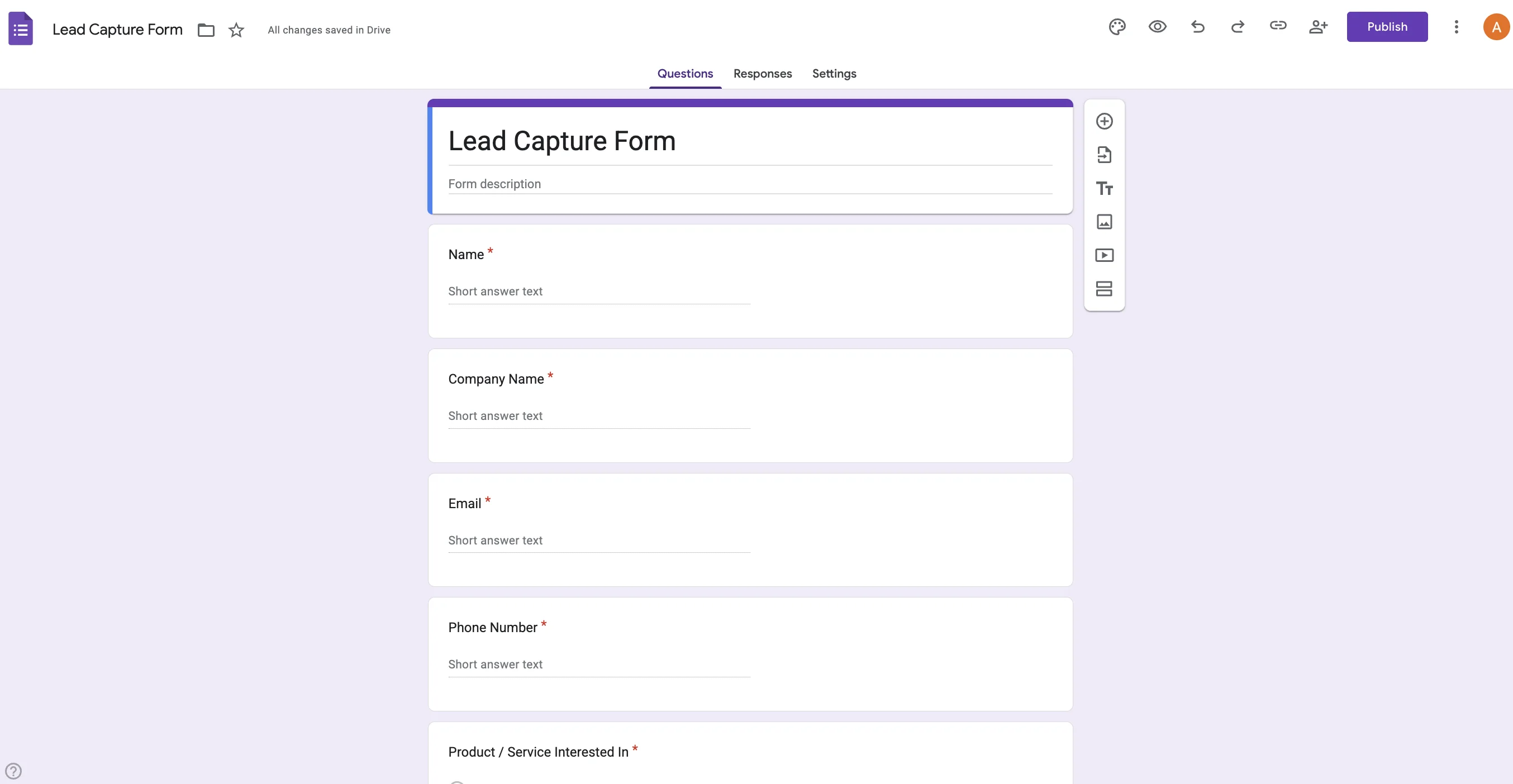
Go to Google Forms at docs.google.com/forms and create a new blank form. Title it something like "Lead Capture Form" or "Sales Enquiry Form."
Add the fields that matter for your business. For a typical Malaysian SME, this would include: Name, Company Name, Email Address, Phone Number (with Malaysia country code +60), Product or Service Interested In, and optionally a "How did you hear about us?" dropdown.
If you are running a service business in Petaling Jaya that generates leads from website enquiries, social media, and walk-ins, this form becomes your single entry point for all new leads regardless of source.
Step 2: Connect the form to Google Sheets
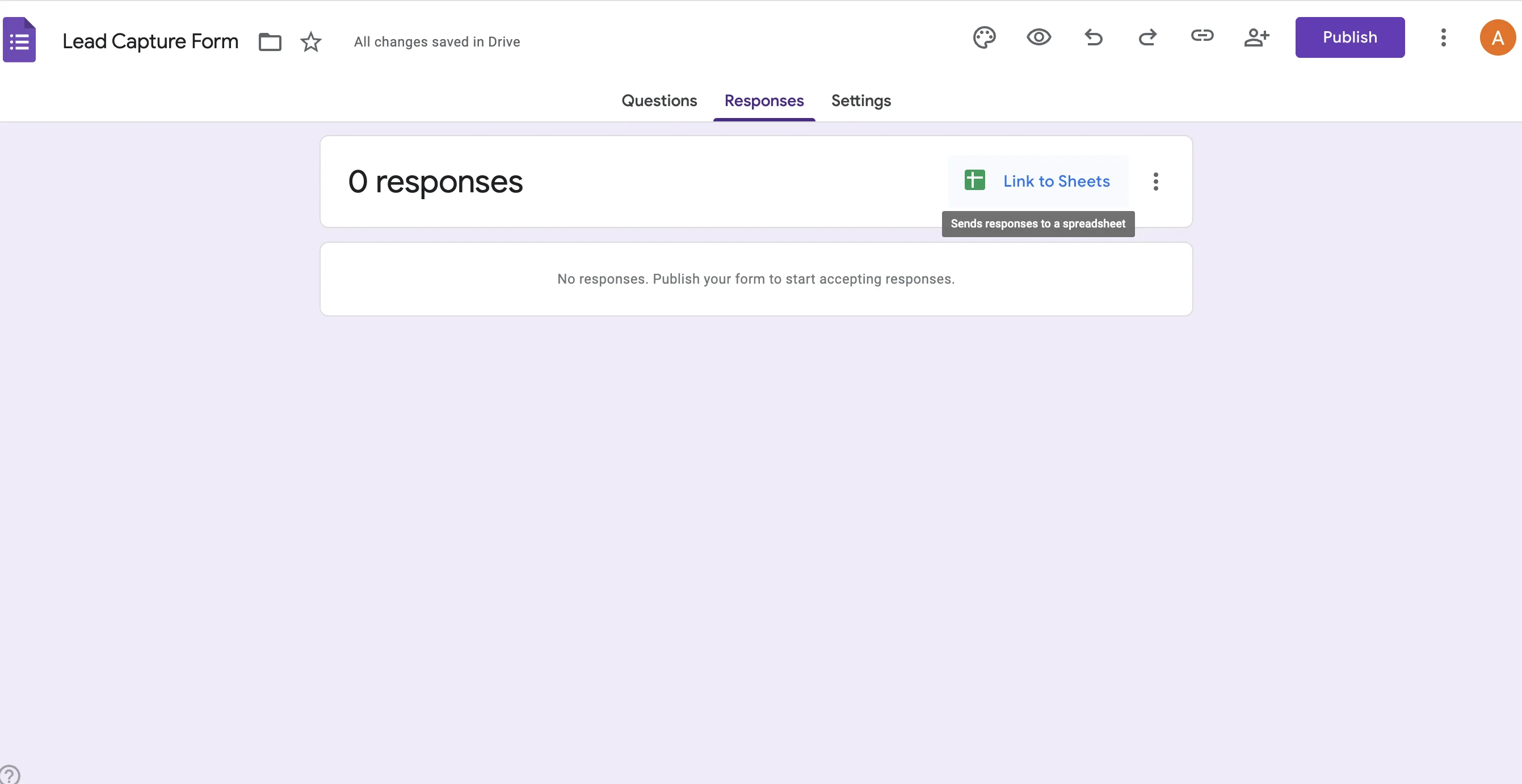
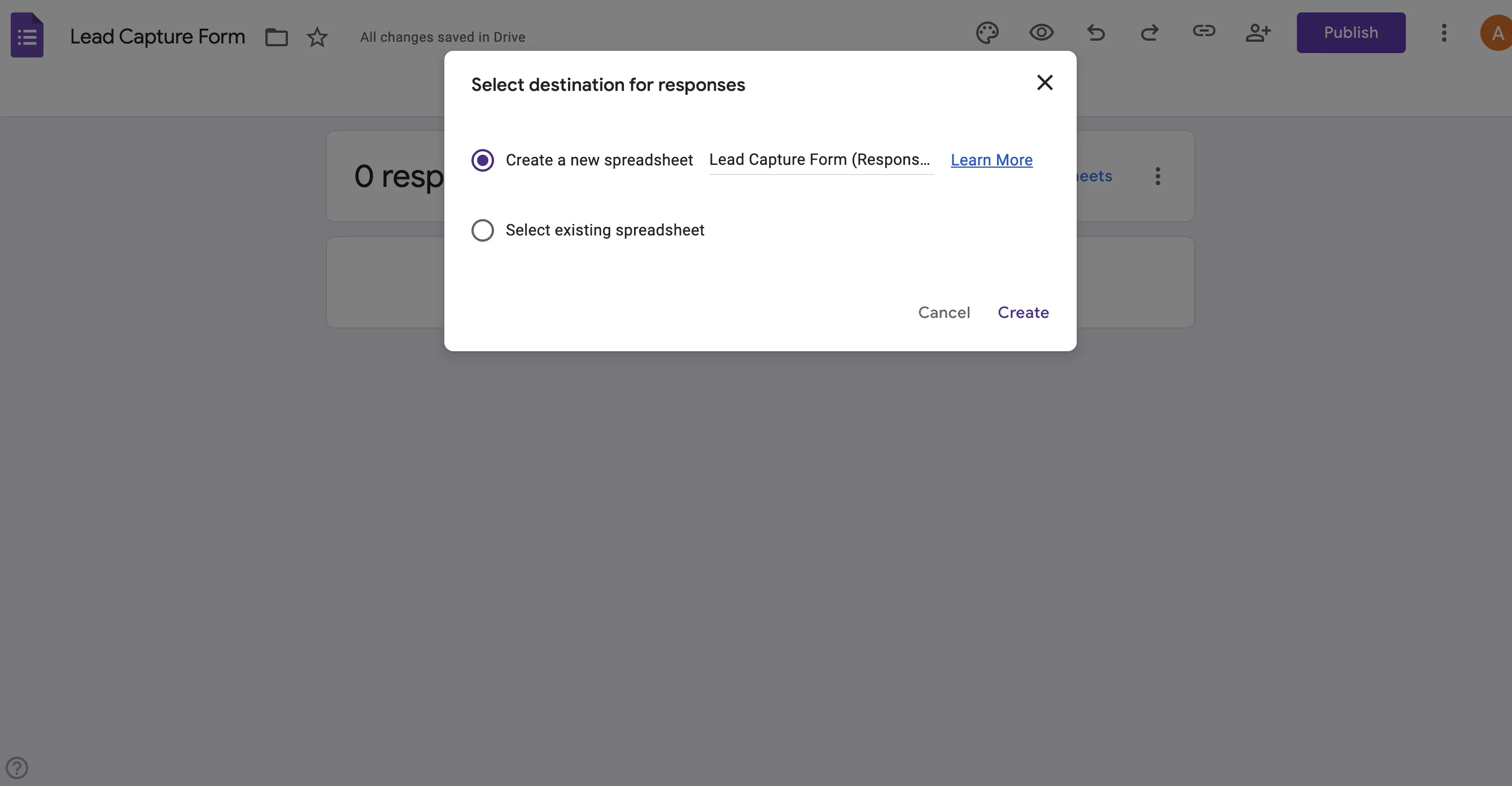
In Google Forms, click on the "Responses" tab at the top, then click the green Sheets icon labelled "Link to Sheets." Select "Create a new spreadsheet." This creates a Google Sheet that automatically receives every form submission as a new row.
From this point, every time someone fills out your lead form, whether from your website, a QR code at a trade show in KLCC, or a link shared on WhatsApp, the data flows directly into your spreadsheet without any manual entry.
Step 3: Organise columns for tracking
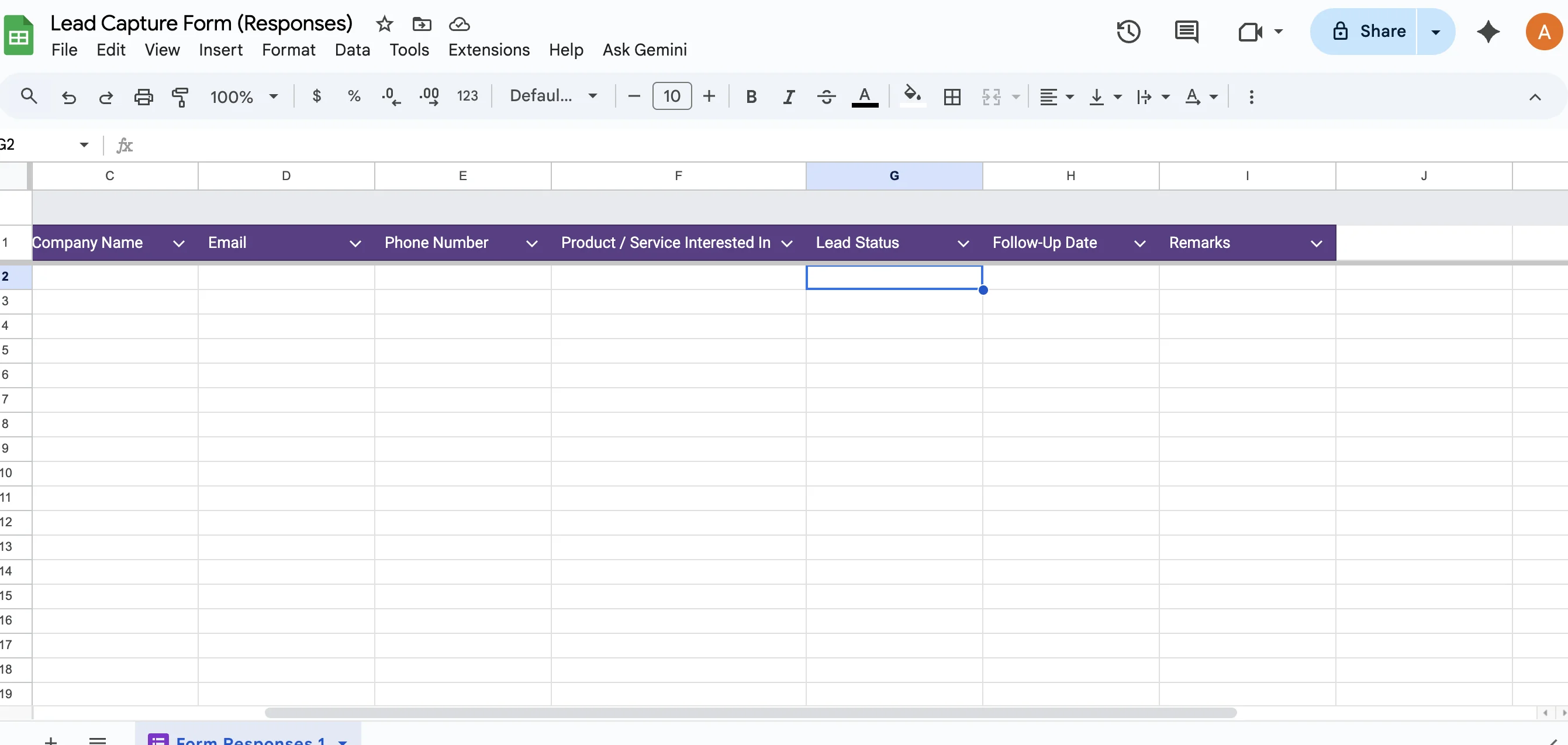
Once the Sheet opens, you will see columns matching your form fields (Name, Company, Email, etc.). Now add three new columns to the right:
- Lead Status: To track where each lead is in the pipeline (New, Contacted, Follow-up, Converted, Lost).
- Follow-Up Date: When the next action is due for this lead.
- Remarks: Free-text notes about conversations, requirements, or any context your team needs.
These three columns turn a simple list of enquiries into a functional lead tracker. A small renovation contractor in Bangsar handling enquiries from homeowners can now see at a glance which leads need follow-up this week and which have already been contacted.
Step 4: Add data validation for the status dropdown
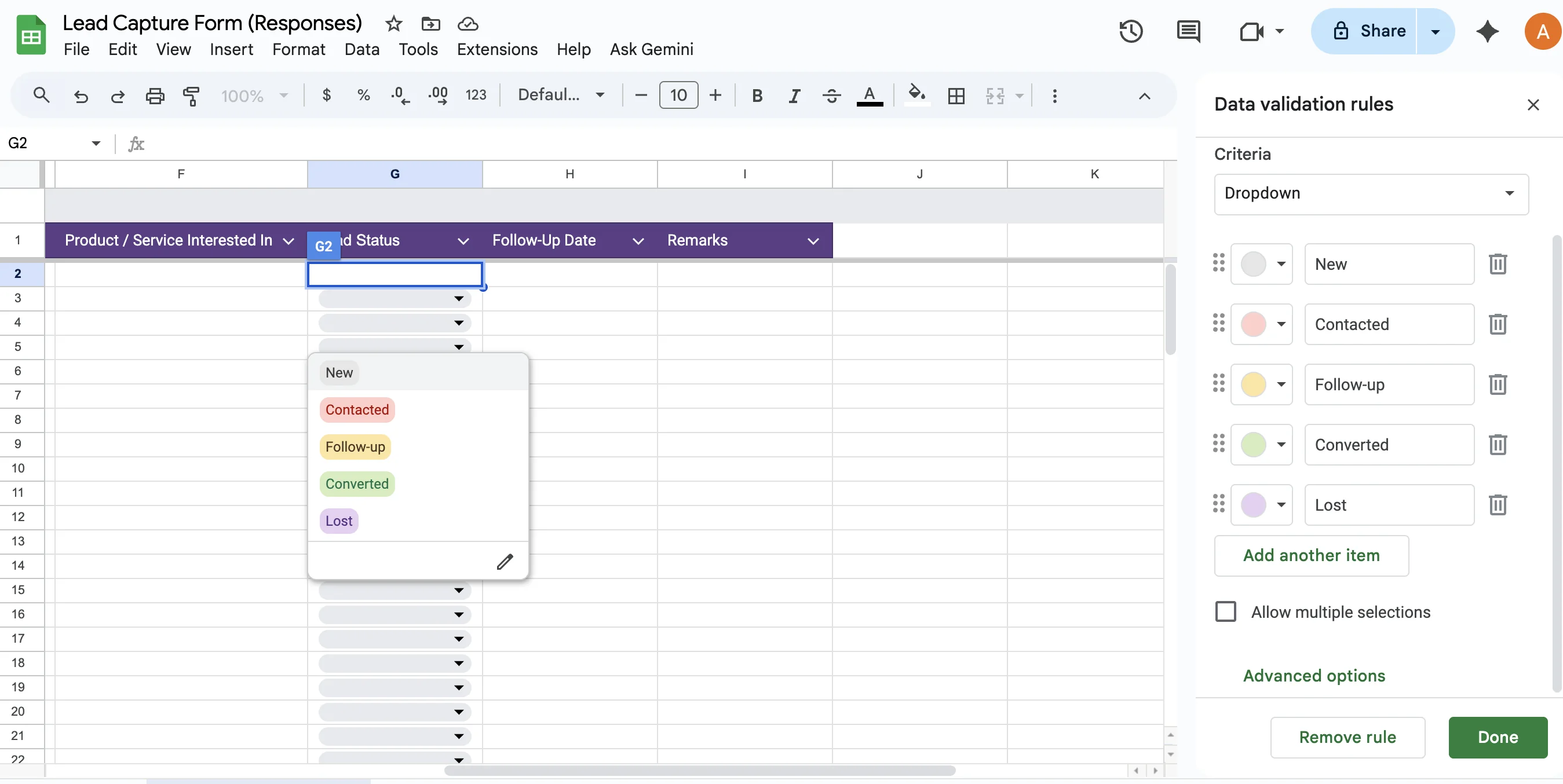
Select the entire Lead Status column, go to Data in the top menu, then click "Data validation." Choose "List of items" and enter your status options: New, Contacted, Follow-up, Converted, Lost.
This creates a dropdown menu in every row so your team selects from consistent statuses rather than typing free text. It prevents inconsistencies like one person writing "Called" while another writes "Contacted" for the same stage.
Step 5: Share the sheet with your team
Click the "Share" button in the top-right corner of the sheet. Add your team members' email addresses and set their access level. Give "Editor" access to people who need to update lead statuses and follow-up notes. Give "Viewer" access to people who only need to see the data, like a business owner who wants to monitor the pipeline without editing it.
Now your entire team works from a single, always-updated lead tracker. A sales rep working from a co-working space in Cyberjaya and a partner handling leads from the Penang office both see the same data in real time.
Step 6: Back up your data regularly
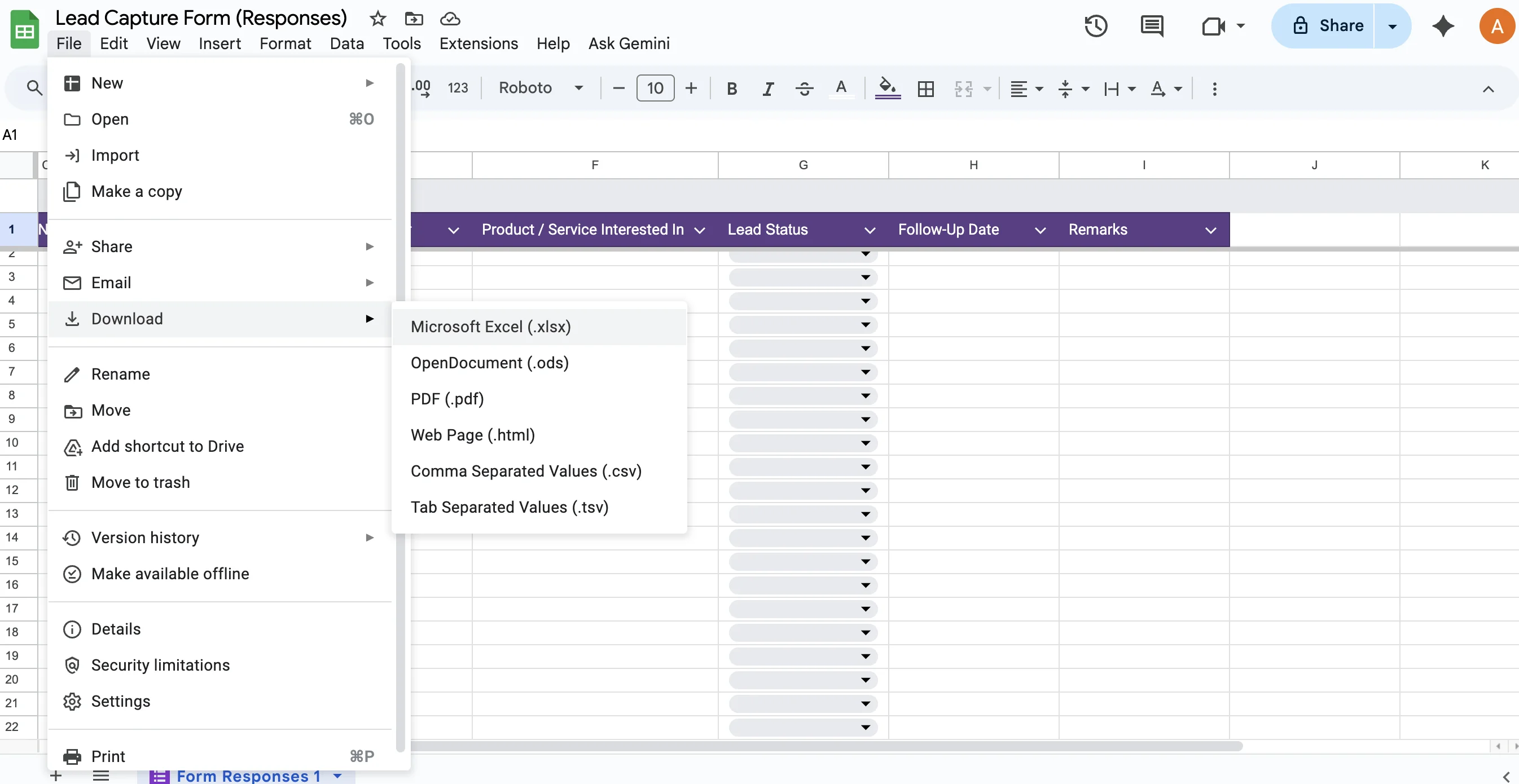
Google Sheets does not have a built-in automated backup feature for your specific data structure. Make it a habit to download a copy of your lead sheet as an Excel file once a week. Go to File, then Download, and choose Microsoft Excel (.xlsx). Store the backup on Google Drive or a local folder.
This protects you if someone accidentally deletes data or if you need to reference historical information later.
When This Free Setup Is Not Enough
The Google Forms and Sheets approach works well for early-stage businesses and small teams. However, it has real limitations that become apparent as your business grows:
- No automated follow-up reminders: You have to manually check the Follow-Up Date column and remember to act on it. There is no system alert when a follow-up is due.
- No analytics or dashboards: You cannot see conversion rates, lead source performance, or pipeline value without building manual charts.
- Limited access control: Google Sheets offers only basic Editor/Viewer permissions. You cannot restrict a team member from seeing certain leads while allowing them to edit others.
- No integration with communication tools: There is no connection to WhatsApp, email, or phone logging. Every interaction has to be noted manually in the Remarks column.
- Not suitable for high volume: Once you are handling more than 500 to 1,000 leads per month, the spreadsheet becomes unwieldy and slow to navigate.
- No mobile-optimised workflow: While Google Sheets works on mobile, it is not designed for field sales use. A dedicated SFA app with GPS check-ins, structured forms, and offline capability is far more practical for reps on the move.
When to Move from Free Tools to a CRM or SFA Platform
The free setup described above is a solid starting point. But there comes a point where the manual effort of maintaining it outweighs the cost savings. Common signals that it is time to upgrade include:
- Your team is spending more time updating the spreadsheet than talking to leads.
- Follow-ups are being missed because there are no automated reminders.
- You need to track field visits, not just phone-based leads.
- Your lead volume has grown past what a single spreadsheet can handle efficiently.
- You need role-based access so different team members see different data.
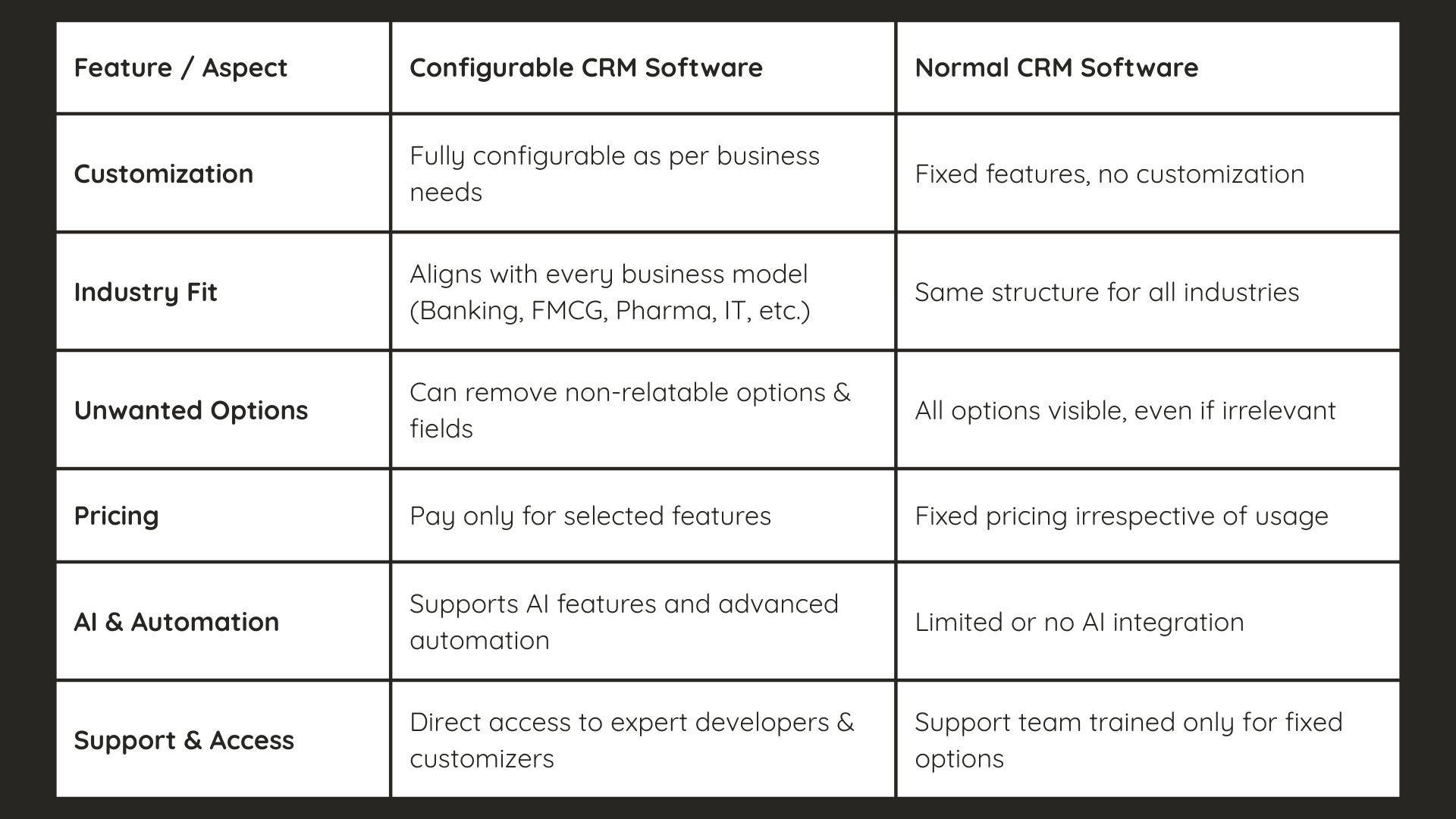
At that point, a configurable CRM or sales force automation platform can take over the lead tracking function while adding capabilities like AI-powered analytics, automated task assignment, GPS-verified visit logging, and structured reporting. The transition is usually straightforward because the data in your Google Sheet can be exported and imported into most CRM platforms.
Ready for a Professional Lead Management Solution?
When your business outgrows spreadsheets, 1Channel's configurable CRM platform offers automated lead capture, pipeline management, field sales tracking, and AI-powered analytics built for growing teams.
Book a Free Demo →Frequently Asked Questions
Is this lead management setup completely free?
Yes. Google Forms, Google Sheets, and Google Drive are all free with any Google account. There are no hidden costs or paid features required for this setup.
How many leads can this system handle?
This setup works comfortably for businesses handling up to 500 to 1,000 leads per month. Beyond that, the spreadsheet becomes slow to navigate and difficult to manage without automation.
Can I track follow-ups automatically?
Not with this free setup. Follow-up tracking is manual. You can use conditional formatting to highlight overdue follow-up dates, or set reminders in Google Calendar, but there are no automated alerts built into Google Sheets.
Can my team access this from their phones?
Yes. Both Google Forms and Google Sheets work in mobile browsers and through the Google Sheets app. However, the experience is not optimised for field sales use like a dedicated SFA mobile app would be.
Can multiple team members edit the sheet at the same time?
Yes. Google Sheets supports real-time collaboration. Multiple people can view and edit the same sheet simultaneously, and changes appear instantly for everyone.
When should I switch to a paid CRM?
Consider switching when follow-ups are being missed regularly, your lead volume exceeds what the spreadsheet handles comfortably, you need field visit tracking or GPS-verified attendance, or you need role-based access control so different team members see different data.
Final Words
Not every business needs to start with a paid CRM platform. For Malaysian startups, freelancers, and small businesses in the early stages, a well-structured Google Forms and Sheets setup provides a functional lead management system at zero cost. It captures leads, tracks statuses, manages follow-ups, and enables team collaboration.
The key is to recognise when the free setup has reached its limits and transition to a proper CRM or SFA platform before missed follow-ups and disorganised data start costing you business. When that time comes, 1Channel's CRM platform is designed to scale with Malaysian businesses from small teams to enterprise operations. Get in touch to explore your options.