If you manage a small field team that visits clients, outlets, or sites across different locations, you know the problem: without a structured route plan, reps choose their own paths, skip inconvenient stops, and waste time backtracking across town. But dedicated route planning software can cost RM 500 or more per month, which does not make sense when you have a team of five to eight people.
This guide shows you how to build a working route planning system using Google Forms, Google Sheets, and Google Maps at zero cost. The system lets managers assign daily visit locations, generate clickable Google Maps links for each stop, create optimised multi-stop route links, and track visit completion status.
This approach involves a few technical steps with spreadsheet formulas, but nothing that requires coding experience. It works best for teams of up to 10 field employees.
Table of Contents

What This Free System Gives You
- A visit assignment form where managers enter each planned visit with the employee name, date, client name, address, and purpose.
- An auto-populated spreadsheet that collects all visit assignments in one place.
- Clickable Google Maps links for each client location, so the field employee can navigate to the address with one tap.
- An optimised route link that strings together all of one employee's visits for a given day into a single Google Maps directions URL, showing the most efficient driving sequence.
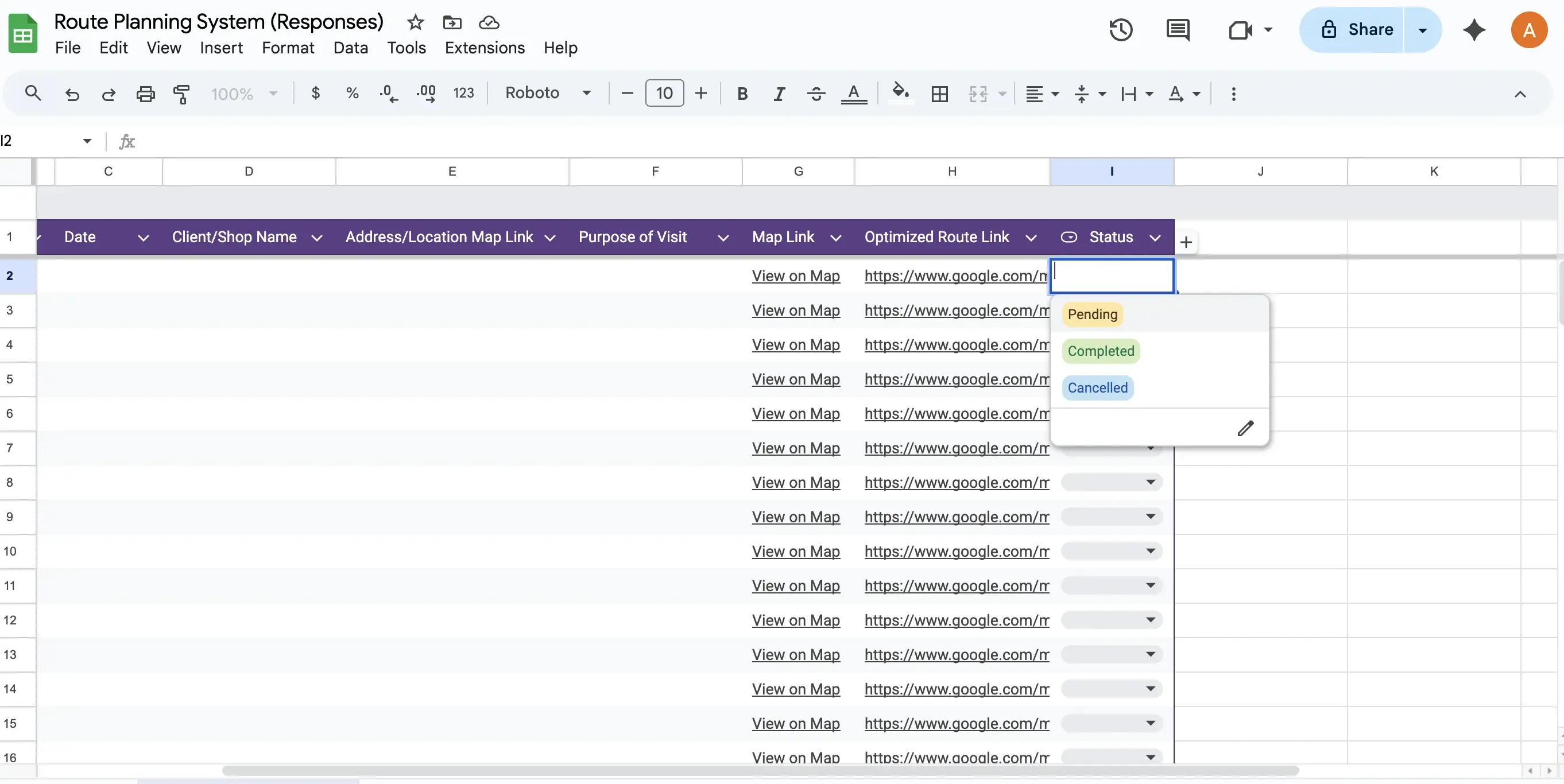
- Status tracking with a dropdown (To Do, In Progress, Completed) so managers can see which visits have been done.
Step-by-Step Setup Guide
Step 1: Create a Google Form for visit planning
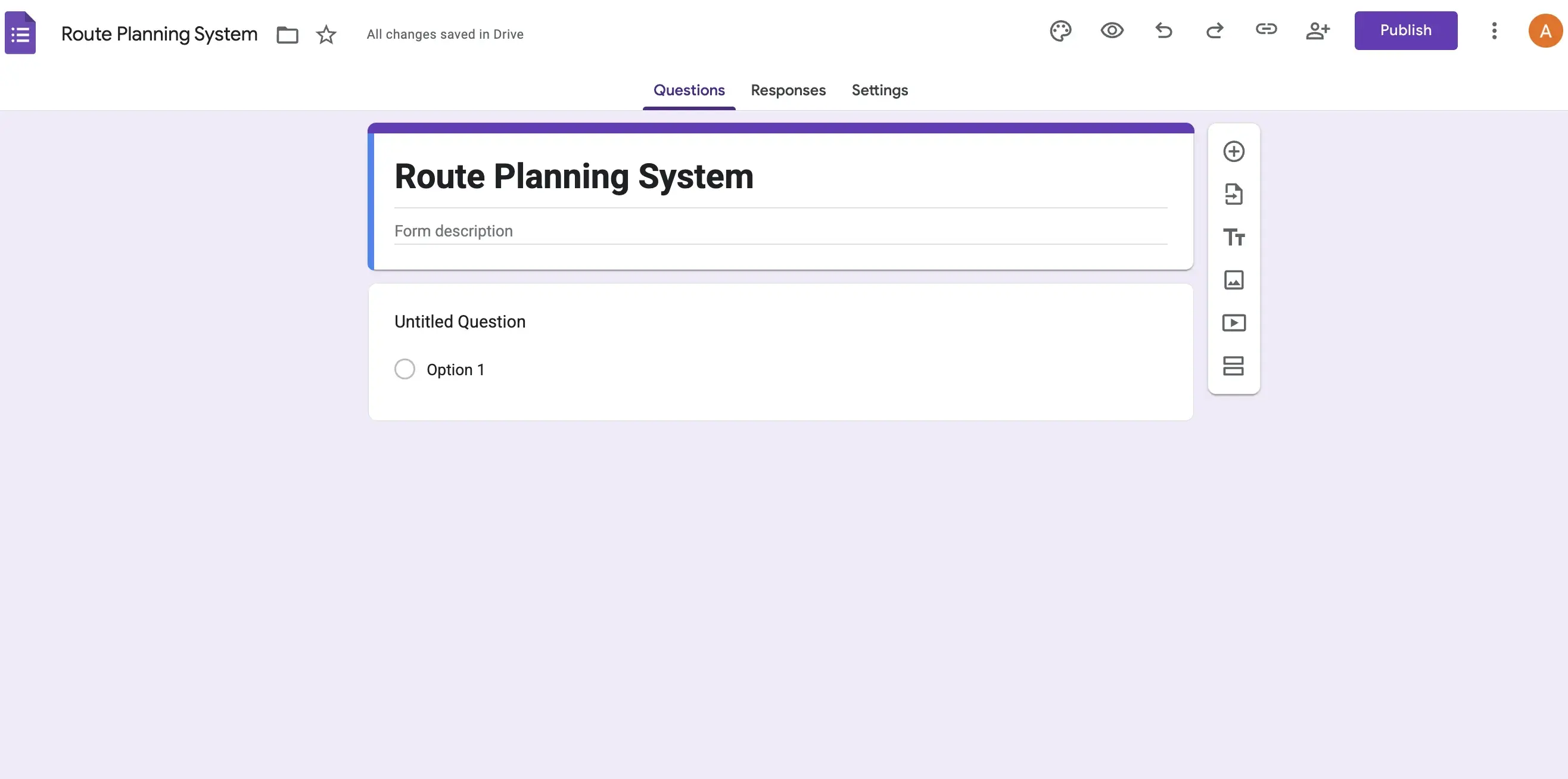
Open Google Forms and create a new blank form. Title it "Route Planning Form" or "Daily Visit Planner." This form will be used by the manager or team lead to enter each planned visit for the day.
Step 2: Add the visit fields
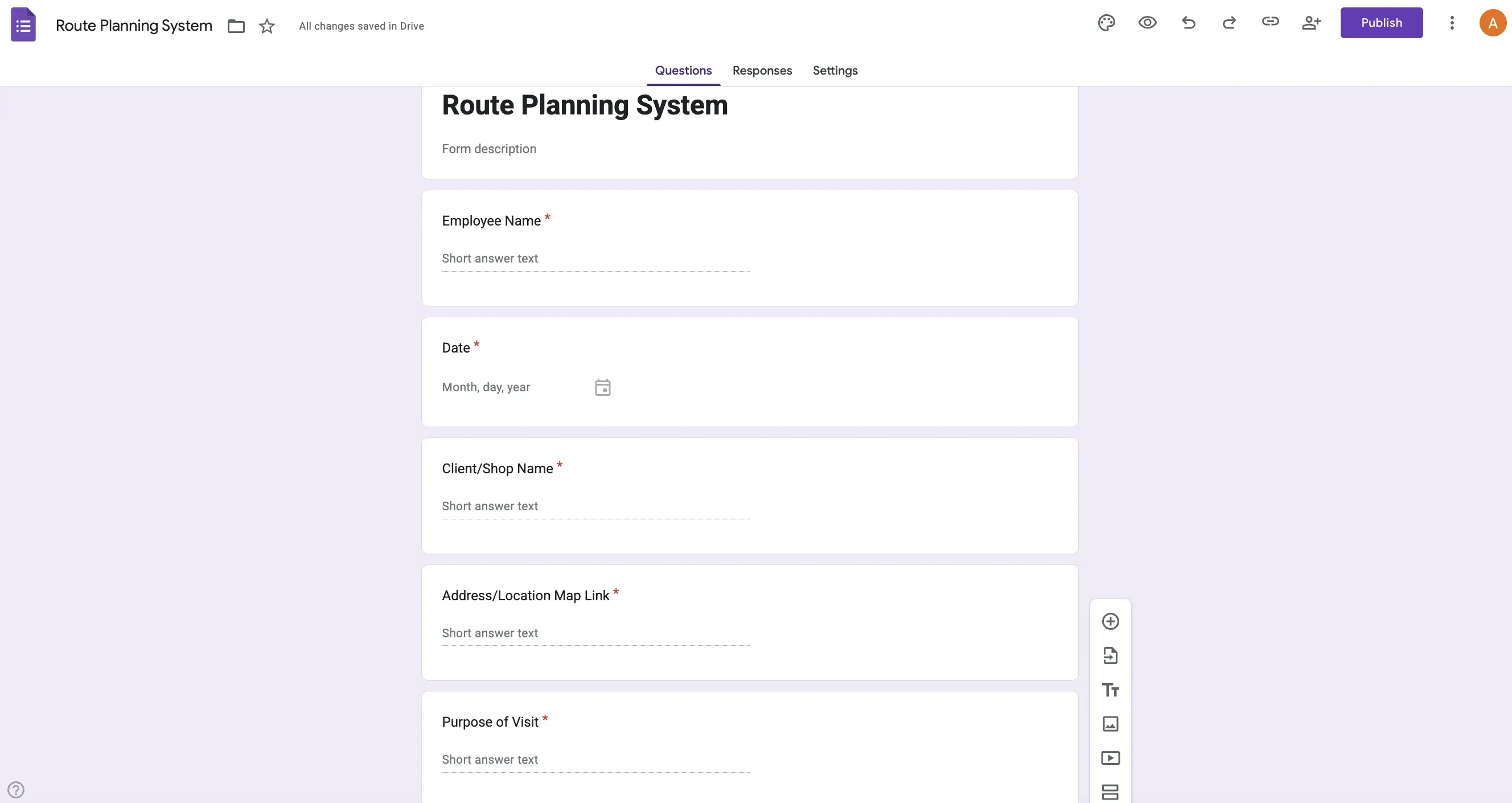
Add the following fields to the form: Employee Name (short answer), Date (date picker), Client or Shop Name (short answer), Address or Location Link (short answer, where the manager pastes a Google Maps link or types the address), and Purpose of Visit (short answer or dropdown with options like Sales Call, Stock Check, Delivery, Collection).
For a pest control company in Klang assigning daily jobs, the manager fills this form once per visit. If an employee has six stops today, the form is submitted six times with that employee's name and each location.
Step 3: Link the form to Google Sheets
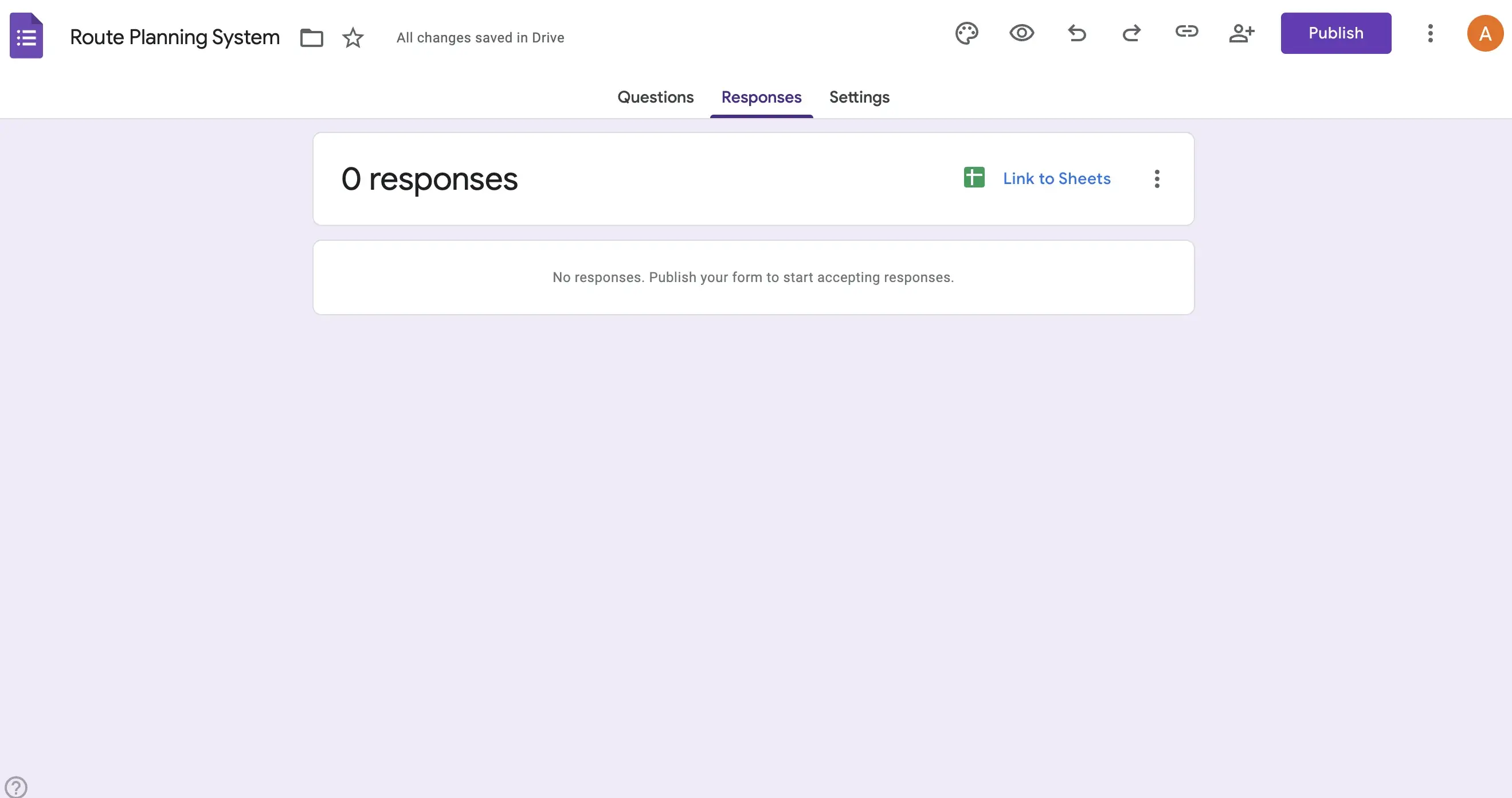
Go to the Responses tab in the form and click the green Sheets icon. This connects the form to a spreadsheet where every submission appears as a new row automatically.
Step 4: Create the linked spreadsheet
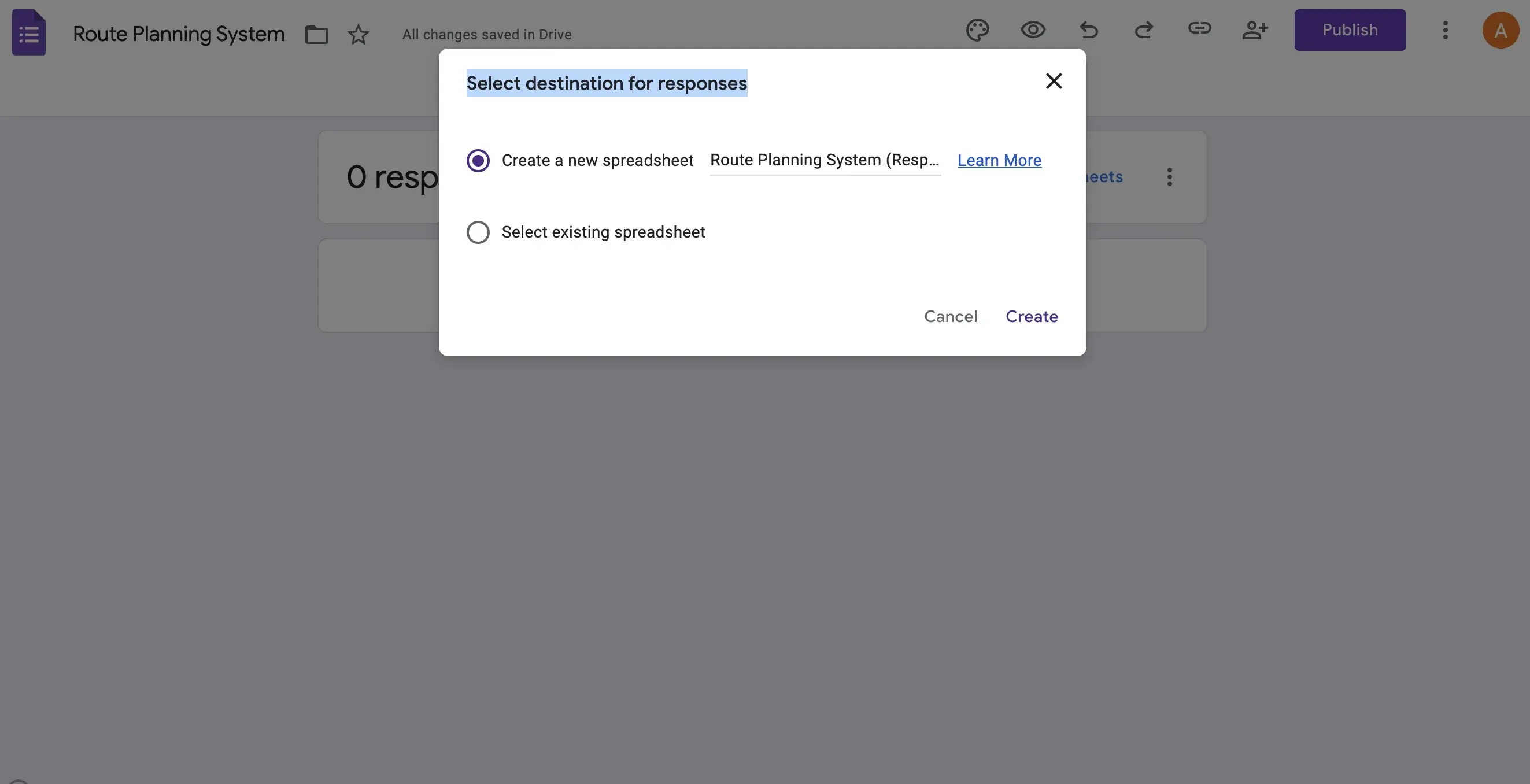
A popup will ask where to store responses. Select "Create a new spreadsheet" and click Create. The sheet opens in a new tab with columns matching your form fields.
Step 5: View the auto-populated data
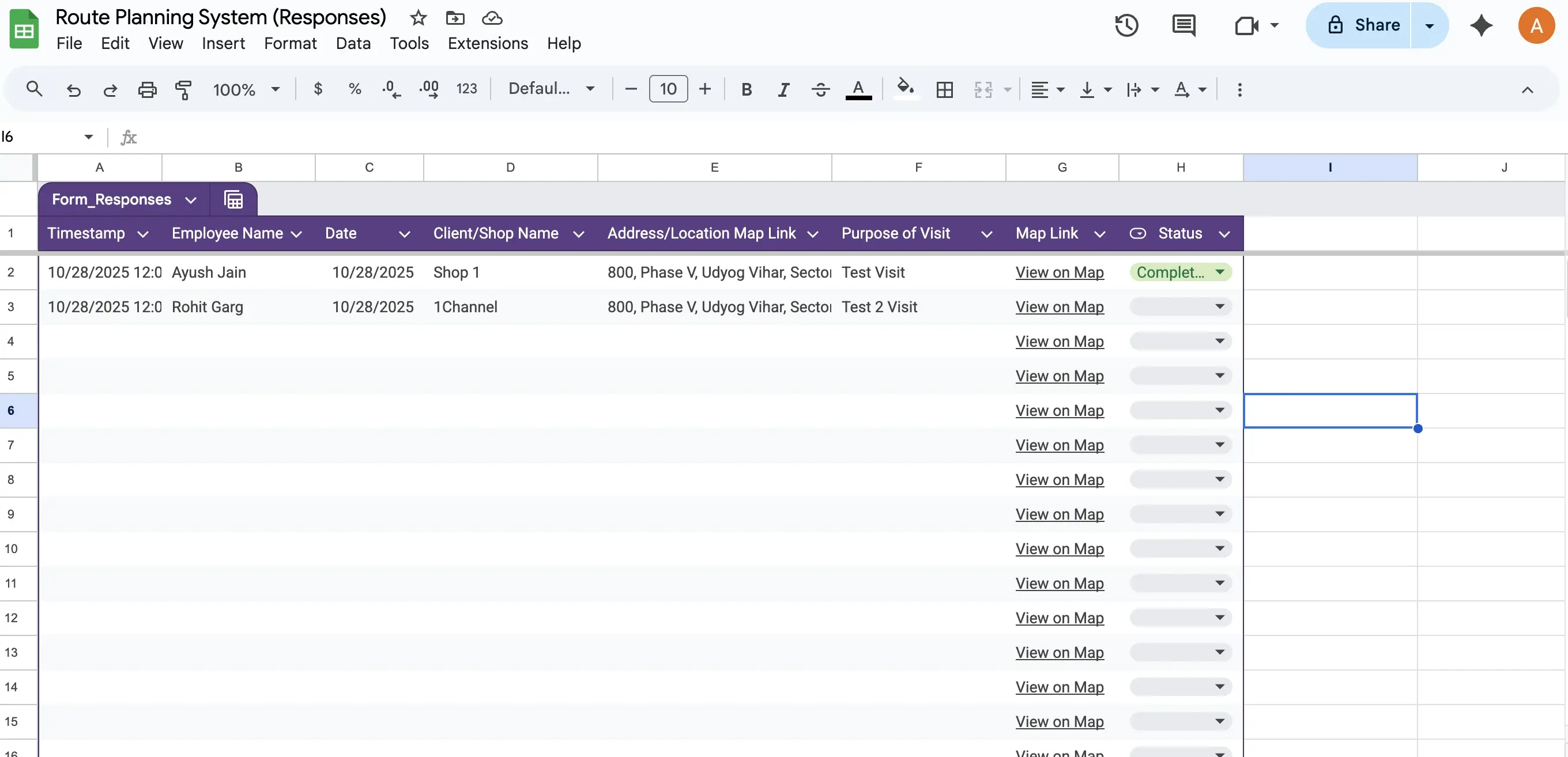
Once connected, every form submission flows into the sheet automatically. You will see columns for Timestamp, Employee Name, Date, Client Name, Address, and Purpose of Visit.
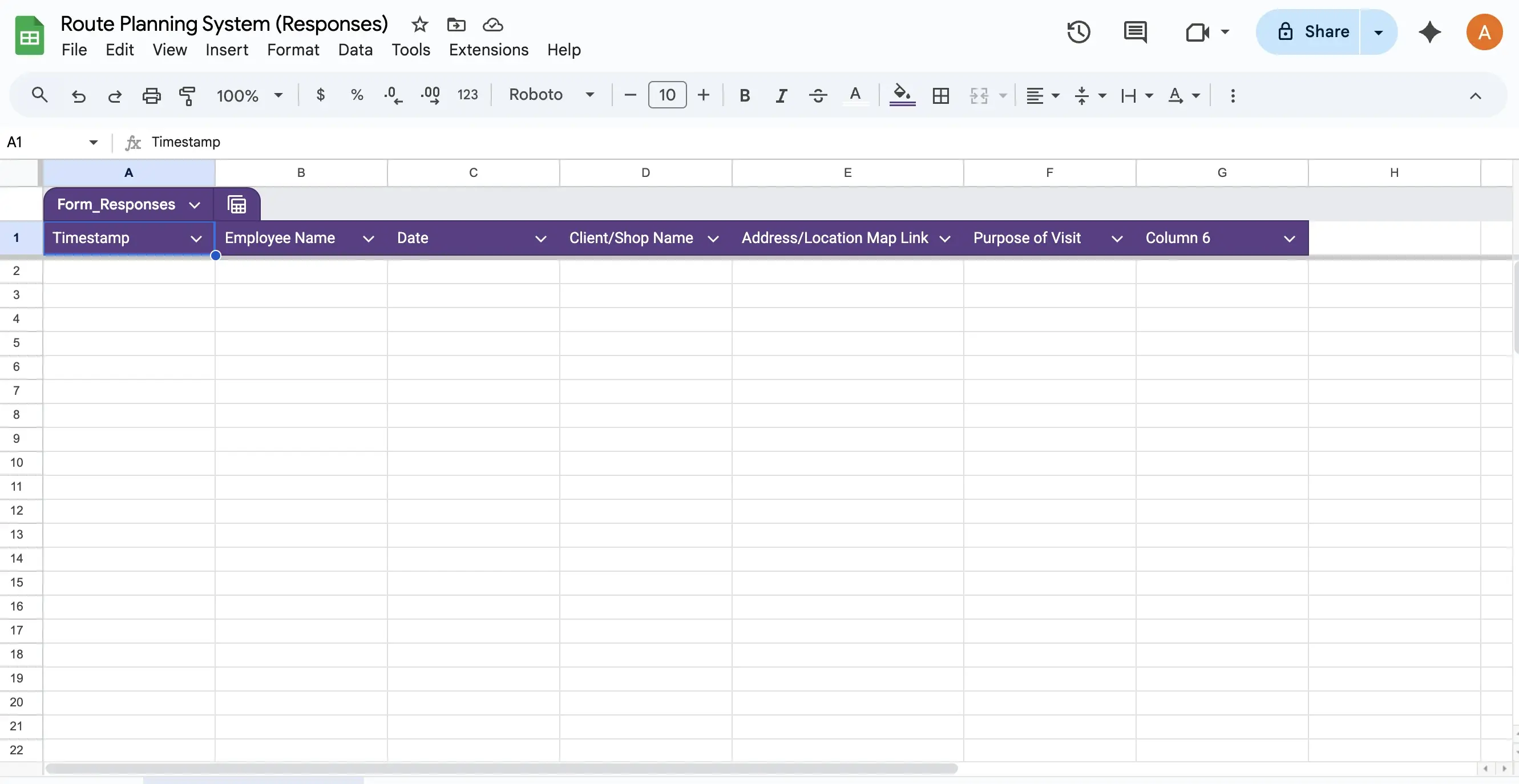
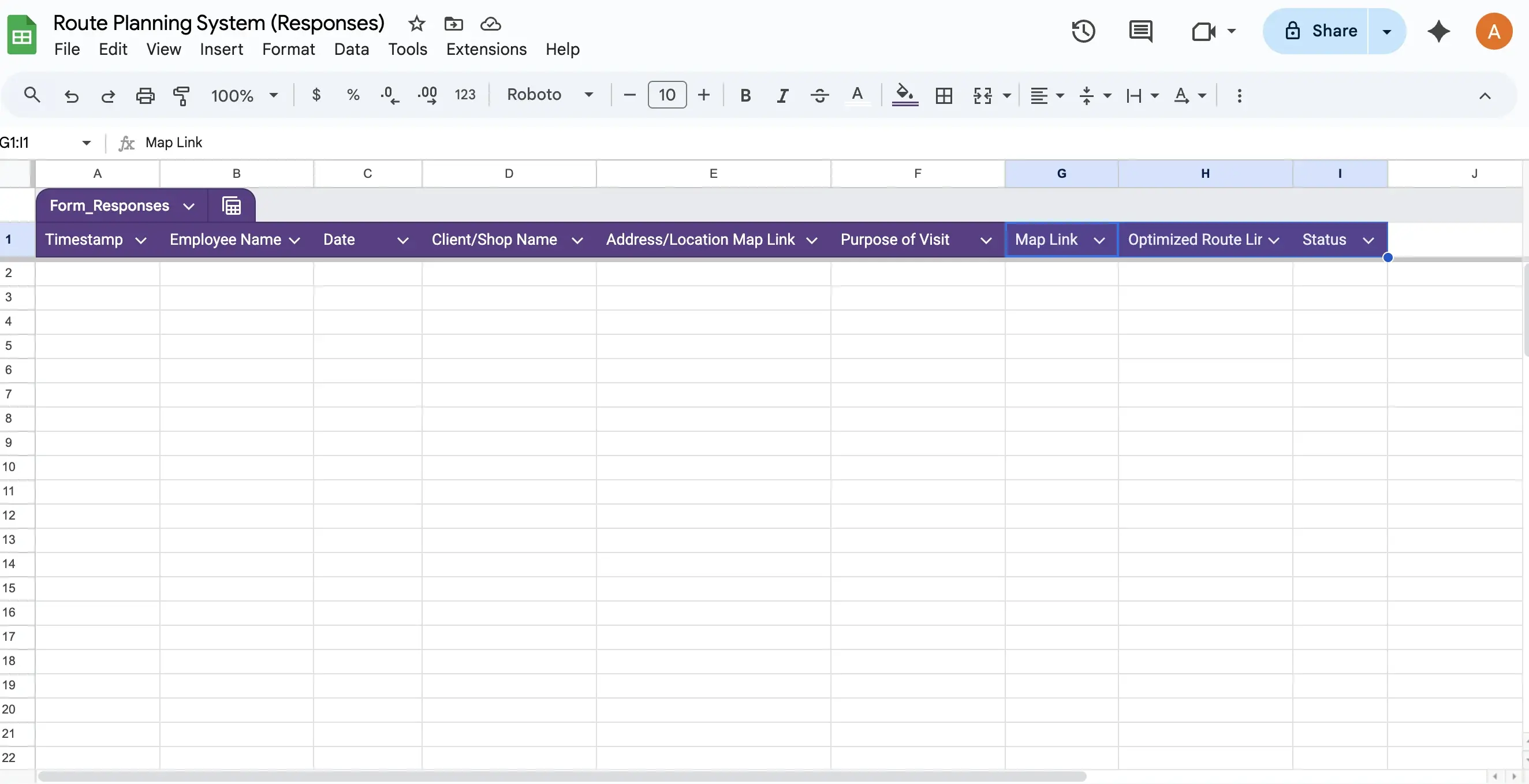
Step 6: Add tracking columns
Add three new columns to the right of the existing data: Map Link, Optimised Route Link, and Status. These columns turn the spreadsheet from a simple list of visits into a functional route planning tool.
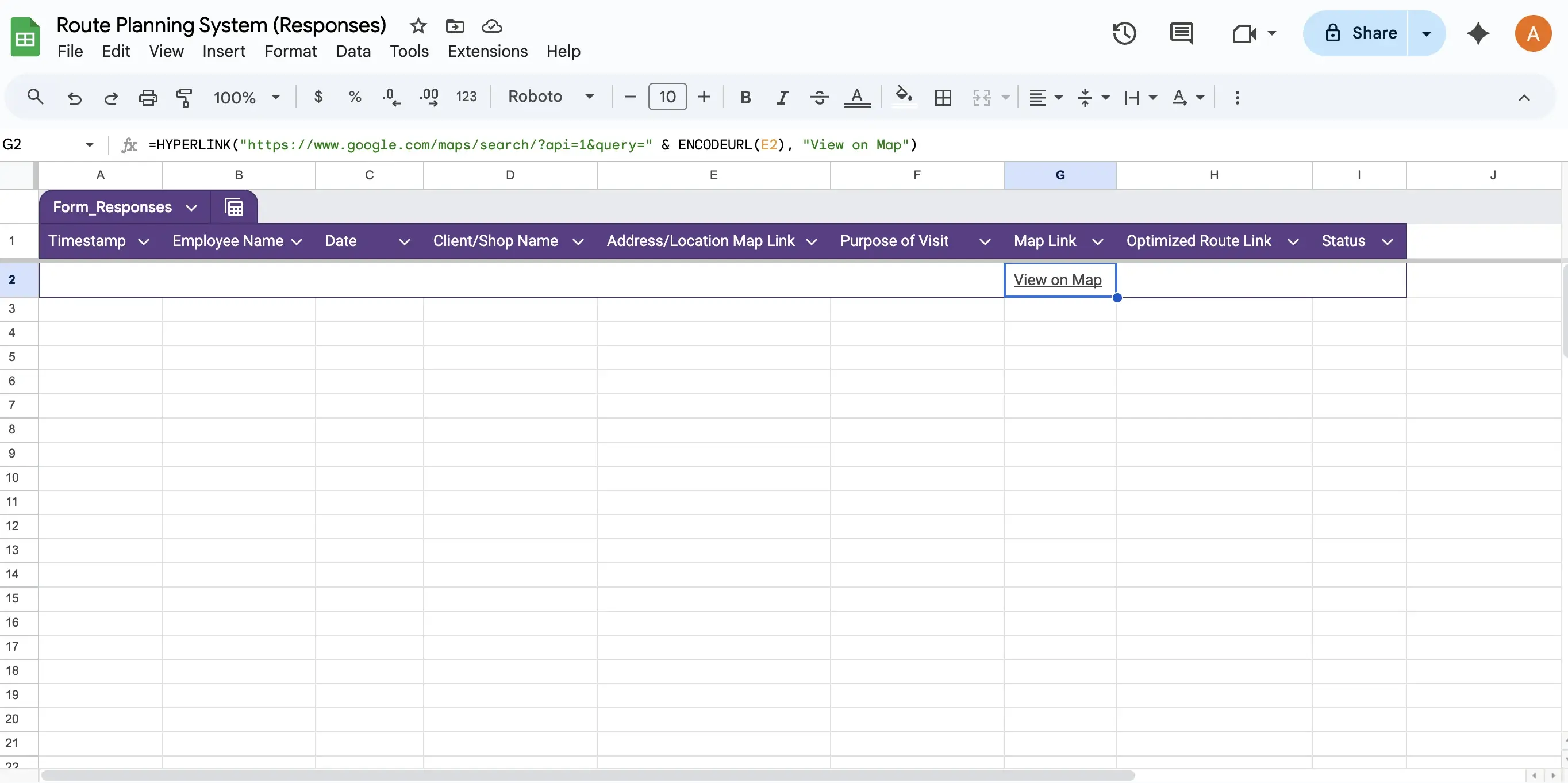
Step 7: Add the Map Link formula
In the Map Link column (G2), enter a HYPERLINK formula that generates a clickable Google Maps link from the address in each row. This uses the ENCODEURL function to convert the address text into a valid Maps search URL.

When applied, each row gets a clickable "Open in Maps" link that takes the field employee directly to the client's location with one tap on their phone.
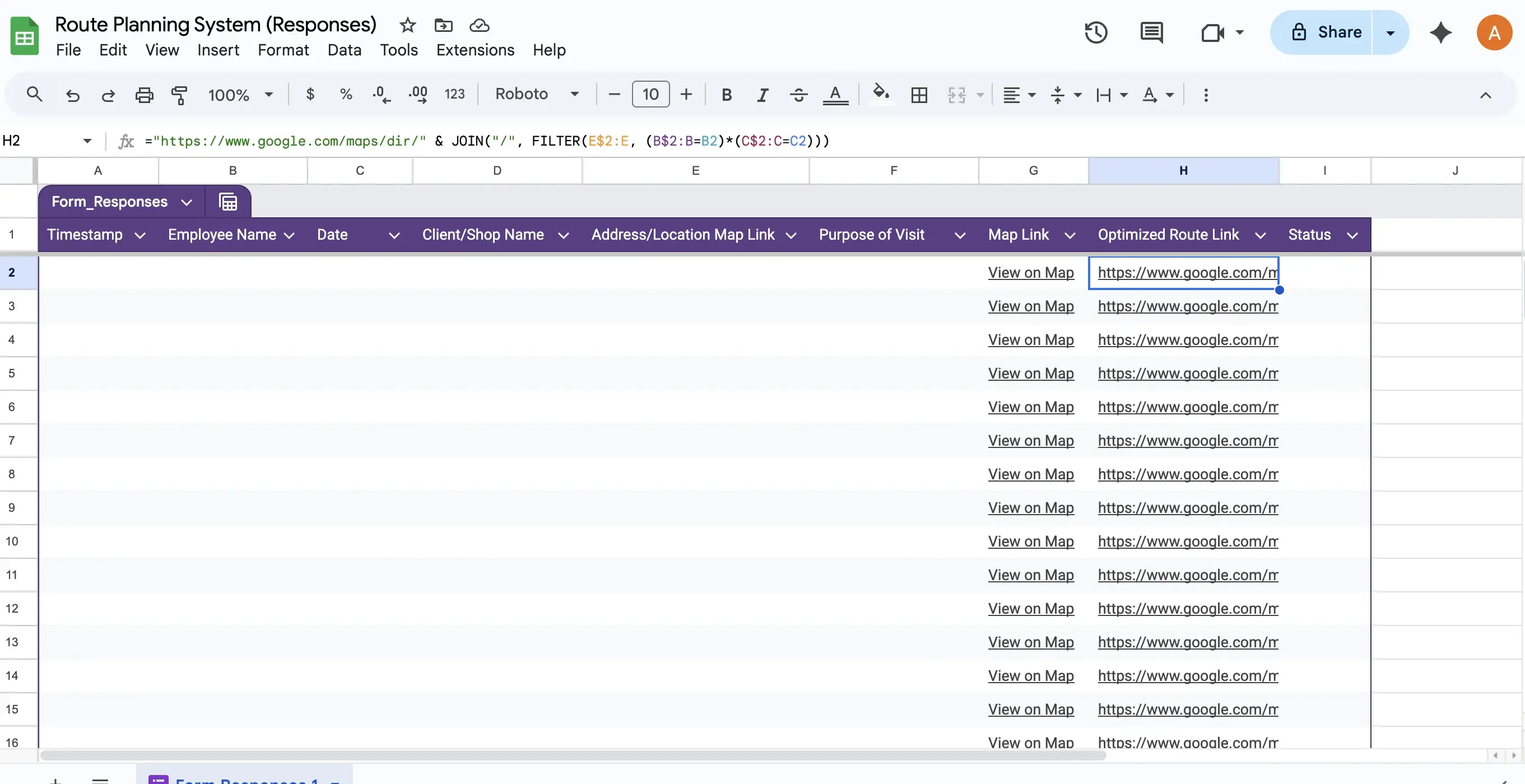
Step 8: Add the Optimised Route formula
In the Optimised Route Link column (H2), enter a formula that uses JOIN and FILTER functions to combine all addresses for a specific employee on a specific date into a single Google Maps directions URL. This generates a multi-stop route that the employee can open to see the most efficient driving sequence for all their visits that day.

For a delivery driver in Petaling Jaya with six stops, this one link shows the complete route in Google Maps with turn-by-turn navigation, saving them from manually entering each address separately.
Step 9: Add a status dropdown
Select the Status column, go to Data, then Data validation. Add a dropdown with options: To Do, In Progress, Completed. This allows both the field employee and the manager to update visit status directly in the shared sheet throughout the day.
Step 10: Test the system
Submit a test entry through the Google Form with a real address. Verify that the data appears in the sheet, the Map Link opens the correct location in Google Maps, and the Optimised Route Link generates a working multi-stop directions URL. Share the sheet with your team and you are ready to use it.
Where This System Works and Where It Does Not
Understanding the boundaries of this free setup helps you decide whether it fits your situation or whether you need something more capable.
Works well for: Small, predictable routes
A home cleaning service in Bangsar with five cleaners visiting three to four homes each day. The manager enters tomorrow's schedule through the form in the evening, and each cleaner opens their route link in the morning. The routes are relatively fixed, the team is small, and the volume is manageable. This setup handles it comfortably.
Starts struggling with: Dynamic, high-volume operations
An FMCG distributor in Selangor with 20 sales reps, each covering 8 to 12 outlets daily. Routes change based on stock levels, promotional schedules, and retailer requests. The manager would need to submit 200+ form entries every evening just to plan the next day, and adjusting a route mid-day means editing the spreadsheet while the rep is already in the field. The manual overhead becomes counterproductive.
Does not work for: Verification and compliance needs
A pharmaceutical company where medical reps visit clinics across Penang and the company needs GPS-verified proof that each visit actually happened, timestamped check-in and check-out records, and beat compliance reports showing plan versus actual. The Google setup cannot verify location, cannot prevent a rep from claiming a visit that did not happen, and cannot generate compliance reports. These requirements need a dedicated SFA platform with GPS tracking, geofencing, and automated reporting.
Need GPS-Verified Route Planning?
When spreadsheet-based routing is no longer enough, 1Channel's SFA platform provides automated beat planning, GPS-verified check-ins, geofencing, route analytics, and real-time compliance tracking.
Book a Free Demo →This free setup is a practical starting point for Malaysian small businesses that need route structure without software costs. It gives field employees a clear plan, clickable navigation links, and a shared status tracker. When the team grows beyond 10 people, when routes need to change dynamically during the day, or when you need GPS verification of visits, the transition to a dedicated platform like 1Channel's Sales Force Automation becomes the natural next step. Get in touch when you are ready.