Not every team needs Asana, Monday.com, or a paid project management tool from day one. If you are running a small operation, whether that is a five-person marketing agency in Damansara, a construction subcontractor in Johor managing site tasks, or a startup founder in Penang coordinating work across freelancers, you can build a functional task management system using free Google tools.
This guide walks through the complete setup using Google Forms, Google Sheets, and Google Calendar. No coding, no subscription fees. The system handles task assignment, status tracking, priority levels, due dates, and basic visual dashboards, all at zero cost.
This approach works best for teams managing up to 10 to 15 tasks per day. Beyond that volume, the manual nature of the system starts creating friction.
Table of Contents

What This Free Setup Gives You
- A task assignment form that managers use to create and assign tasks to team members with priority levels and due dates.
- An auto-updating spreadsheet where every task appears as a row with status tracking, completion dates, and comments.
- Visual status indicators using colour-coded conditional formatting so you can see task progress at a glance.
- Calendar integration for due date reminders so tasks do not slip through the cracks.
- Team collaboration through shared access where everyone can update their task status in real time.
- A simple dashboard chart showing task distribution across statuses for a quick overview of workload.
Step-by-Step Setup Guide
Step 1: Create a Google Form for task assignment
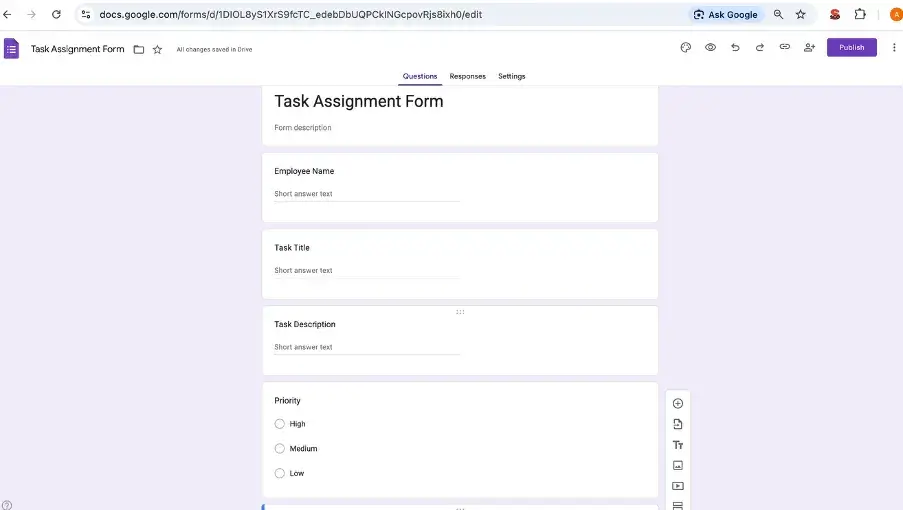
Go to Google Forms and click "Blank Form." Set the title as something clear like "Task Assignment Form" so your team knows its purpose. Add the following fields: Employee Name (short answer), Task Title (short answer), Task Description (paragraph), Priority (dropdown with High, Medium, Low), and Due Date (date picker).
This form becomes the entry point for all new tasks. Managers or team leads fill it out whenever they need to assign work. For a small digital marketing team in KL managing client deliverables, each new task, whether it is a social media campaign, a website update, or a client report, gets submitted through this single form.
Step 2: Connect the form to Google Sheets
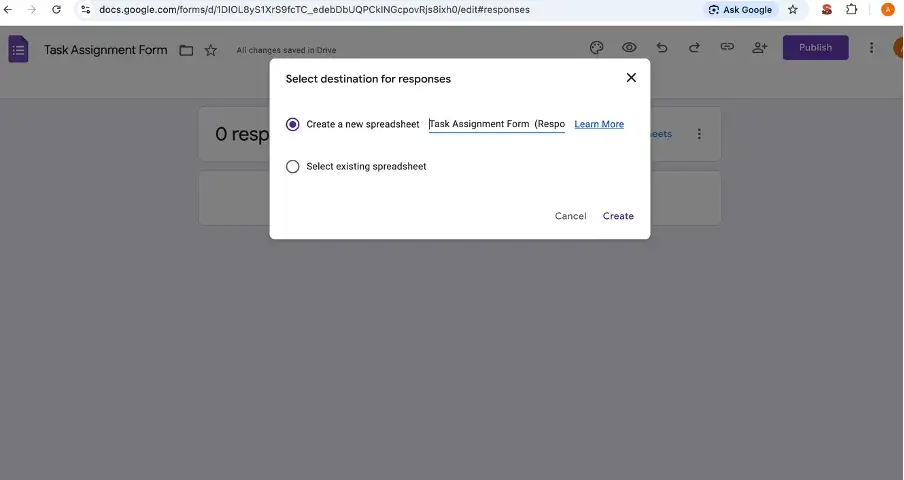
In the form, go to the "Responses" tab and click the green Sheets icon. Select "Create a new spreadsheet." Every task submitted through the form now automatically appears as a new row in this sheet.
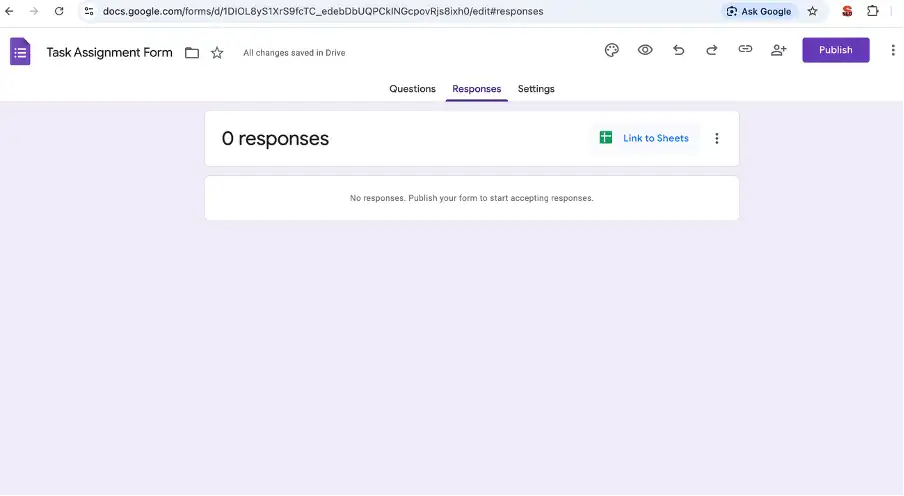
The linked spreadsheet stores all submissions with a timestamp, making it your central task repository.
Step 3: Add task tracking columns
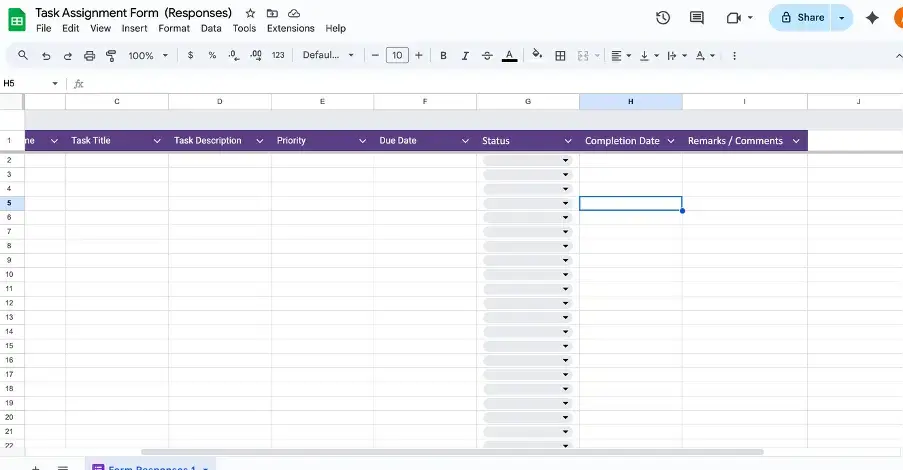
Once the sheet opens with form response columns, add three new columns to the right:
- Status with options: To Do, In Progress, Completed
- Completion Date to record when the task was actually finished
- Remarks for notes, blockers, or context about the task
These columns turn a flat list of assignments into a trackable task board. A property management company in Shah Alam assigning maintenance tasks to their team can now see which jobs are pending, which are in progress, and which have been completed this week.
Step 4: Add a dropdown for status tracking
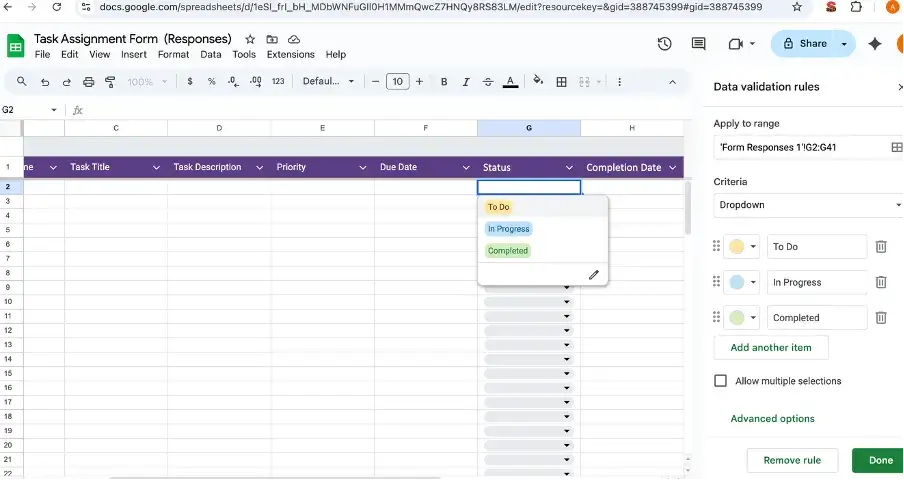
Select the Status column, go to Data, then Data validation. Choose "List of items" and enter: To Do, In Progress, Completed. This creates a dropdown menu in every row so team members select from consistent options instead of typing free text.
Step 5: Add conditional formatting for visual tracking
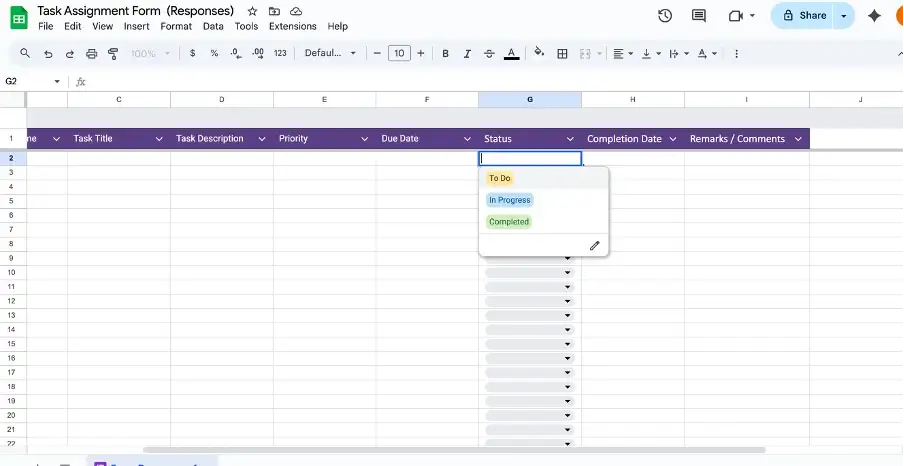
To make task status immediately visible, apply colour rules. Select the Status column, go to Format, then Conditional formatting. Set these rules:
- "To Do" highlights in yellow
- "In Progress" highlights in blue
- "Completed" highlights in green
Now when you open the sheet, you can instantly see which tasks need attention based on colour alone. This is especially useful when a team lead is reviewing 20 to 30 active tasks and needs a quick visual scan rather than reading every row.
Step 6: Set up calendar reminders for due dates
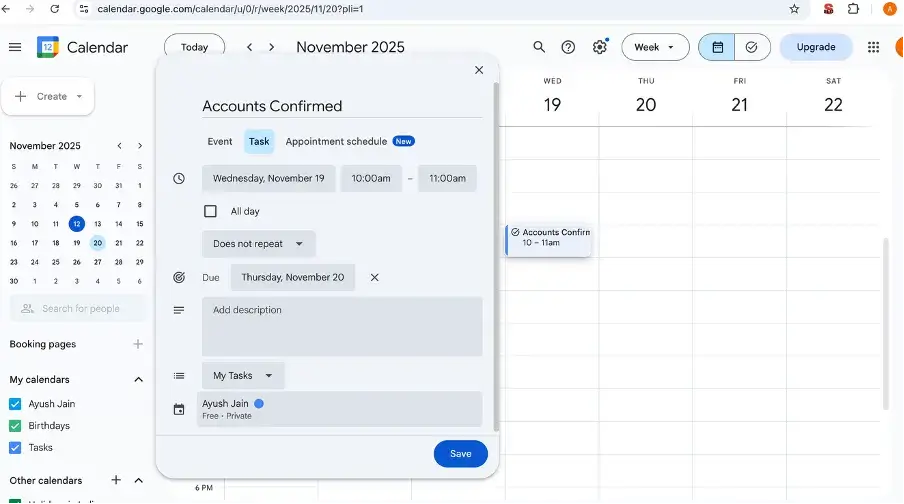
For tasks with firm deadlines, create matching events in Google Calendar. Open Google Calendar, click "Create," add the task name as the event title, and set the date to match the task's due date. Enable notifications so the assigned person gets a reminder before the deadline.
This step is manual but effective for high-priority tasks. An event planning company in Bangsar managing vendor deliveries for an upcoming corporate function can set calendar reminders for each vendor's submission deadline to ensure nothing arrives late.
Step 7: Share the task sheet with your team
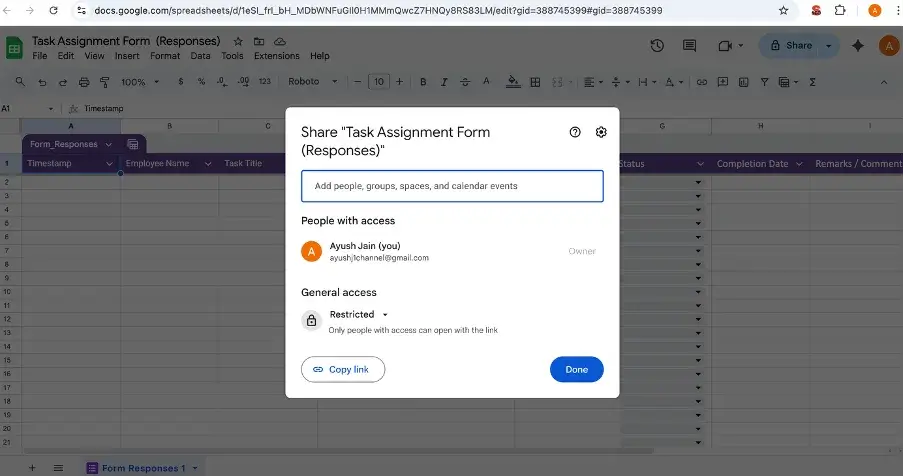
Click "Share" in Google Sheets and add your team members' email addresses. Give "Editor" access to people who need to update task statuses and remarks. Give "Viewer" access to stakeholders who only need to monitor progress without editing.
The entire team now works from a single shared tracker. A freelance web developer coordinating with a designer in Cyberjaya and a copywriter in Ipoh can all update their task statuses from their own devices.
Step 8: Create a simple progress dashboard
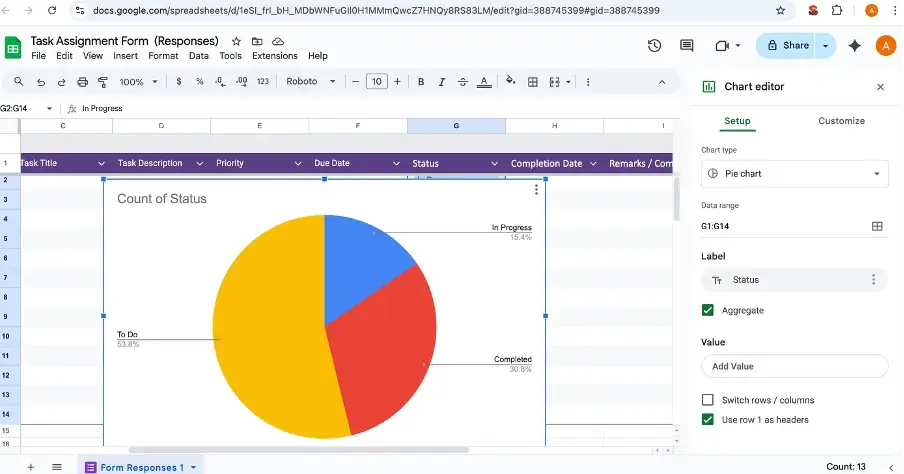
For a visual overview, go to Insert, then Chart. Select a pie chart or bar chart and set it to show the count of tasks by Status (To Do, In Progress, Completed). This gives you a snapshot of your team's workload and completion rate.
Updating the chart is automatic. As team members change task statuses in the sheet, the chart reflects the new distribution immediately.
What This Free Setup Cannot Do
The Google-based approach works for small teams and simple workflows, but it has real constraints you should be aware of before relying on it for anything complex:
- No automatic notifications. When a new task is assigned, the team member does not get an alert unless you manually tell them or set up Google Sheets notification rules.
- No task dependencies. You cannot set up relationships like "Task B cannot start until Task A is completed." Everything runs independently.
- No file attachments. You cannot attach documents, designs, or reference files directly to a task row. The workaround is pasting Google Drive links into the Remarks column.
- No activity history. There is no log showing who changed what and when. If someone accidentally deletes a row or changes a status, there is no audit trail beyond Google Sheets version history.
- Manual status updates. Team members must remember to open the sheet and update their task status. Unlike dedicated tools, there is no mobile notification prompting them to do so.
- Not suitable for complex projects. If your work involves multiple project phases, resource allocation across teams, time tracking, or budget management, this setup is too limited.
Who Should Use This Setup
This free system is well-suited for specific situations common among Malaysian small businesses:
Startups with small teams. A three-person SaaS startup in Cyberjaya tracking sprint tasks and feature requests. The simplicity of Google Sheets matches the speed at which small teams need to move.
Freelancers managing multiple clients. A freelance graphic designer in Subang Jaya juggling deliverables for five clients. Each client's tasks go into the sheet with priority and due dates, giving a single view of all active work.
Small service businesses. A pest control company in Klang with a team of six technicians. Each morning, the manager submits task assignments through the form, and technicians update completion status from their phones during the day.
Student or non-profit projects. University teams working on group assignments, or NGOs in Kuala Lumpur coordinating volunteer tasks for events. Free tools keep the cost at zero while providing enough structure for short-term projects.
Signs You Have Outgrown This Setup
The free system works until it does not. Here are the signals that it is time to move to a dedicated platform:
- Your team has grown past 10 people and the sheet is getting cluttered with too many rows and competing updates.
- You are spending more time managing the spreadsheet than doing actual work.
- Tasks are being missed because there are no automated reminders or escalation workflows.
- You need to track field activities like store visits, GPS attendance, or route compliance, which spreadsheets cannot handle.
- Multiple projects are running simultaneously and you need separate views, dashboards, and role-based access for each.
- Stakeholders are asking for reports that the spreadsheet cannot generate without significant manual effort.
When these friction points become daily issues rather than occasional inconveniences, a configurable SFA or CRM platform can take over task management while adding capabilities like automated assignment, mobile notifications, GPS-verified field activities, and real-time analytics.
Need More Than a Spreadsheet?
1Channel's configurable SFA and CRM platform handles task assignment, field activity tracking, GPS attendance, automated reporting, and team management for growing businesses.
Book a Free Demo →This free setup gives Malaysian startups, freelancers, and small teams a practical starting point for task management without spending anything. The important thing is to start with structure rather than no system at all, and then transition to a dedicated platform when the spreadsheet becomes a bottleneck rather than a tool. 1Channel's Sales Force Automation platform is designed for that transition. Get in touch when you are ready to explore your options.