Before any training module can be assigned, before any quiz can be taken, and before any session can be tracked, the people who will use the system need to exist in it. User management is the foundation of every LMS deployment. It determines who can access the platform, what they can see, and how their progress is tracked.
For a Malaysian company onboarding 50 new promoters across retail outlets in Selangor and Johor, user management is the first operational step. Each promoter needs to be added to the system with the correct role, assigned to the right level, and given access to only the training content relevant to their position. Without this structure, training becomes disorganised, progress tracking breaks down, and admins lose visibility into who has been trained and who has not.
This article explains how user management works in a sales team LMS and why getting it right matters for scaling training across distributed field teams.
Table of Contents
The Three User Types and What Each Can Do
The LMS supports three standard user types. Each type has different access levels and capabilities within the platform.
Admin
The admin has full control over the LMS. They create training modules, build quizzes, schedule sessions, manage user accounts, and access all analytics and reports. In a typical Malaysian deployment, the admin is the training manager or HR lead at the company's head office. They see the complete picture across all regions, all user levels, and all training activities.
Trainer
Trainers have access to session management and attendance features. They can conduct in-store sessions, mark trainee attendance with geo-tagged photos, and view the training schedule assigned to them. A product trainer visiting retail outlets across Penang to demonstrate a new air conditioner range uses the trainer login to check in at each store, mark which promoters attended, and capture photos as proof of training delivery.
Employee
Employees are the learners. They see only the modules, sessions, and quizzes assigned to their level. They mark attendance, complete training content, take quizzes, and view their own progress. A Level 0 promoter at an electronics outlet in Bangsar sees their assigned product knowledge modules and upcoming sessions. They do not see admin dashboards, trainer schedules, or content meant for higher levels.
These role types can also be customised based on a company's requirements. If a business needs additional roles such as Regional Training Coordinator or Channel Partner, those can be configured within the system.
Adding Users to the System
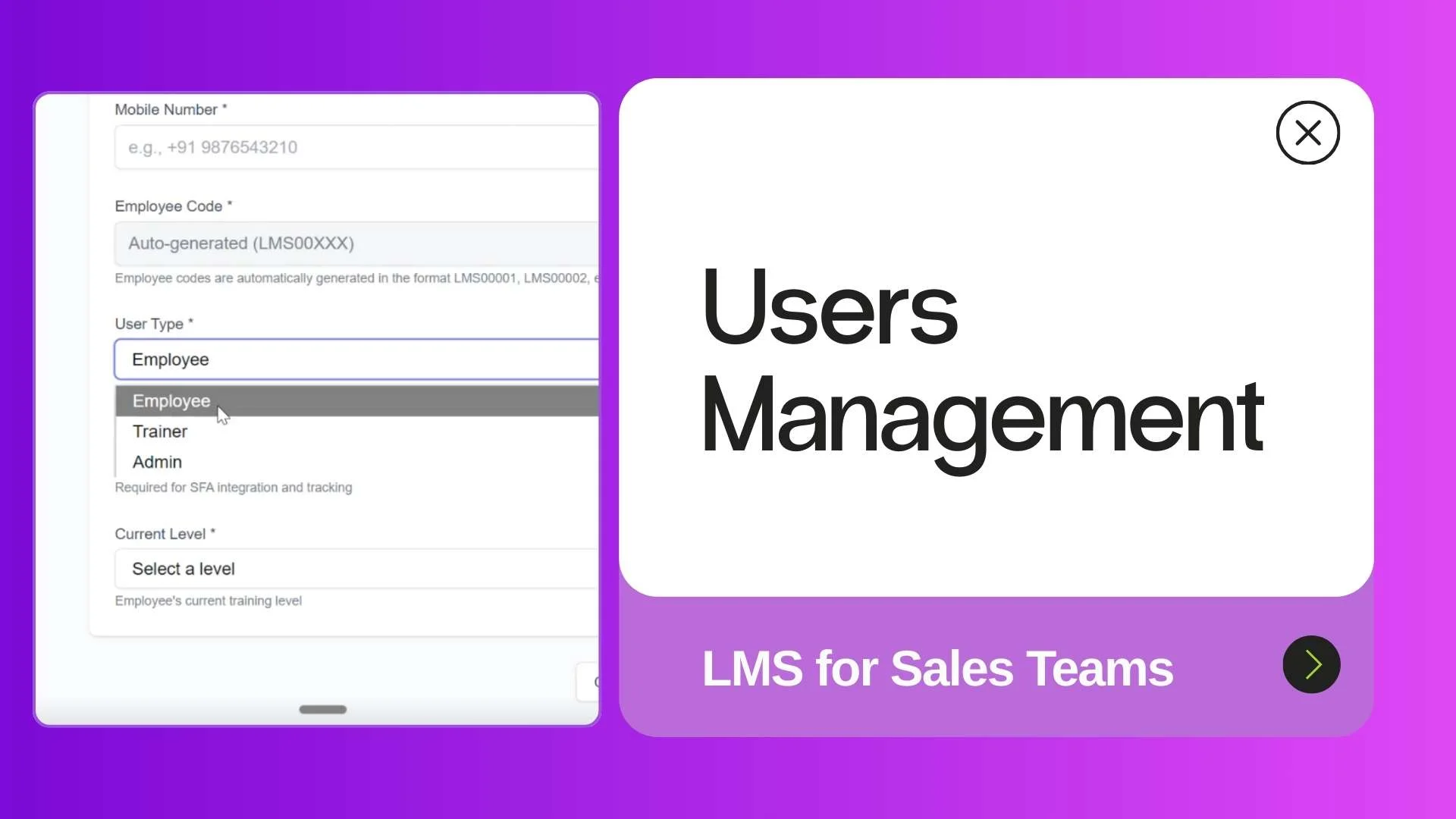
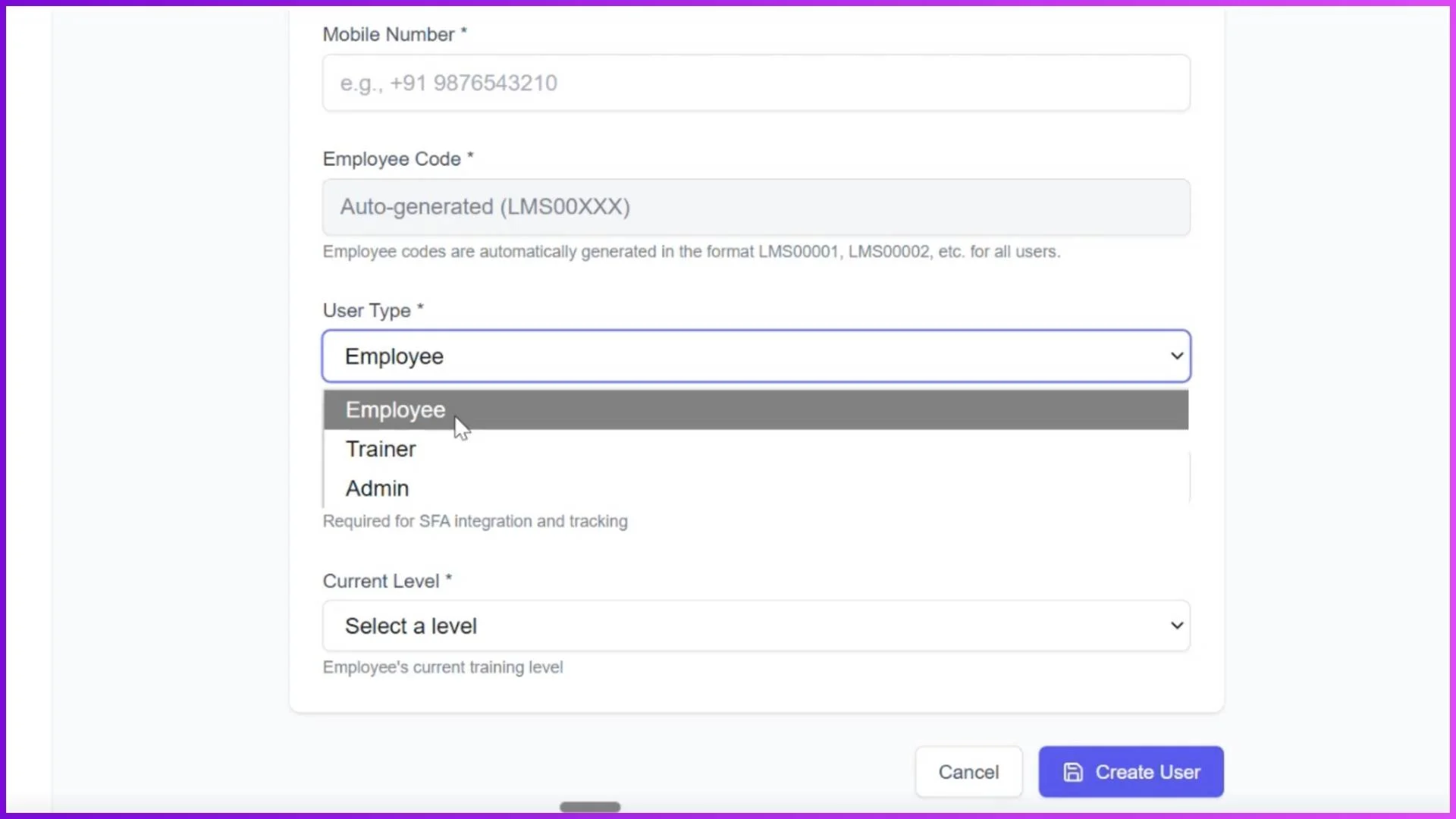
When adding a new user, the admin enters the essential details that the LMS needs to correctly route training content and track progress:
- Email address for login credentials and notifications.
- Full name for identification across reports and dashboards.
- Mobile number for app-based access and communication.
- Employee code for mapping to the company's HR or payroll system.
- User type (Admin, Trainer, or Employee) to define what the person can access.
- Current level to control which modules and quizzes are visible to this user.
Once these fields are filled in and the admin clicks "Create User," the person is immediately added to the LMS and can log in through the mobile app. For a training manager at a consumer goods company in KL adding a new batch of 10 promoters who start next Monday, this process takes a few minutes per person.
Bulk Upload for Large Teams
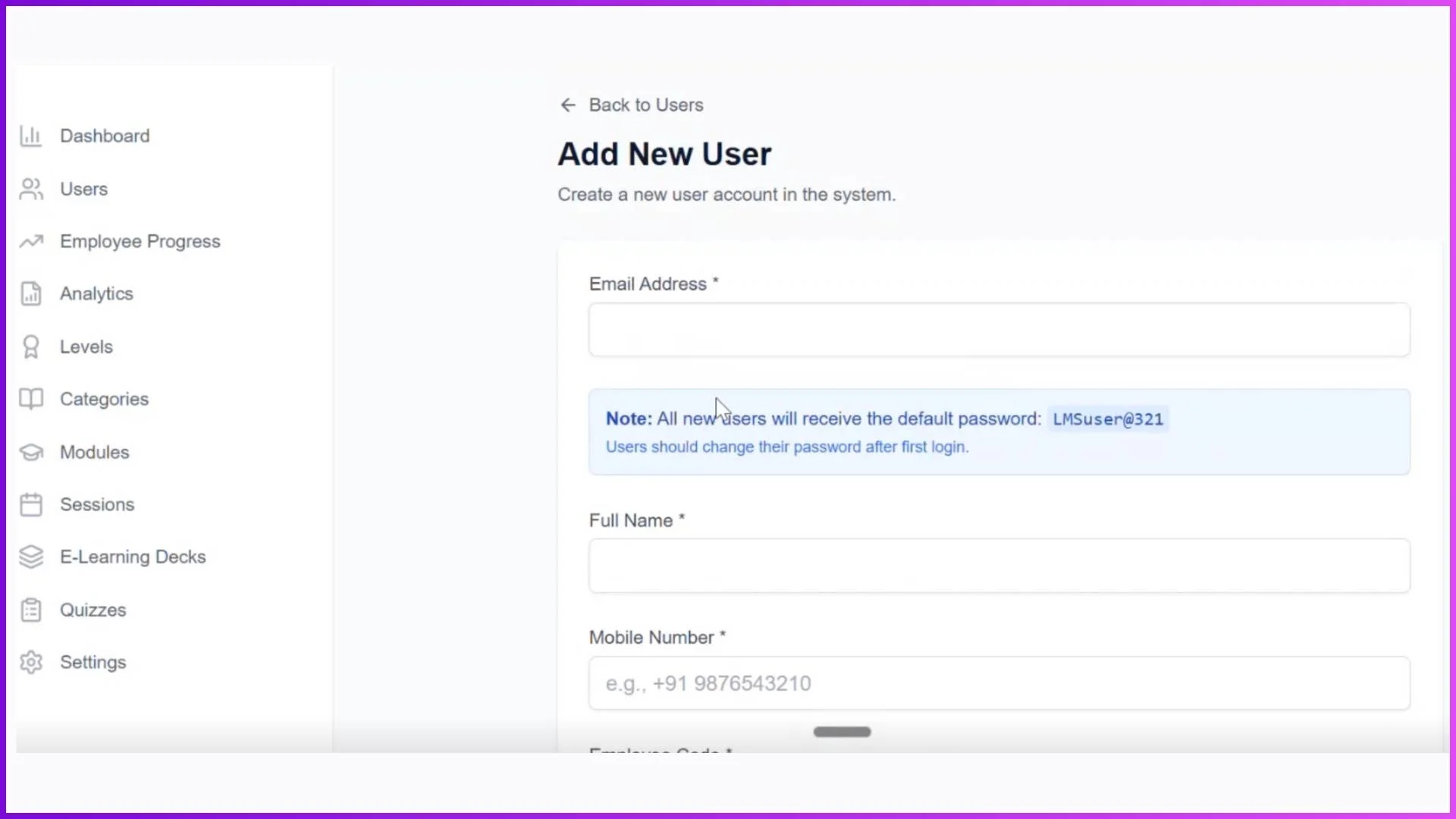
Adding users one by one works for small batches, but when a company needs to onboard 80 promoters across multiple states or add an entire channel partner team to the system, individual entry is too slow. The bulk upload feature solves this by allowing admins to upload a complete user list via an Excel template.
The admin downloads the template, fills in the required fields for all users (name, email, mobile, employee code, user type, and level), and uploads the completed file. All users are created simultaneously and appear in the system within seconds.
For a Malaysian FMCG company expanding into East Malaysia and hiring 30 new merchandisers for Sabah and Sarawak, the bulk upload means these 30 users can be added to the LMS on the same day they are hired, with the correct levels assigned so they immediately see their onboarding modules when they log in.
Exporting User Data for Audits and Reviews
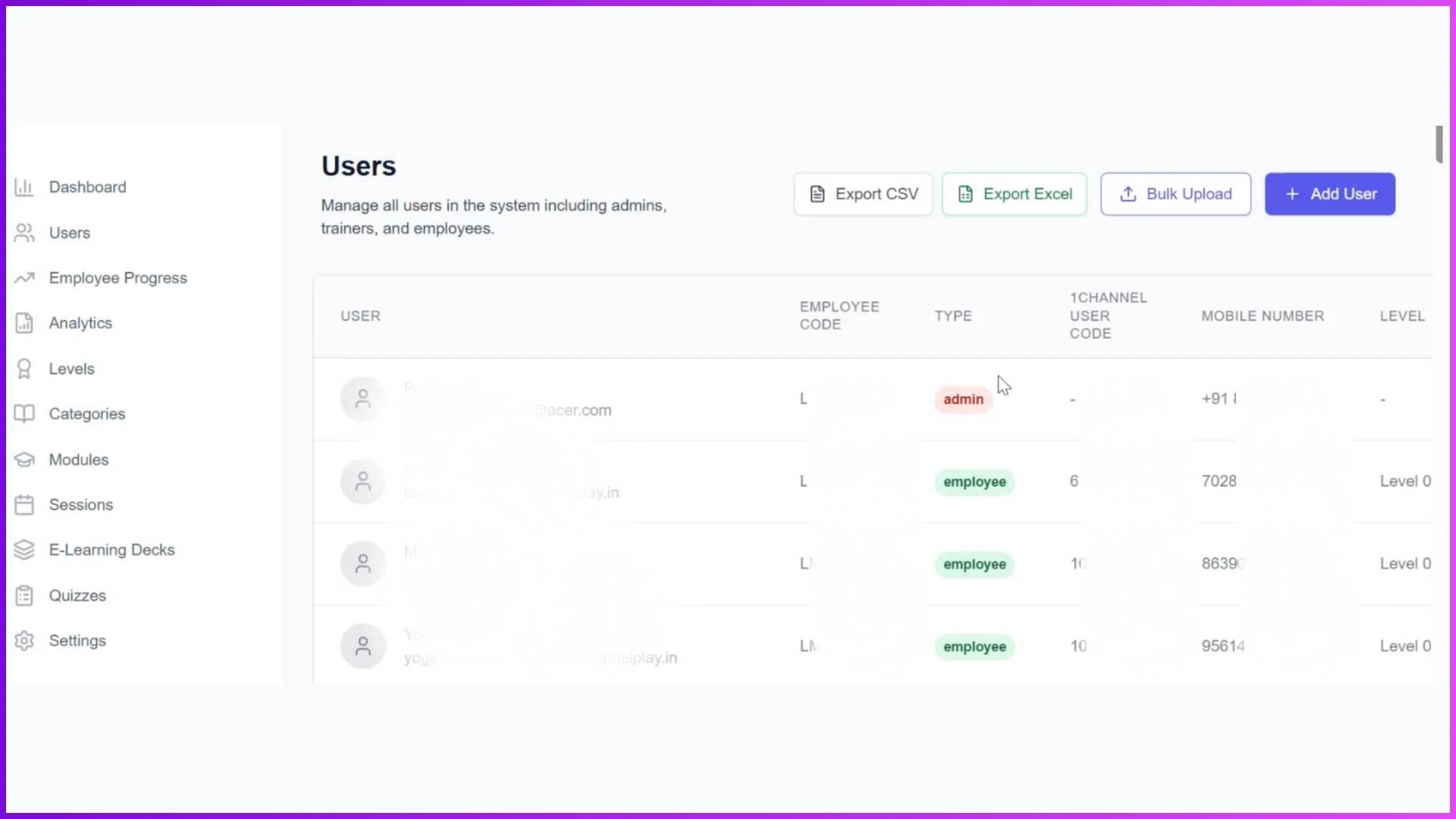
The LMS provides export options so admins can download the complete user database in CSV or Excel format. This is useful for several operational needs:
- Training audits: Verifying that all field employees are registered in the system and assigned to the correct levels.
- HR alignment: Cross-referencing the LMS user list with the company's HR records to ensure no one is missing from the training system.
- Reporting to management: Sharing user counts, role distribution, and level breakdowns with regional managers or leadership teams who do not have direct LMS access.
- Compliance documentation: For industries like pharmaceuticals where training records need to be maintained for regulatory purposes.
How the Three User Roles Compare
This separation ensures that each person interacts with the LMS in a way that matches their responsibilities. A trainer does not need to see user management tools. An employee does not need access to analytics dashboards. The admin sees everything because they are responsible for the entire training operation.
Explore Sales Team LMS
1Channel's LMS platform supports role-based user management with individual and bulk onboarding, level-based access, and exportable user data for field sales teams of any size.
Explore LMS Software →User management is the operational layer that makes everything else in the LMS work. Without correctly added users, modules have no audience, sessions have no attendees, and quizzes have no takers. For Malaysian businesses scaling field sales training across multiple states and hundreds of employees, getting this foundation right from day one ensures that every subsequent training activity is targeted, trackable, and accountable. Get in touch to explore how LMS user management can work for your team.