A training ladder earns trust only when everyone can see the rule that moves a person up it.
Across Oman, brands field promoters, merchandisers and trainers in Muscat hypermarkets, Sohar baqalas and Salalah outlets, and readiness for a bigger role is often judged from memory.
This post explains how a field LMS builds that rule: the level ladder, the three promotion criteria, and what the manager and the employee each see.
It matters most for FMCG, retail and modern trade, consumer durables, and pharma and healthcare teams that train staff across many outlets at once.
Why Promotion by Memory Stalls a Growing Team
When readiness is an impression, two employees with the same record can get different answers.
The manager notices the problem late, the employee sees it as unfair, and nobody can point to the number that decided it.
A written rule removes the argument, as long as the system measures it and acts on it automatically.
How the Level Ladder Works
Every employee starts at Level 0 and holds exactly one level at a time, moving up one step when that level's criteria are met.
Levels are created up front and can carry a custom nickname, such as Beginner or Proficient. Each level also has its own badge.
Modules are tagged to one level, so a Level 1 module stays hidden from an employee still at Level 0.
The Three Promotion Criteria
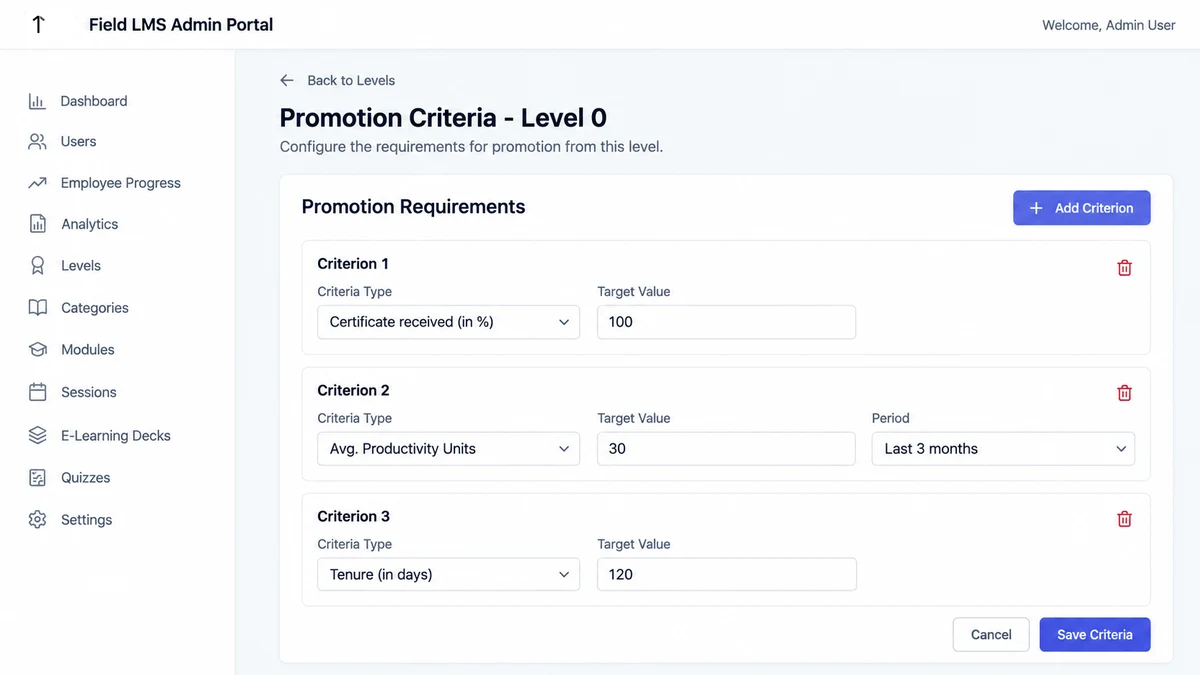
Admins attach criteria to each level from a fixed set of three. The set is closed, so they choose from it and do not invent new types.
| Criterion | What it measures | Example target |
|---|---|---|
| Certificate received (in %) | The share of required certificates the employee holds | 100% |
| Avg. productivity units | Average productivity units over a set lookback period | 30 units over the last 3 months |
| Tenure (in days) | Days spent at the current level | 120 days |
Promotion is automatic once an employee satisfies every criterion configured for the current level.
Certificates are an optional feature enabled per client, so that criterion applies where certificates are in use.
Two Promoters, One Rule
Take two promoters at Level 0 in a Muscat hypermarket.
The Level 0 rule asks for 100% certificates, an average of 30 productivity units over three months, and 120 days of tenure.
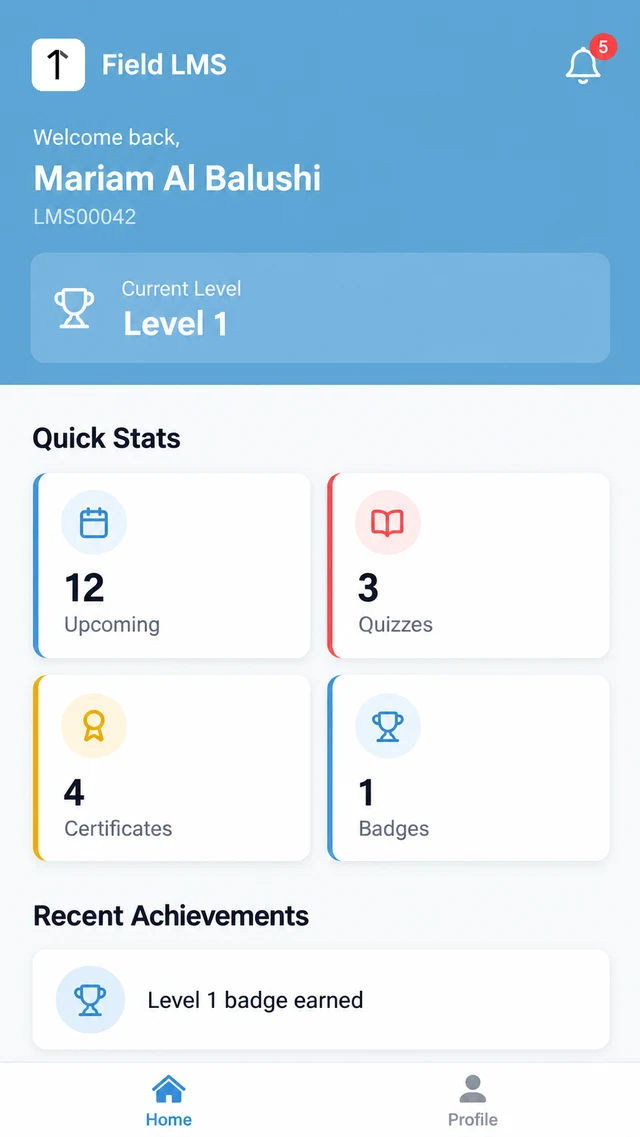
Mariam holds every certificate, averages 34 units and has 131 days in the role.
All three targets are met, so she moves to Level 1 and her Level 1 modules appear in the app.
Khalid has the certificates and 140 days, but averages 24 units, so he stays at Level 0.
His promotion status shows how close he is, which tells his manager exactly where to coach.
What Managers and Employees See
On the Employee Progress screen, managers see total employees, how many are eligible for promotion, average completion and average attendance.
Each row shows the current level, module progress as X of Y with a bar, achievements, and a promotion status with a percentage complete.
Filters by name, code or level narrow the list, and the roster exports to CSV or Excel.
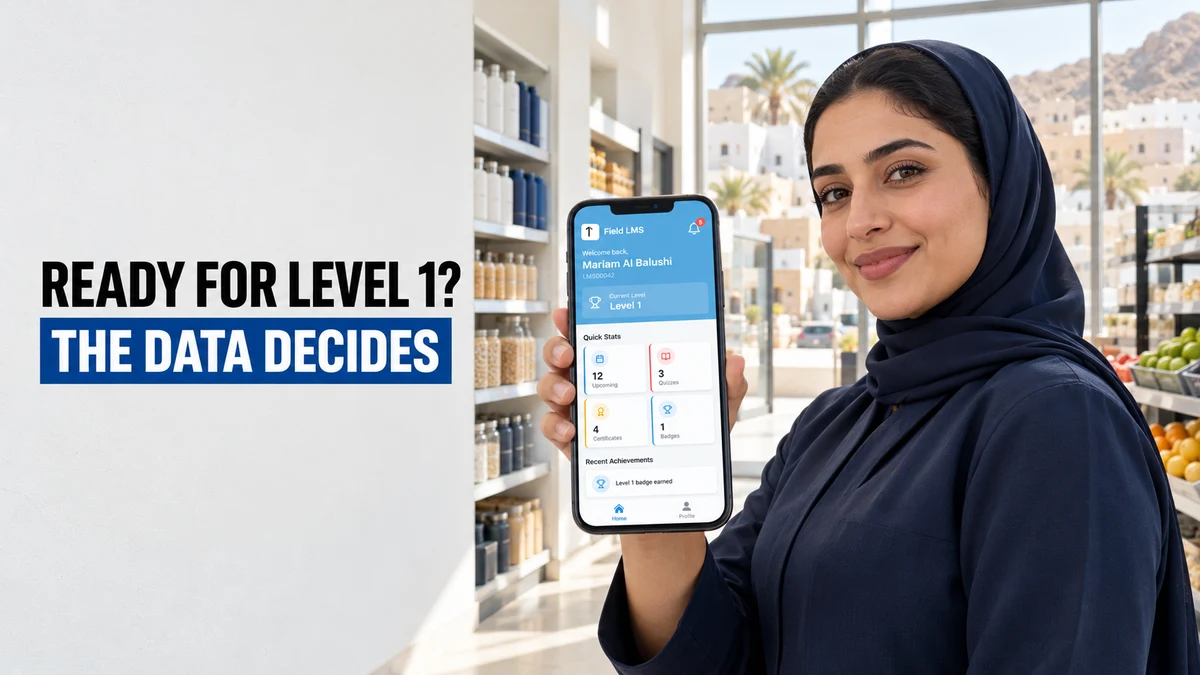
Employees see their current level, certificates and badges on the home screen of the same app that delivers their training.
Figures on screen are illustrative; each client's levels, targets and criteria are configured to its own training plan.
How 1Channel Moves a Promoter Up the Ladder on Evidence
1Channel's Field LMS ties levels, quizzes, certificates and productivity targets into one rule set that runs on its own.
A promoter's level changes when the data says so, so managers spend their time coaching the people who are close to the next step.
Set the Promotion Rule Once, Apply It to Every Outlet
See how levels, criteria and progress tracking work together for field training teams across Oman.
Explore the Sales Team LMS →Implementation Snapshot
- Define the level ladder from Level 0 upwards, with a nickname for each level where it helps.
- Tag every training module to one level.
- Attach criteria to each level and set a target value for each one.
- Assign quizzes by level, so each group takes only what fits its stage.
- Review the eligible-for-promotion count on the Employee Progress screen.
Note: Software screens may vary based on your business structure and configured workflows.