A shelf tag in a large UAE supermarket used to carry one number that mattered to shoppers.
Since 2 January 2025, it has to carry two: the selling price and a price per standard unit of weight or volume.
This post gives merchandising teams a six-point checklist for those tags and a free spreadsheet to log each aisle.
It also shows where the manual version stops working, and what a scored audit app changes.
The checklist suits teams keeping shelves in order for brands in FMCG, retail and modern trade, cosmetics and personal care, and pharma and healthcare.
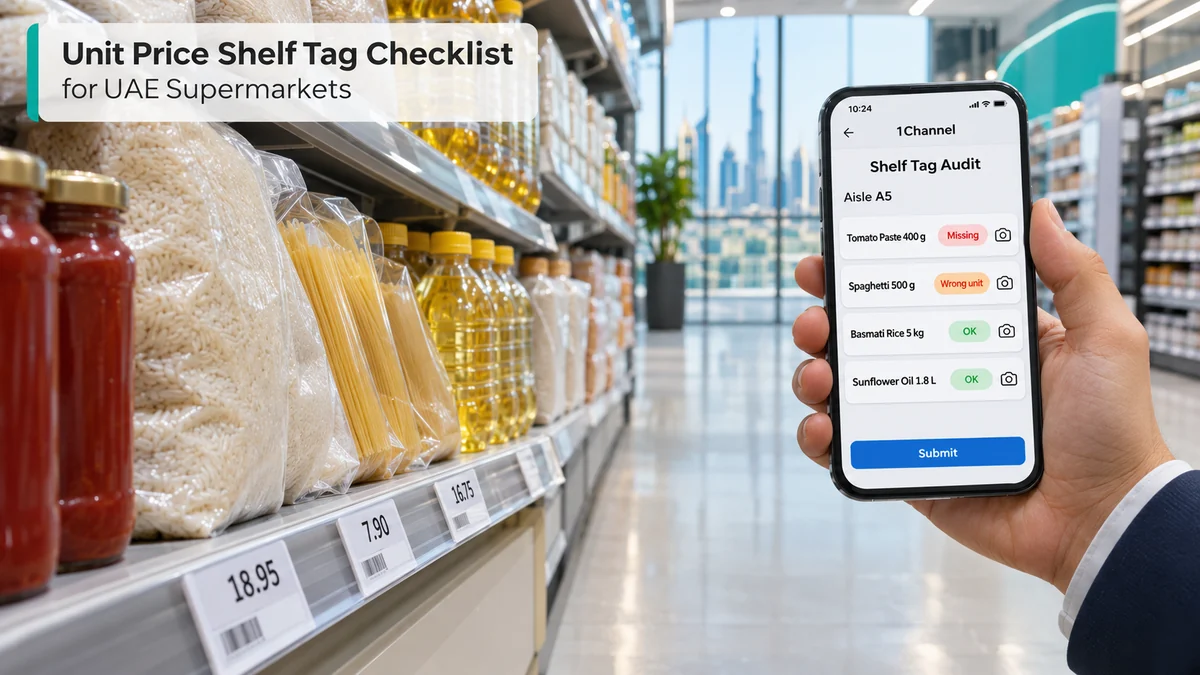
What the Unit Price Rule Asks of a Shelf Tag
Decision No. 245 of 2024 applies to retail stores and online merchants with premises of more than 1,000 square metres.
They must show a unit price, meaning the price for a single unit of weight or volume, using standardised units for each product.
The aim is easy comparison.
A shopper should see that a 5 kg bag of rice works out at AED 6.50 per kilogram without doing the division at the shelf.
Shoppers can complain about a store that does not follow the rule, so a missing figure is a compliance gap, not just an untidy shelf.
Brand and agency merchandisers who maintain these shelves are often the first to see a wrong tag.
Exact label formats are for each retailer and its advisers to confirm. This checklist covers what a field team can see and record.
The Six-Point Shelf Tag Checklist
Run these six checks on every tag in the aisle, in this order. The first check a tag fails is the one you record.
| # | Check | What a fail looks like |
|---|---|---|
| 1 | Is there a unit price on the tag? | Only the selling price is printed |
| 2 | Is it per a standard unit? | A price per pack on a product sold by weight or volume |
| 3 | Does the figure add up? | Unit price is not the selling price divided by the size |
| 4 | Is the tag under the right item? | Tag sits under a neighbouring size or variant |
| 5 | Can a shopper read it? | Tag hidden by a shelf strip, torn or faded |
| 6 | Is every fail photographed? | A failed tag logged with no photo reference |
Logging the Checklist in a Free Spreadsheet
EtherCalc is a free web spreadsheet that opens without an account.
Each sheet lives at its own web address, and anyone with the link can view and edit it. That makes it quick to share with a field team.
It also means the link has to stay private. Use item descriptions and store codes only, never staff or customer details.
Checks 1 and 2: Record the Tag as You Find It
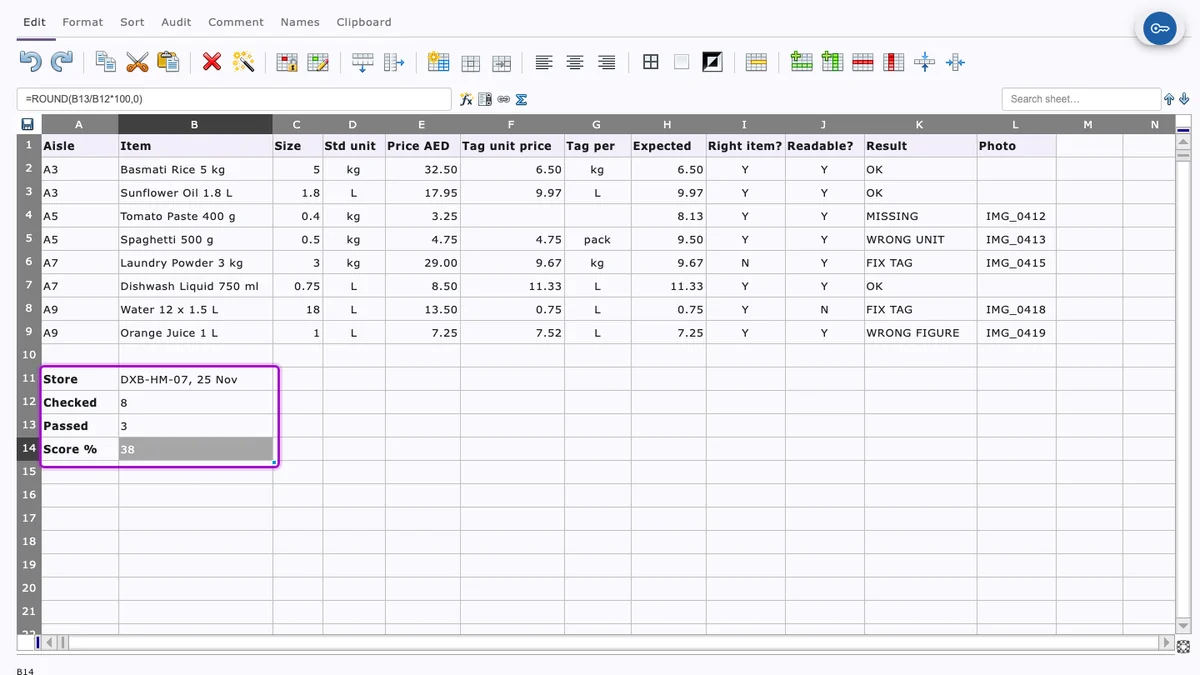
Set up twelve columns: Aisle, Item, Size, Std unit, Price AED, Tag unit price, Tag per, Expected, Right item?, Readable?, Result and Photo.
Write the size in the standard unit, so 400 g becomes 0.4 and 750 ml becomes 0.75. Leave Tag unit price blank when the tag shows none.
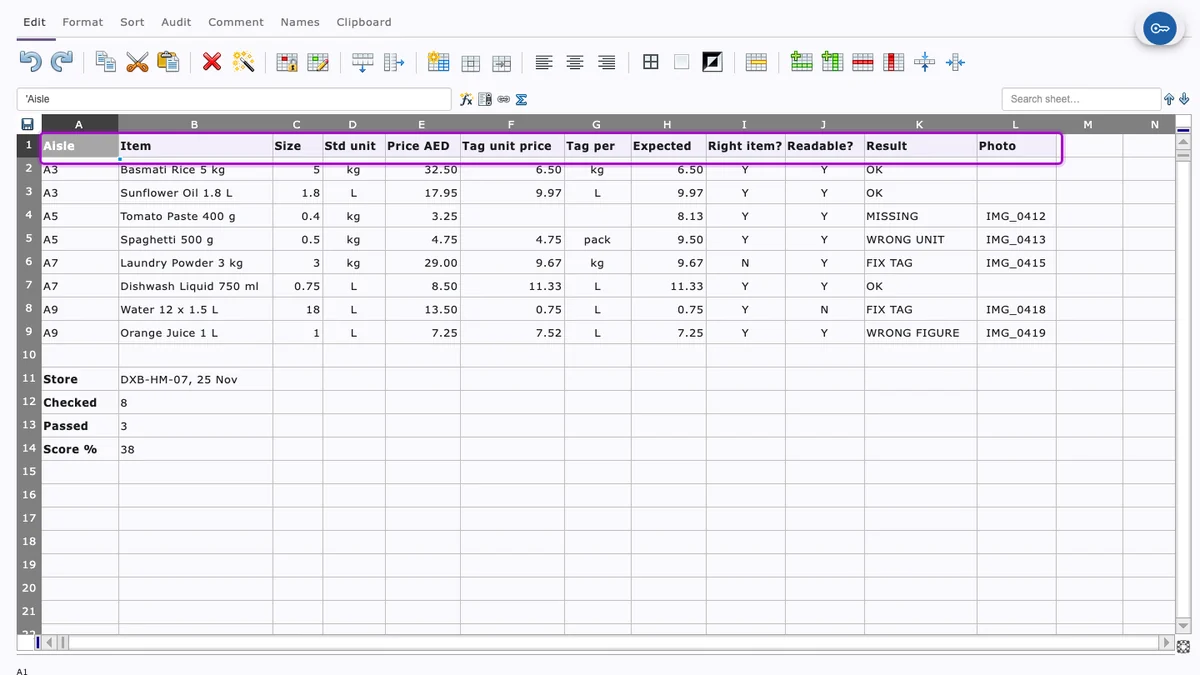
Copy Tag per exactly as printed: kg, L, pack or blank. That one column is what catches a tag priced per pack.
Check 3: Let the Sheet Do the Division
In Expected, enter =ROUND(E2/C2,2) and copy it down. It divides the selling price by the size and rounds to the nearest fils.
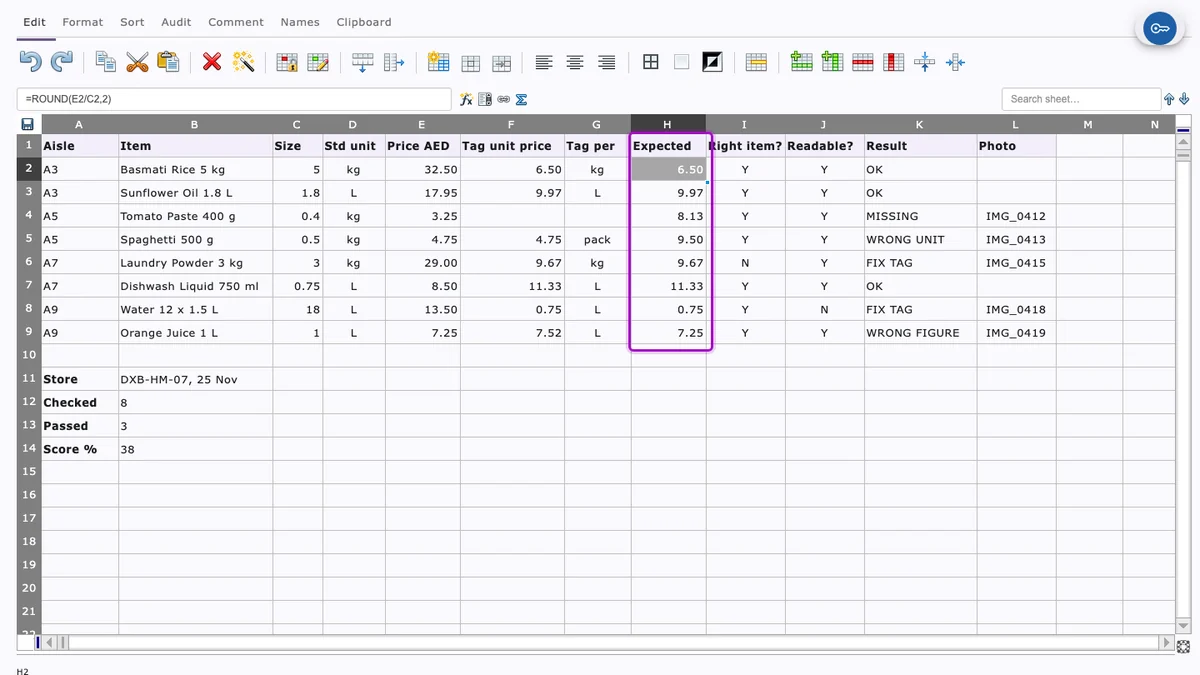
Spaghetti 500 g at AED 4.75 should read AED 9.50 per kilogram. The tag in this example shows 4.75 per pack instead.
Checks 4 to 6: Turn Every Line Into One Result
Mark Right item? and Readable? as Y or N. Then add this formula in Result and copy it down:
=IF(F2="","MISSING",IF(G2<>D2,"WRONG UNIT",IF(ABS(F2-H2)>0.01,"WRONG FIGURE",IF(OR(I2="N",J2="N"),"FIX TAG","OK"))))
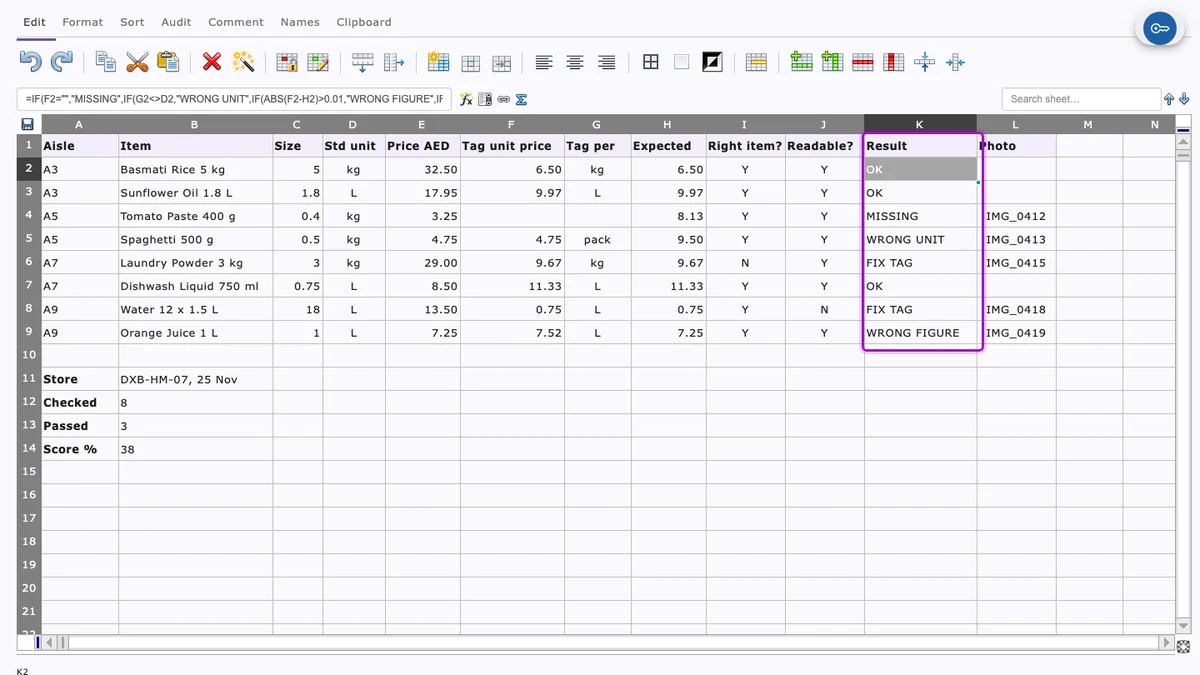
Each line gets the first fail it meets. For every line that is not OK, type the phone photo's file name in Photo.
Score the Store Visit
Below the list, count tags checked with =COUNTA(B2:B9) and tags passed with =COUNTIF(K2:K9,"OK").
The score is =ROUND(B13/B12*100,0). Save one sheet per store visit, named with the store code and date.
What One Dubai Store Visit Turned Up
In this illustrative visit to store DXB-HM-07, three of the eight tags checked across four aisles passed, a score of 38%.
| Item | Result | What the tag needs |
|---|---|---|
| Tomato Paste 400 g | MISSING | A unit price of AED 8.13 per kg |
| Spaghetti 500 g | WRONG UNIT | AED 9.50 per kg, not 4.75 per pack |
| Laundry Powder 3 kg | FIX TAG | Moving back under the 3 kg pack |
| Water 12 x 1.5 L | FIX TAG | Clearing the shelf strip that hides it |
| Orange Juice 1 L | WRONG FIGURE | AED 7.25 per L, not 7.52 |
The merchandiser hands this list to the store team with the five photos. The same sheet is reopened on the next visit to see what was corrected.
Where the Spreadsheet Checklist Falls Short
- Photos live elsewhere. They stay in the phone gallery, tied to a line only by a typed file name.
- One sheet per visit. Comparing stores or regions means merging dozens of sheets by hand.
- It needs a live connection. Entries wait when the signal drops deep inside a large store.
- No login. Anyone with the link can edit, so a changed figure cannot be tied to a named person.
- No review before the score. A typo in a size changes the result, and nobody checks it before the score is shared.
- A fail is just a row. Nothing assigns the fix to anyone or records when it was done.
How 1Channel Turns the Checklist Into a Scored Audit
VisiMax, 1Channel's app for retail maintenance, visual merchandising and store audits, turns the same six checks into an audit template built once in the portal.
Sections and questions can carry weights, the template carries a passing score, and audits are assigned by store and auditor.
Number questions can take minimum and maximum rules, which helps catch a mistyped size.
| Spreadsheet gap | In VisiMax |
|---|---|
| Photos in the gallery | Photo questions filled in store, inside the audit |
| Sheets merged by hand | Score summary, regional summary and store-to-store comparison by category |
| Needs a live connection | Offline first: photos and forms are saved on the phone and synced later |
| No login | A login for each user, with roles and permissions that set what each person sees |
| No review before the score | Quality check on every answer: correct a value, mark it compliant or not, then approve, reject or send back |
| A fail is just a row | Findings raise tickets on approval, with no retyping |
Each audit can be exported as a PDF with photos, or every submission in one sheet. The app is multi-language, configured to the client's requirement.
Hold Every Shelf Tag to One Audit Score
See how 1Channel runs scored store audits with photos, quality checks and store-to-store comparison across the UAE.
Explore Store Audit and Compliance →What This Looks Like in Practice
A merchandising agency covering hypermarkets in Dubai and Sharjah walks the same aisles every week.
With the spreadsheet, each visit ends as one more sheet and a folder of photos.
With a scored audit, each visit ends as a score that sits beside every other store's, with the failed tags, their photos and the follow-up in one place.
Note: Since the manual method was only tested once, consult a technical expert before running bulk operations.