Managing large volumes of data is a common challenge in any Sales Force Automation (SFA) system. Whether it's users, products, stores, or stock details, manual entry can be time-consuming and error-prone. This is where bulk master data upload with validations becomes a critical feature in an SFA tool.
In this blog, we'll explore how bulk uploads work, where they are used, and how validations ensure accuracy along with practical examples for each aspect.
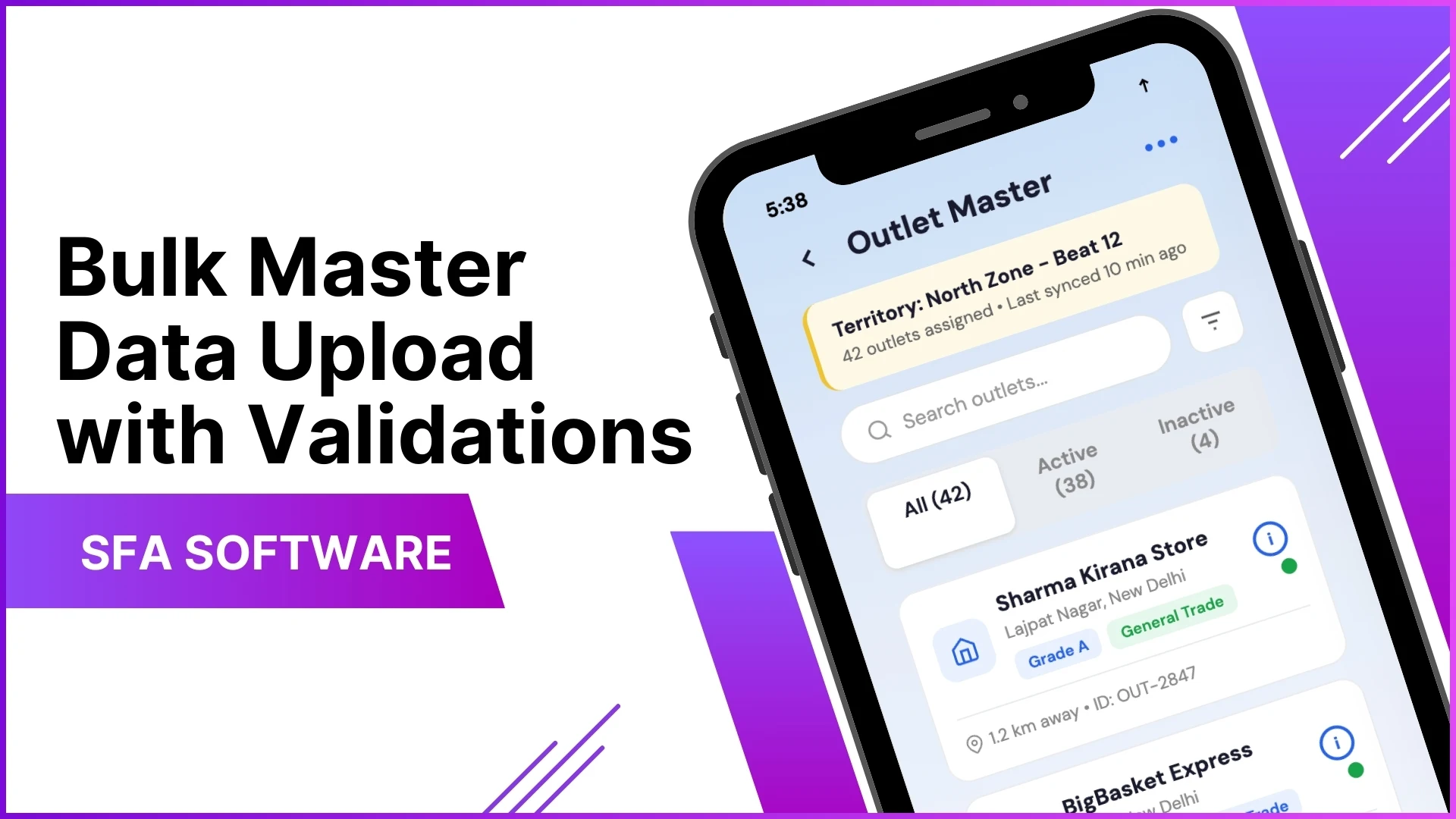
What is Bulk Master Data Upload in an SFA Tool?
Bulk master data upload allows administrators to upload large datasets into the system using structured files (typically Excel). Instead of creating entries one by one, data can be uploaded in a predefined format, saving time and effort.
Example:
An admin needs to onboard 500 new field employees.
Instead of manually creating each user, they can:
- Download the predefined Excel format
- Fill in employee details (code, name, role, city, etc.)
- Upload the file
- All users are created in one go
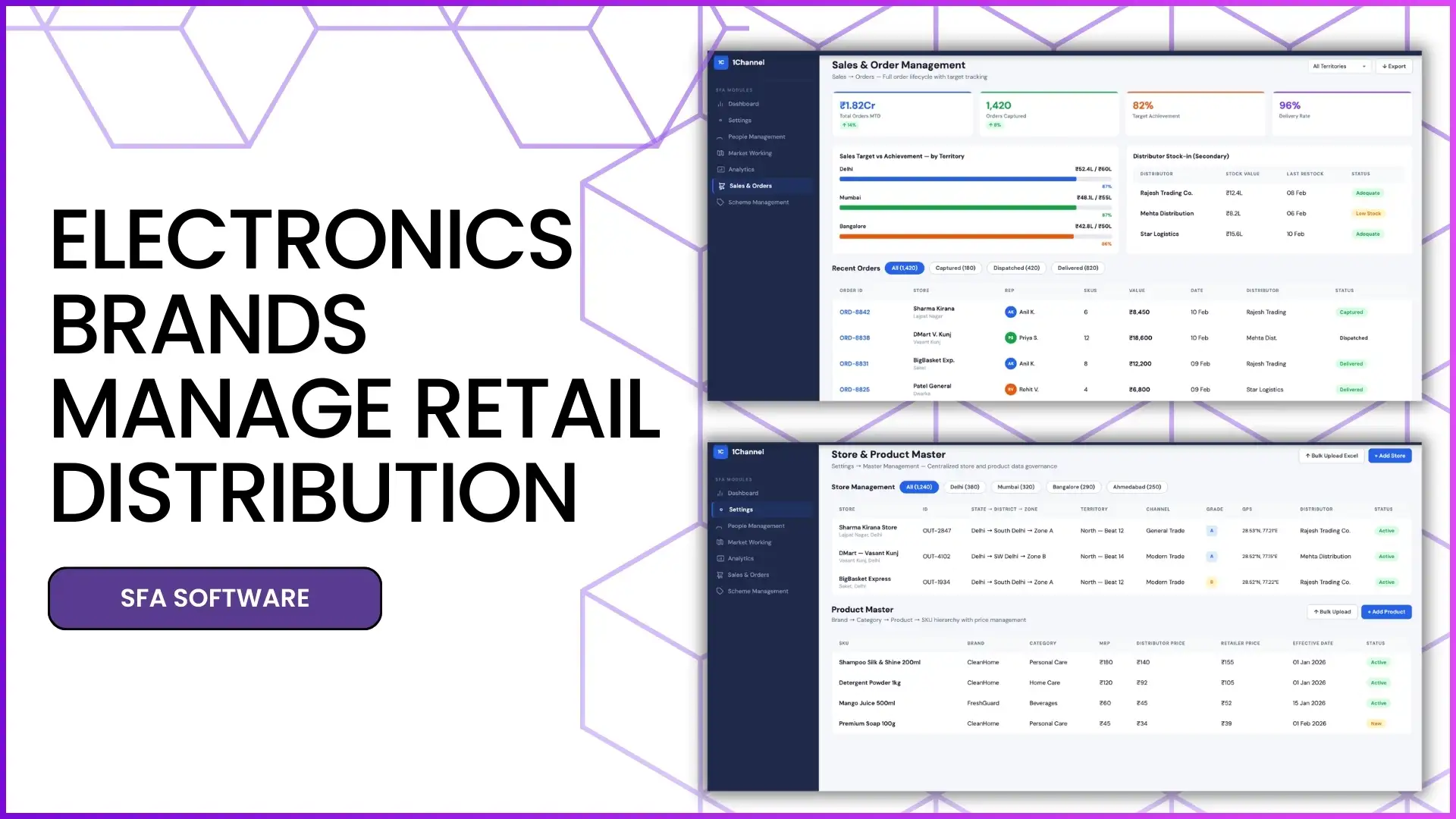
Streamline Store Data Management
1Channel Store Management Software enables businesses to efficiently manage retail locations with bulk upload capabilities, GPS mapping, store classification, territory assignment, and real-time data synchronization for complete operational visibility.
Explore Store Management Software →Where is Bulk Upload Used in the SFA Tool?
Bulk upload functionality is available across multiple modules in the system:
1. User Management
Admins can:
- Upload User Master (bulk user creation)
- Assign roles and hierarchy after upload
Example:
A company expanding into new cities uploads:
- 200 sales representatives
- Assigns them to respective managers using hierarchy mapping
2. Product Management
Bulk upload helps in:
- Creating product master data
- Uploading SKUs and pricing
Example:
A brand launches 50 new SKUs:
- Admin uploads all SKU details (code, category, price) via Excel
- System updates product catalog instantly
3. Store Management
Admins can:
- Upload store master data
- Map stores to users
- Upload store GPS coordinates
Example:
A retail chain adds 300 outlets:
- Uploads store details in bulk
- Assigns each store to a field representative
- Sets geofencing for each location
4. Distributor Management
Bulk upload is used for:
- Distributor master data
- Distributor-store mapping
- Distributor stock upload
Example:
A company adds multiple distributors:
- Uploads distributor list
- Maps each distributor to relevant stores
5. Sales & Stock Upload
Admins can upload:
- Store-wise stock data
- SKU-level inventory details
Example:
A manager uploads stock details:
- Fields include Store Code, SKU Code, Serial Number
- System reflects current inventory for reporting
6. Market Visit Plans
Bulk upload options include:
- Upload Market Visit Plan
- Upload by store, user, or distributor
Example:
A weekly plan is created:
- Monday: Store A, B
- Tuesday: Store C, D
- Uploaded in one file for all employees
How Bulk Upload Works in the SFA Tool
The process typically follows these steps:
- Download Format
- Predefined Excel template is provided
- Fill Data
- Enter required fields like codes, names, attributes
- Upload File
- Select file and upload into the system
- Data Processing
- System reads and inserts records
Example Workflow:
- Admin downloads SKU upload format
- Adds 100 products
- Uploads file
- Products are instantly available in the system
Importance of Validations in Bulk Upload
Bulk upload without validation can lead to incorrect or inconsistent data. The SFA tool ensures validations at multiple levels.
Key Validation Areas:
1. Mandatory Fields
Certain fields must be filled before upload.
Example:
- User Code or Store Code cannot be empty
- Upload fails if missing
2. Data Format Validation
Ensures correct data type and structure.
Example:
- Date fields must follow proper format
- Numeric fields like price cannot contain text
3. Mapping Validation
Ensures relationships between data are correct.
Example:
- Store must be mapped to an existing user
- Distributor must exist before mapping
4. Duplicate Check
Prevents duplicate entries.
Example:
- Same SKU Code uploaded twice → system flags error
5. Hierarchy Validation
Maintains reporting structure integrity.
Example:
- Employee must be assigned to a valid reporting manager
Benefits of Bulk Upload with Validations
1. Time Efficiency: Upload thousands of records in minutes.
2. Data Accuracy: Validations ensure clean and reliable data.
3. Scalability: Supports growing business needs.
4. Standardization: Predefined formats ensure consistency.
5. Reduced Manual Errors: Minimizes human intervention and mistakes.
Common Use Case Scenario
A company is onboarding a new region:
- Uploads:
- 150 users
- 500 stores
- 20 distributors
- 200 SKUs
- Applies validations:
- Ensures correct mapping
- Avoids duplicate entries
- Maintains hierarchy
Result:
- System is fully configured within hours instead of days
How 1Channel SFA Enhances Bulk Data Upload?
1Channel SFA tool provides a robust framework for bulk master data upload with strong validation mechanisms.
Key Highlights:
- Predefined Excel formats for all modules
- Bulk upload across users, stores, products, and stock
- Validation checks for accuracy and consistency
- Easy mapping of hierarchy and relationships
- Flexible configuration based on business needs
This ensures that businesses can scale operations quickly while maintaining data integrity.
Scale Operations with Validated Data Uploads
1Channel Sales Force Automation delivers comprehensive bulk upload capabilities with predefined Excel templates, multi-module support, real-time validation checks, duplicate prevention, hierarchy management, and automated data processing to ensure accuracy and efficiency at scale.
Explore Sales Force Automation →FAQs
1. What file format is used for bulk upload?
Excel files with predefined formats are used for uploading data.
2. Can bulk upload be done for multiple modules?
Yes, bulk upload is supported for users, products, stores, distributors, stock, and market plans.
3. What happens if there is an error in the upload file?
The system validates the data and highlights errors, preventing incorrect uploads.
4. Is it possible to update existing data using bulk upload?
Yes, bulk upload can be used to update existing records if the format and identifiers are correct.
5. How does validation improve data quality?
Validation ensures correct formats, prevents duplicates, and maintains proper mapping between entities.
6. Can bulk upload handle large datasets?
Yes, it is designed to efficiently handle large volumes of data.