Between a brand manager approving a trade campaign and the first display photo arriving from a store, there is a setup gap that rarely gets measured.
That gap shows up across Kenya's FMCG, retail and modern trade, consumer durables, and cosmetics channels, wherever a brand pays for point-of-sale material.
This post looks at how 1Channel replaces emailed briefs with a store list upload, picture-of-success references, and weighted scoring that the field team sees on their phones.
It also covers how the same setup feeds the audit of each display.
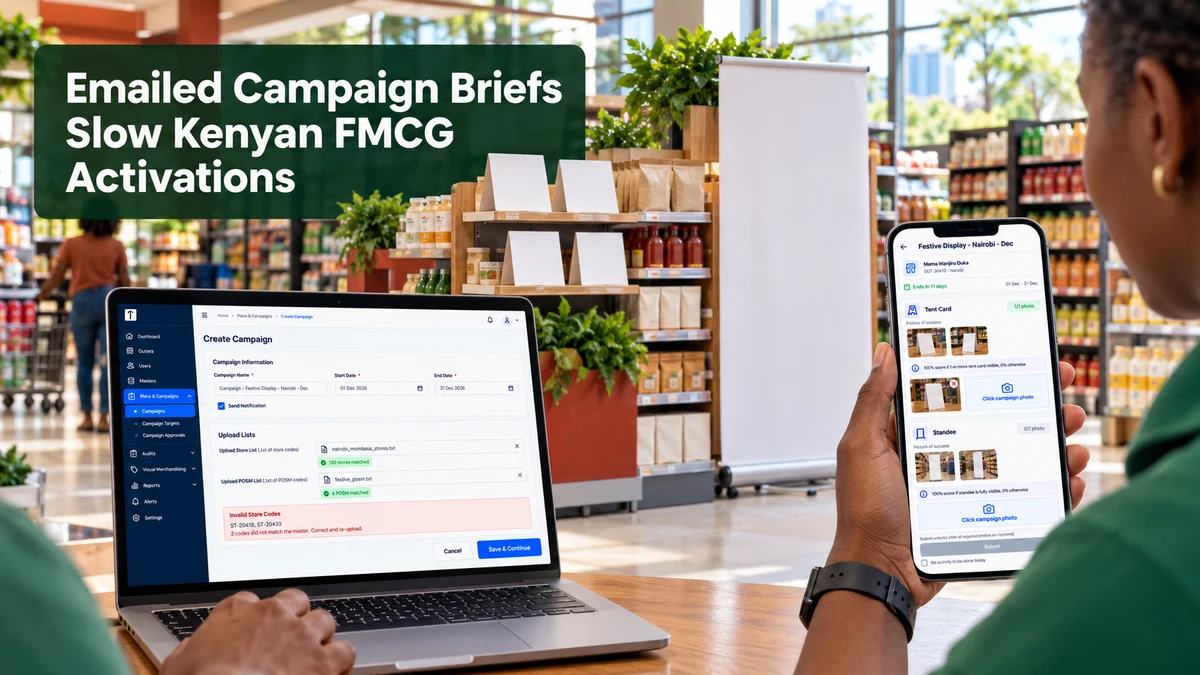
Where Emailed Campaign Briefs Lose Time
A typical brief arrives as an email with a spreadsheet attached: a list of stores, a list of POSM items, and a few reference photos.
Someone in sales operations then rebuilds it by hand as visit tasks for each rep, and a single mistyped store code quietly drops an outlet from the campaign.
Take a beverage brand planning a December festive display across 120 outlets in Nairobi and Mombasa, with the brief sent out on a Monday.
Three store codes in the list do not match the master, so three outlets never receive the task.
The gap surfaces only when the audit shows those outlets with no photos, by which point most of the December window is gone.
Setting Up a Campaign From Two Uploaded Lists
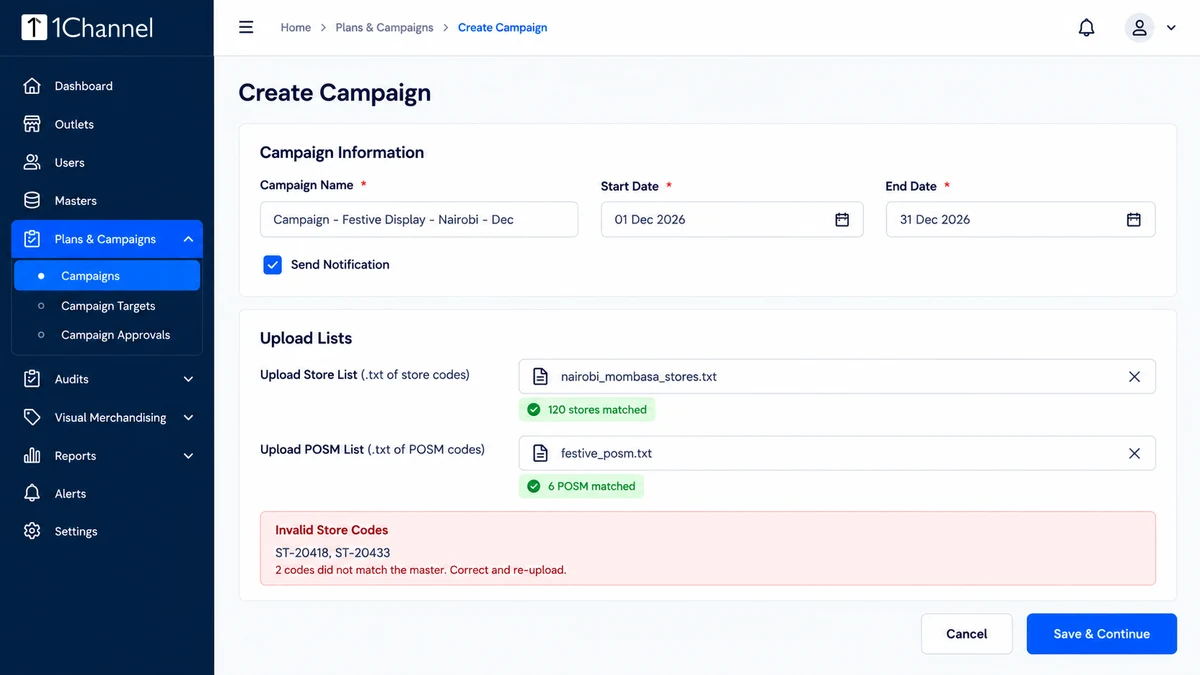
In 1Channel's retail execution module, a campaign is created once in the web portal, with a name, dates, and an option to notify the field team.
The store list and the POSM list go in as plain-text files of codes, instead of rows retyped one by one.
Any code that does not match the master data comes back in a read-only invalid codes box, so a mismatch is fixed before launch.
Each campaign also carries scoring parameters, every one with a weight, a picture of success image, and a short guideline of up to 500 characters.
| Setup element | What the admin enters | What the field team sees |
|---|---|---|
| Store list | Plain-text file of store codes | The campaign on the task list at those outlets |
| POSM list | Plain-text file of POSM codes | One card per required POSM type |
| Picture of success | A reference image per parameter | Reference thumbnails beside each card |
| Weight and guideline | A percentage weight and a short text rule | A plain scoring rule, such as full score if one tent card is visible |
| Campaign validation | No validation, or campaign is mandatory | Whether the campaign is optional or mandatory for the visit |
Halfway through the season, the brand adds 15 outlets and drops 4 that have closed.
A Delete Store upload removes the four, a fresh store list upload adds the rest, and nobody rebuilds the campaign from scratch.
What the Field Rep Sees in the App
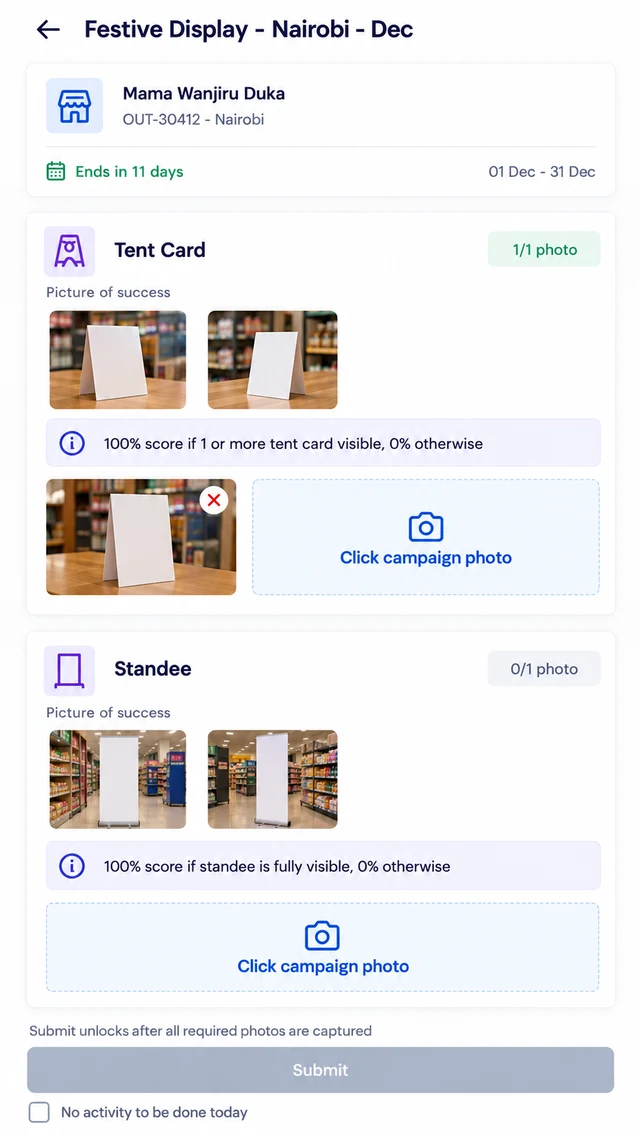
On reaching an outlet, the rep opens the Activation list, where each campaign card shows days remaining, the POSM types required, the date range, and the outlet's score.
Inside a campaign, every required POSM type has its own card with two picture-of-success thumbnails and a one-line scoring rule.
The rep compares the real display with the reference, taps the camera button, and the photo attaches to that card.
Submit stays disabled until every required photo is captured, so an incomplete visit cannot be sent in as complete.
If the outlet is shut, the rep ticks No activity to be done today and picks a reason, such as store closed today or store under renovation.
The visit closes with a recorded reason, not a silent gap.
Scoring the Result Against the Same Standard
Submitted photos come back to a Campaign Audit screen, where the reviewer sees the field photo next to the picture of success.
The reviewer enters a score and a comment for each parameter, and because the weights were set at launch, every reviewer scores a campaign the same way.
The Campaign Dashboard then rolls those scores up into coverage, campaign score, and a campaign-wise scorecard.
If an outlet runs two campaigns at once, the audit shows one row per campaign and parameter, each scored on its own.
How 1Channel Structures Campaign Setup and Proof of Execution
1Channel's retail execution software keeps campaign setup, field capture, and audit scoring in one cloud system.
A campaign edited in the web portal is what the field team sees in the app, with an optional notification when it goes live.
Replace the Brief Email With a Campaign the App Can Score
See how 1Channel's campaign management software turns a store list and a POSM list into field tasks, picture-of-success references, and weighted scores, with no email chain in between.
Explore Campaign Management Software →What This Looks Like in Practice
Picture the December display again, set up this way.
The admin uploads 120 store codes and the POSM list on a Friday, and two invalid codes come back on the spot and are corrected before the weekend.
On Monday each rep opens the outlet, sees the picture of success, and photographs the display against it.
By the end of week one, the dashboard shows which outlets have submitted, which were closed and why, and where a low score needs a return visit.
Nothing waited on a spreadsheet to be reconciled.