Access control quietly decides what a Malaysian sales team can actually see and do inside their SFA software. A promoter in Subang Jaya cannot view another rep's claim history. A Klang Valley Regional Manager cannot edit the price master meant for the National Sales Head. These boundaries are not enforced by training or trust. They are configured once in the SFA settings as a role, and every user inherits them the moment they log in.
Table of Contents
What Role-Based Access Decides for Each User
A role bundles four kinds of permission: which modules a user sees, which data inside those modules is visible, which settings can be edited, and which requests the user can approve. Roles are configured under Settings, mapped to permissions, and then applied to users as they are onboarded.
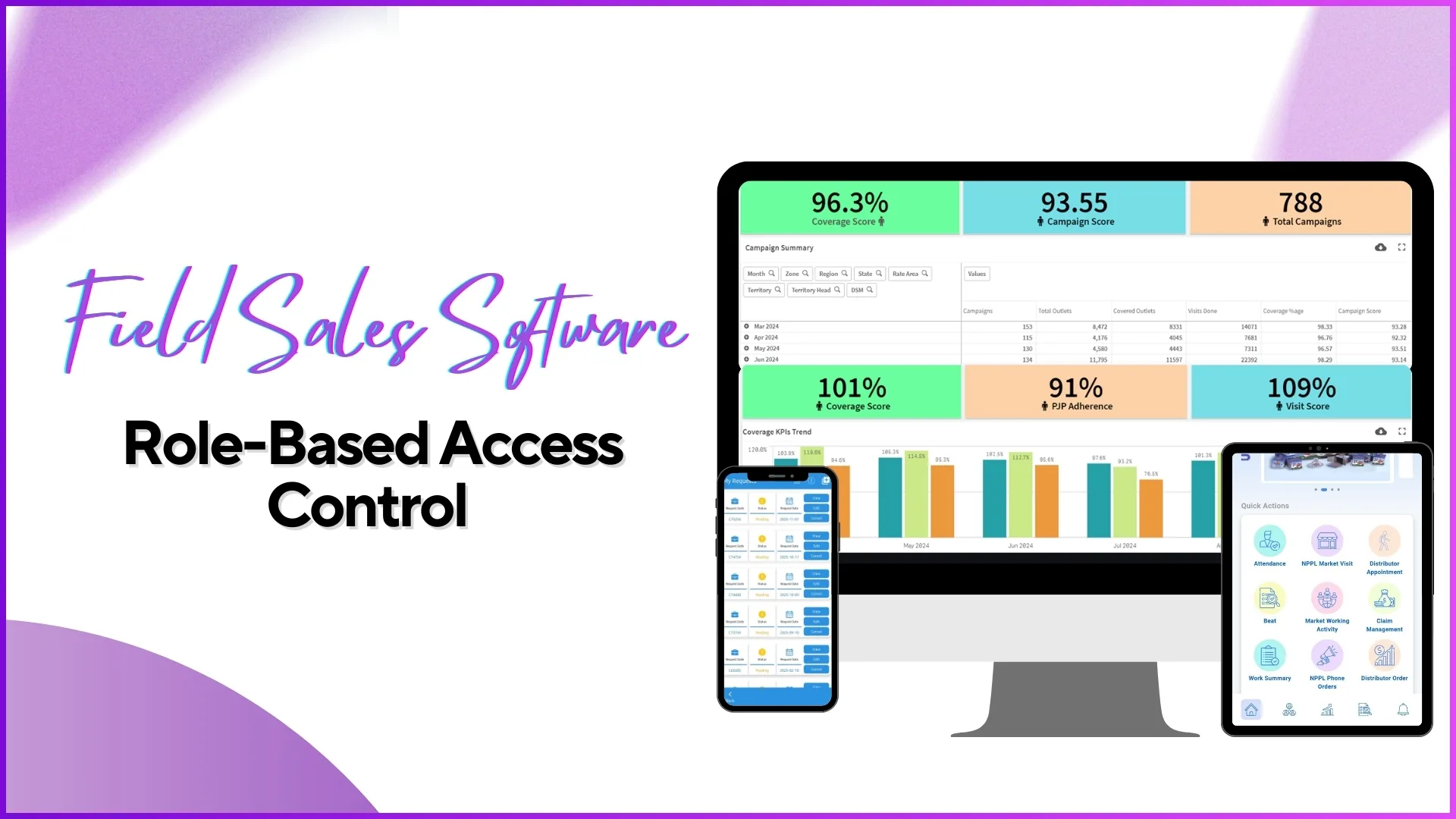
The benefit shows in everyday use. A Mydin promoter opens the app and sees attendance, beat plan, and sales entry. An Area Manager opens the portal and sees those plus team dashboards, approval queues, and visit reports. Same software, two different surfaces, both correct for the person looking at them.
Creating Roles Before Adding Users
The cleanest rollouts in Malaysia build the roles first, then start adding users. Each role gets a clear scope before any login is created. The portal supports as many roles as the team needs, with these being the most common ones we see in Malaysian sales operations:
Promoter
Field-facing. Beat plan, attendance, sales capture, and assigned questionnaires. No portal access.
Team Leader
Field plus light supervision. Own data plus reporting promoters, with attendance regularisation approval.
Area Manager
Portal access for their cluster. Team dashboards, visit compliance reports, most People Management approvals.
Regional Manager
Portal access across multiple Area Managers. Full analytics for their zone, plus visit plan configuration.
Admin / Programme Manager
Full portal access including Settings. Owns user creation, role mapping, system-wide configuration.
Module-Level Visibility in the SFA Portal
Every menu item can be turned on or off per role. An Area Manager might see the Analytics tab but only the dashboards relevant to their cluster, not the country-wide reports.
This is what keeps sensitive sections protected. The Price Master, User Master, Vendor Master, and contract approval screens can be locked to the Admin role alone. Anyone else opening the portal does not even see those menus, which removes both the temptation and the accident.
Approval Scope and Edit Rights by Role
Visibility is half the picture. The other half is who can approve what. Attendance regularisation routes to the Team Leader or Area Manager. Claim approvals sit with the reporting head from the user hierarchy. Leave applications follow the same chain. Beat plan approvals belong to Area or Regional Managers. Configuration changes such as adding a role or modifying the price master are reserved for Admin.
The result is an audit trail that names who approved which request and when, with no user crossing the boundaries their role draws.
Geofencing and Activity Permissions by Role
Roles extend beyond the portal into the mobile app. Geofencing is applied per role, so a promoter must be inside the assigned outlet to mark attendance, while a Team Leader on a joint visit can mark from a wider radius. Questionnaires from Market Working Activity are mapped to roles too, meaning a survey for promoters never appears in a manager's app. Content decks, announcements, and app teasers can be targeted at specific roles in the same way.
Explore Sales Force Automation
1Channel's cloud SFA platform lets Malaysian sales leaders define unlimited roles, scope every module and approval to those roles, and adjust permissions as the team evolves.
Explore SFA Solutions →Common Mistakes to Avoid in Malaysian Rollouts
A few patterns quietly weaken access control if left unchecked:
- Cloning a senior role to create a junior one. The junior inherits permissions nobody noticed, then the audit trail goes blurry. Build each role from scratch.
- Treating Admin as the default fallback. Giving anyone unsure of their role temporary Admin access turns into permanent Admin access. Use a transition role instead.
- Skipping the Settings review when a new module ships. New menus default to Admin visibility only. Schedule a permissions review whenever the SFA platform releases a feature.
- Not adjusting roles when a team member is promoted. The old permissions linger and the new ones do not appear until someone explicitly updates the user-role mapping.
- Letting role names drift across regions. A "Senior Promoter" in Penang and a "Promoter Lead" in Johor doing the same job creates duplicate roles that diverge over time. Keep role names tight and consistent across Malaysia.