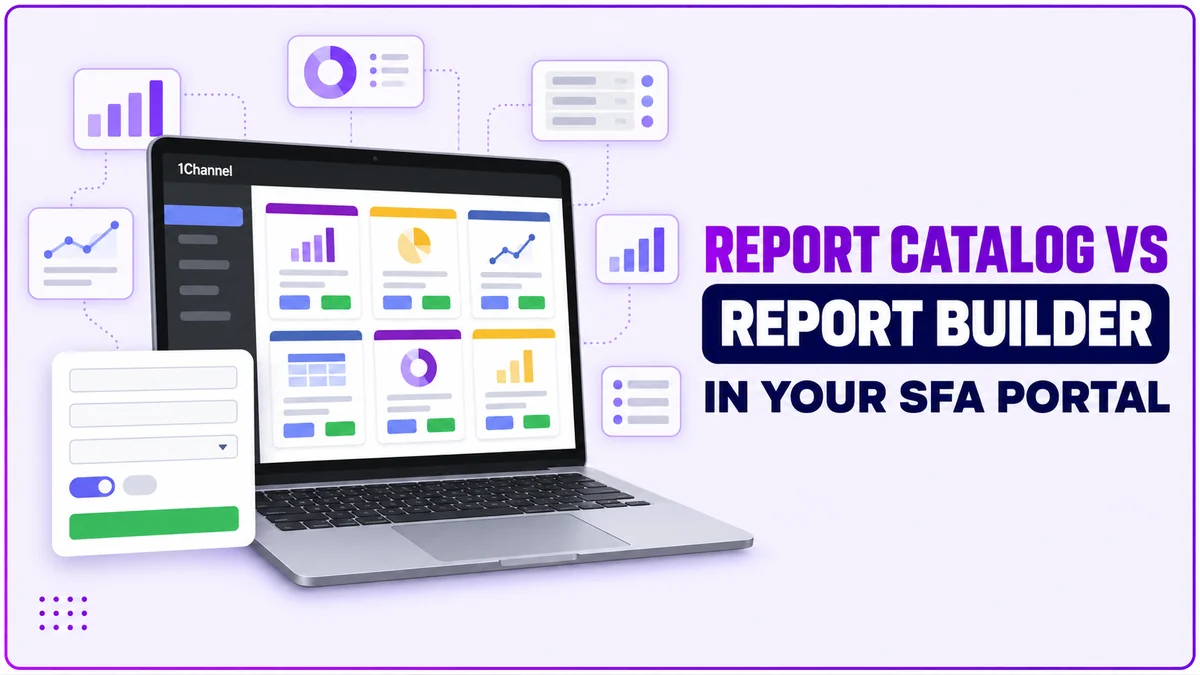
Need last week's visit numbers? Open a ready-made report. Need a view no ready-made report offers? Build one. The SFA portal supports both routes.
Report Catalog and Report Builder sit side by side in the Analytics menu. This guide explains what each does and how to pick the right one.
What the Report Catalog Gives You
Report Catalog is a gallery of ready-made report cards. Each card shows a title, a short description of the report, a Preview button and a + Add button.
The + Add button places a report in your own list for repeated use, and a search box filters the gallery by name.
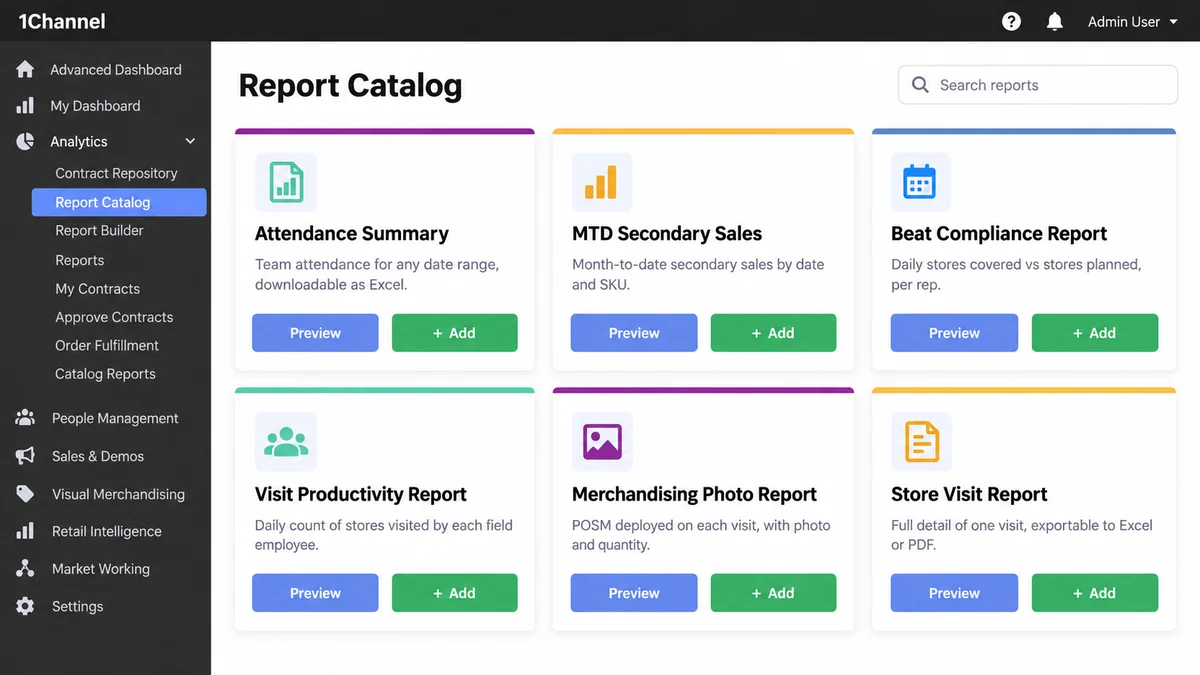
- Attendance Summary: team attendance for any date range, downloadable as an Excel file
- MTD Secondary Sales: month-to-date secondary sales value by date and SKU
- Beat Compliance Report: stores covered in a day divided by stores planned
- Visit Productivity Report: daily count of stores visited by each field employee
FMCG teams tracking secondary and tertiary sales by SKU will find both MTD sales cards here. Consumer durables and electronics teams get an IMEI-wise Current Stock Report.
A separate menu item, Catalog Reports, skips the preview. Reports run from a filter form, such as choosing a Store in the Current Stock Report, then Show Report or Download Report.
How Report Builder Works
Where the Catalog offers fixed templates, Report Builder lets a user build a report from scratch by choosing their own fields and dimensions.
It opens on a Custom Report list of everything already built. A green + New button starts a new report through a step-by-step wizard.
Step 1, Define Report Attributes, sets six things:
- Report Title: a free-text name
- Dimension: the data area the report is built on, such as sales, attendance, stock or merchandising
- Type: picked from a dropdown
- Location: picked from a dropdown
- Tab: where the finished report appears, with an Add New Tab option
- Prompt Filter: Yes or No, deciding whether the person running the report chooses a filter first
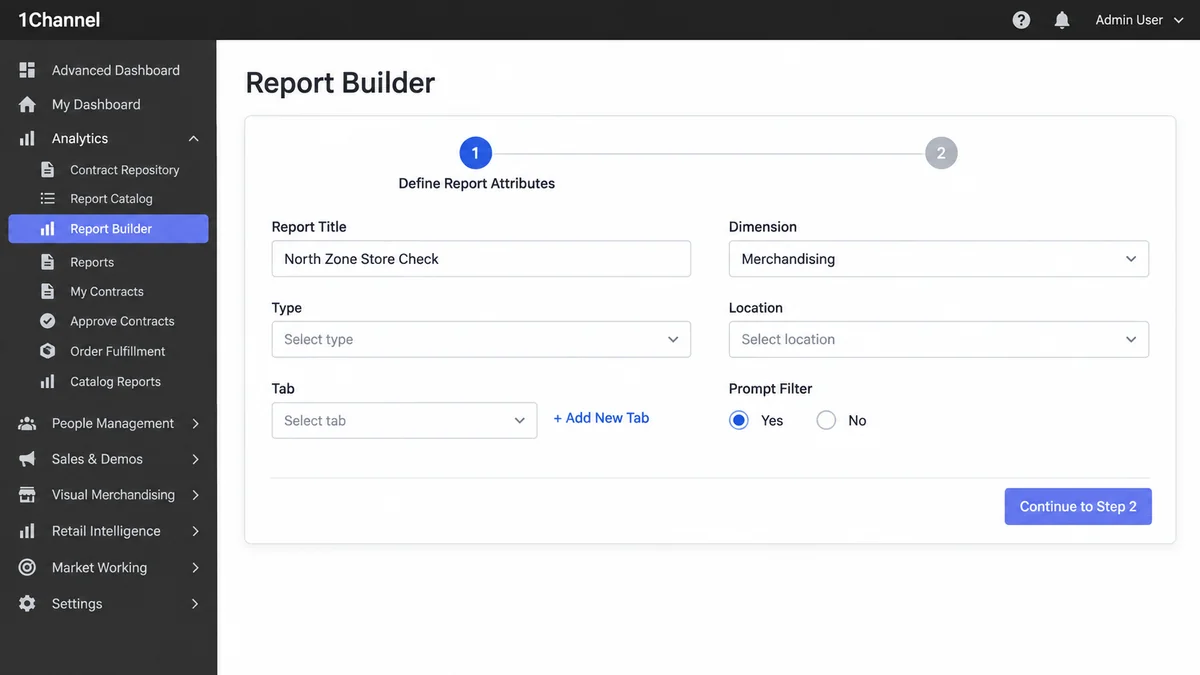
Further configuration steps follow. Once built, the report becomes available in the gallery to anyone with access.
Report Catalog vs Report Builder at a Glance
| Point | Report Catalog | Report Builder |
|---|---|---|
| Starting point | Pick a ready-made card and click Preview | Click + New and define attributes in a wizard |
| Report content | Fixed, as described on each card | Your own fields and dimensions |
| Filters | Depend on the report, such as a date range | Prompt Filter decides whether viewers choose one first |
| Adding to your list | + Add on the card | The built report appears in the gallery for people with access |
| Best for | Standard questions: attendance, MTD sales, beat compliance | Questions no card answers |
Report Catalog and Report Builder are separate menu items, so a role can be given access to one and not the other.
Which One Should You Open?
Example: a regional manager wants daily store visits for each rep. The Visit Productivity Report card already shows that, so + Add is enough.
Later the manager wants a weekly North Zone store check that no card covers. That is a Report Builder job: set a title and dimension, choose Prompt Filter Yes and add a tab.
Open the Report Catalog when:
- A card already describes the report you need
- You want it in your list today with + Add
- A date range or store filter is all the tailoring needed
Open Report Builder when:
- No card offers the fields or dimension you want
- Each viewer should choose a filter first
- The report needs its own tab
If neither menu item appears for you, ask an admin to check your role's menu access.
Explore these reports in 1Channel's sales force automation software.
For merchandising visit and photo reports, see 1Channel's retail merchandising software.
Note: Software screens may vary based on your business structure and configured workflows.