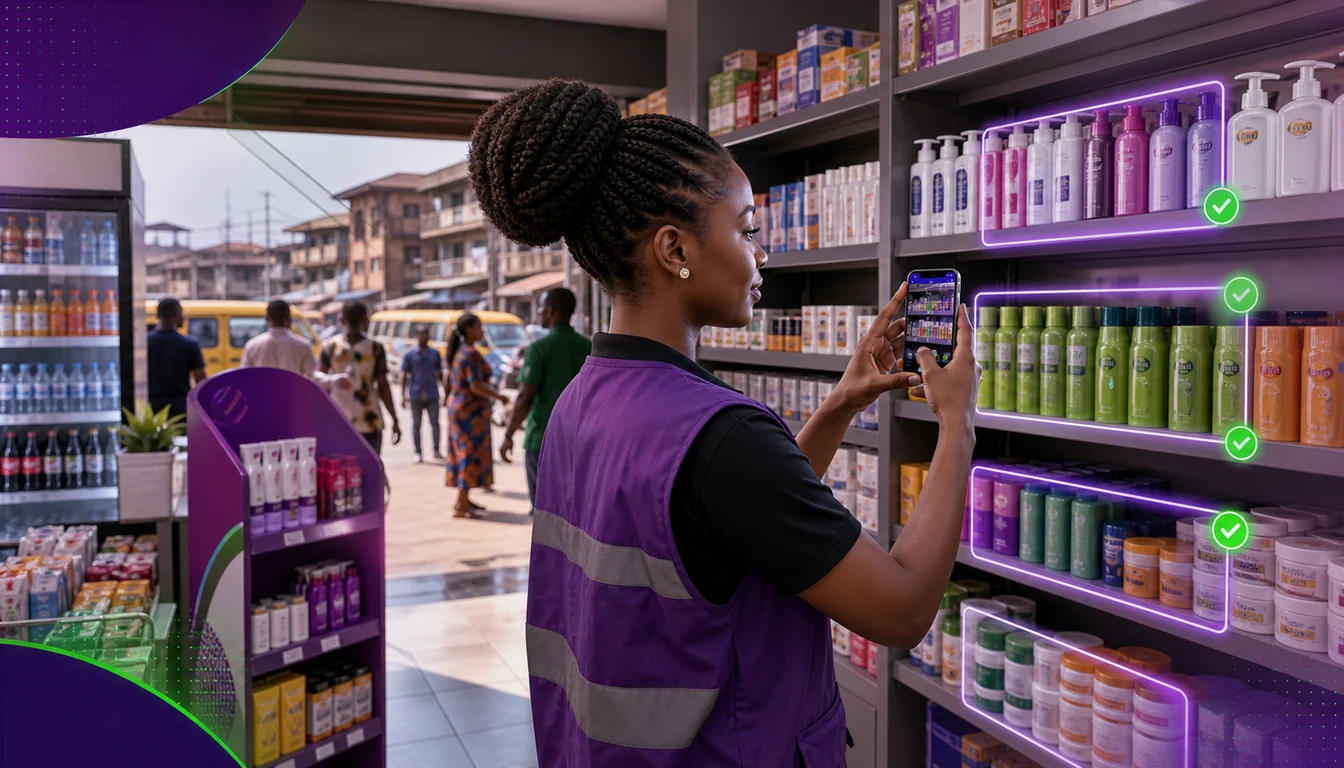
How many of the posters a brand prints actually end up on a store wall?
In Nigeria's provision store and supermarket trade, that gap matters to FMCG, cosmetics and personal care, consumer durables, and building materials brands alike.
This post follows one POSM campaign from setup to proof.
It covers building the campaign, scoring a store photo against a picture of success, and where image recognition can help.
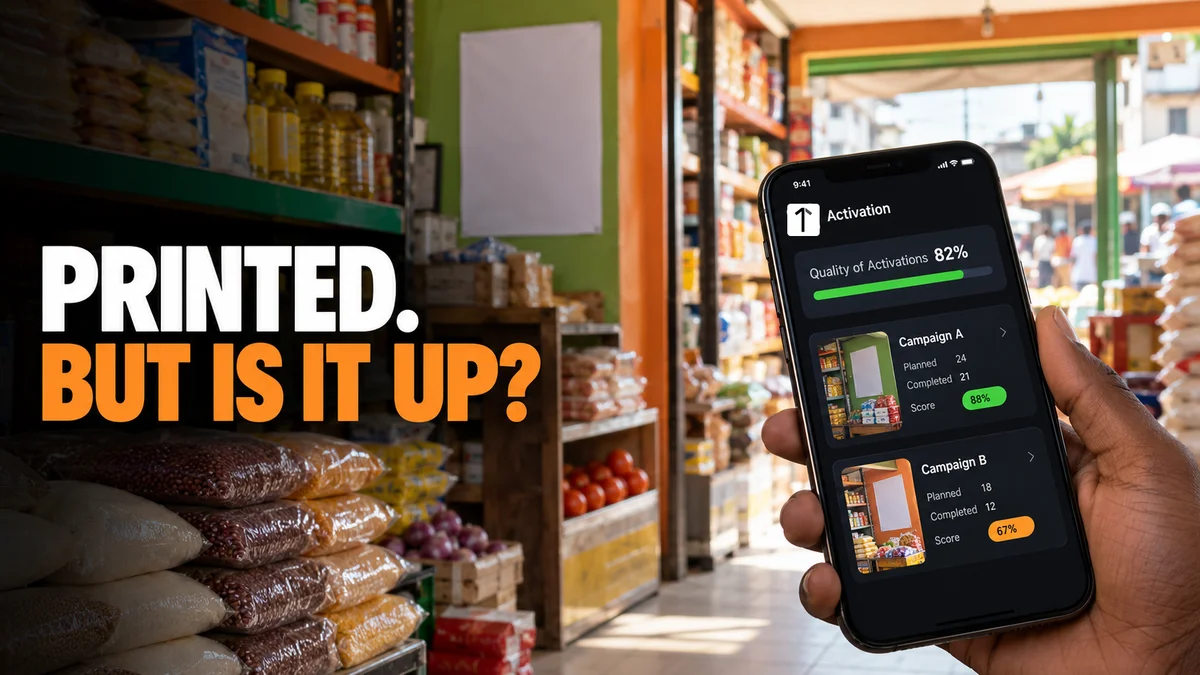
Why Printed Material Goes Missing
A brand prints 5,000 shelf strips and posters for a six-week push, then ships them out through its distributors.
Nobody can say which stores put them up and which left them in the stockroom.
Without a record for each store, the brand pays for coverage it cannot see.
Building the Campaign Once
On 1Channel, a POSM campaign starts as one record with a name, a start date and an end date.
The planner then uploads two plain text files, one of store codes and one of POSM codes.
Any code that does not match is listed in a read-only box, so a typo is caught before the field team starts.
| Setup Step | What You Enter | What It Prevents |
|---|---|---|
| Campaign record | Name, start date, end date | Material judged against no clear window |
| Store list | A text file of store codes | Visits to outlets outside the plan |
| POSM list | A text file of POSM codes | The wrong material assigned to a store |
| Notification | An optional send notification tick | A field team unaware a campaign is live |
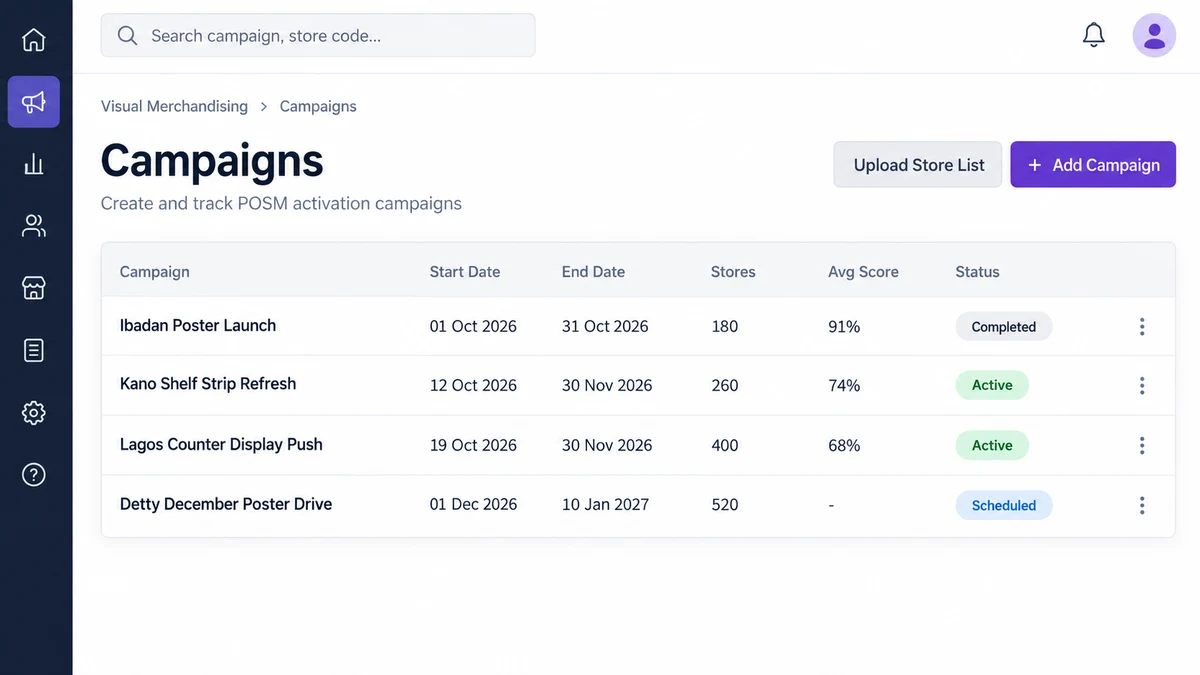
Say a seasoning-cube maker plans a December push across 400 provision stores in Lagos and Ibadan.
Its store file returns 12 invalid codes, all retired outlets, which the planner removes before launch.
A Picture of Success Beats a Text Brief
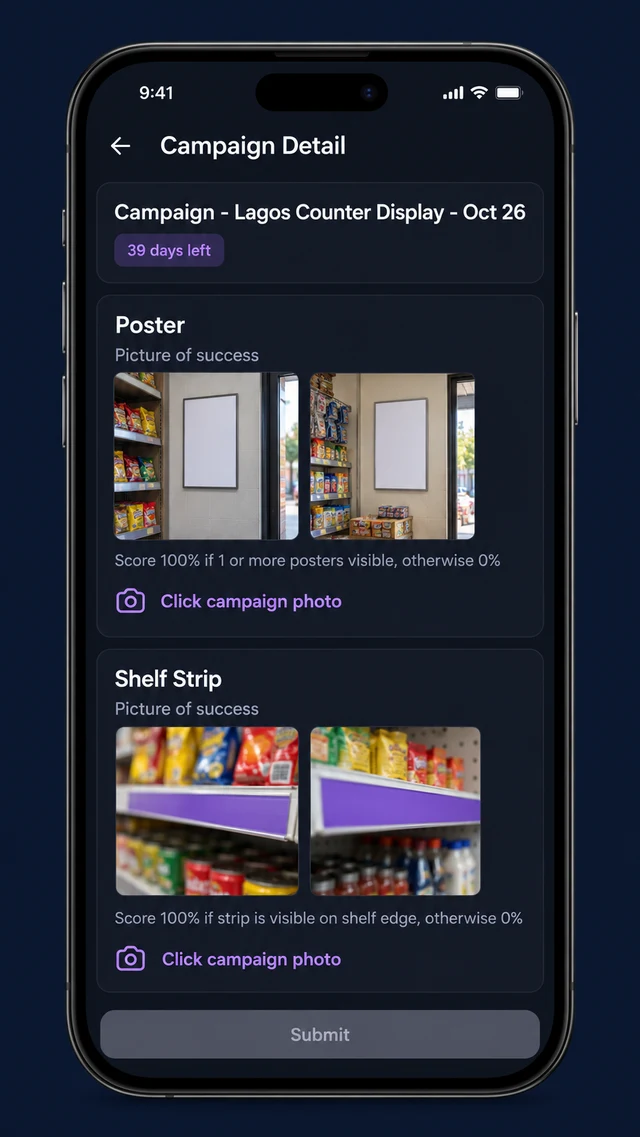
On the mobile app, the rep opens an Activation list of campaign cards.
Each card shows the days remaining and the POSM types required at that store.
Inside a card, two picture of success thumbnails show the approved look, beside a plain scoring rule.
A typical rule reads: 100% if one or more posters are visible, otherwise 0%.
The rep taps the camera link and shoots the display. Submit stays locked until every required photo is in.
A store that cannot take the material does not have to go silent.
The rep ticks "No activity to be done today" and picks a reason, so a closed shop is recorded as a reason, not a gap.
Scoring What Came Back
An auditor opens the visit and sees the submitted photo beside the picture of success.
Each row carries a weight, a guideline, an editable score and a comment.
When two campaigns run in one store, the same visit shows one row for each campaign and parameter, scored on its own.
Say a detergent brand runs a poster and a shelf strip in one Kano store.
The poster scores 100, the shelf strip scores 0, and the comment notes a promo sign covering it.
The brand sees which piece failed, not just a single pass or fail for the store.
Where Image Recognition Helps
1Channel's AI image recognition reads each POSM photo a rep captures and scores how closely the display matches the approved layout.
When it is not confident in a shot, it asks the rep for a retake on the spot.
A weak photo then gets fixed during the visit, not found later at audit.
How 1Channel Tracks Display Material From Print to Proof
On 1Channel's POSM tracking platform, the campaign, the store list, the photos and the scores stay in one record.
A brand manager sees which stores scored well, which scored low, and which logged a reason instead.
Know Which Stores Put Your Material Up
Set up a campaign, upload the store and POSM lists, and score every photo against a picture of success.
Explore Merchandising Campaign Management →Implementation Snapshot
| Step | Action | Output |
|---|---|---|
| 1. Define the campaign | Name it and set start and end dates | One live campaign record |
| 2. Upload the lists | Add store codes and POSM codes | Invalid codes flagged before launch |
| 3. Set the standard | Attach picture of success images and a scoring rule | A clear target for every rep |
| 4. Capture proof | Reps photograph each required material | Submit unlocks only when complete |
| 5. Score the visit | Audit each weighted parameter | A score for each campaign at each store |
Note: Software screens may vary based on your business structure and configured workflows.