Every distribution platform faces the same setup question sooner or later: give every new person a full account, or something lighter.
This post covers the three access types available, when each one actually fits, and how to set up the lightest option in a few steps.
This distinction matters most in industries with layered distribution, such as FMCG, Building Materials, and Consumer Durables.
Sub-distributors, drivers, and outside stakeholders in these industries all need some system access, without a full internal account.
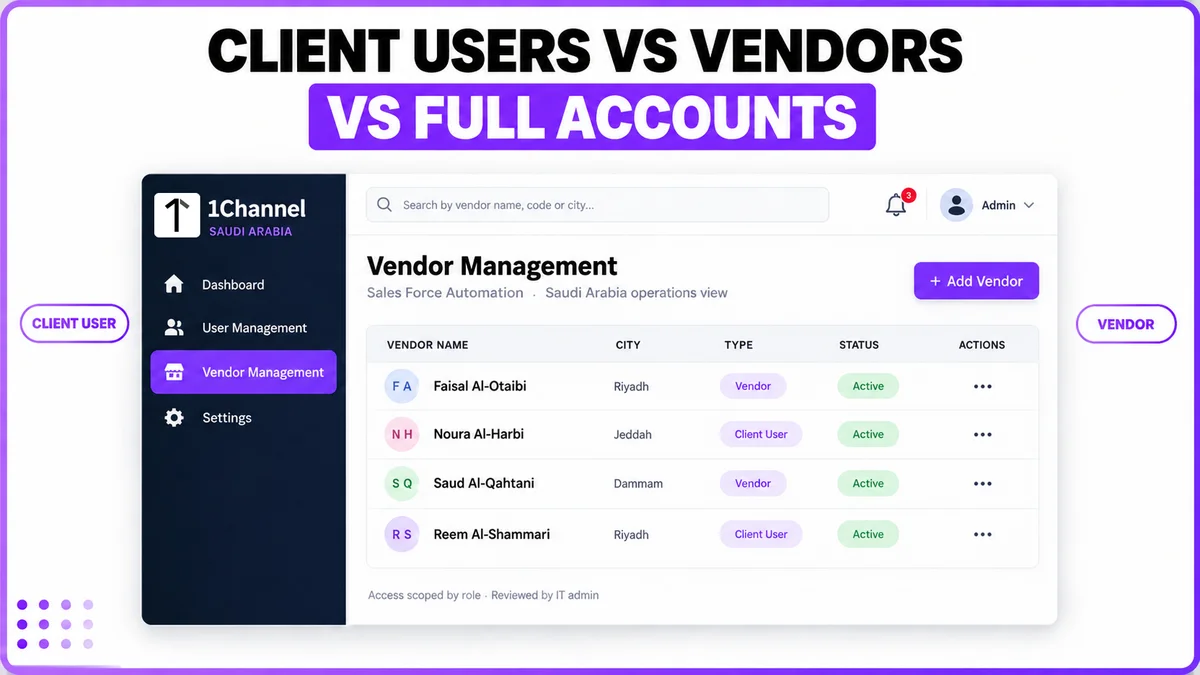
Three Ways Someone Gets In
- Full User — created via Create Users or Upload User Master, placed into the reporting hierarchy, and given a Role that decides menu, report, and mobile-app visibility.
- Client User — a separate list from field or internal users, for portal access given to external stakeholders.
- Vendor — an existing user record designated as a vendor from a dropdown, given its own restricted, single-purpose mobile login layered on that same account. No new account type is created.
Comparing the Three
| Access type | Where it's created | What it needs | What they get |
|---|---|---|---|
| Full User | Settings → User Management → Create Users / Upload User Master | Role, reporting head, hierarchy placement | Full role-based portal and app access |
| Client User | Settings → User Management → Client Users | A client-side identity; no role or hierarchy fields | Portal visibility, kept separate from field/internal users |
| Vendor | Settings → Vendor Management → Create Vendors | An existing User picked from a dropdown, plus Vendor Name, Client Vendor Code, Address, Mobile, Email, State, City (VAT optional) | A restricted, single-purpose mobile login on the existing account |
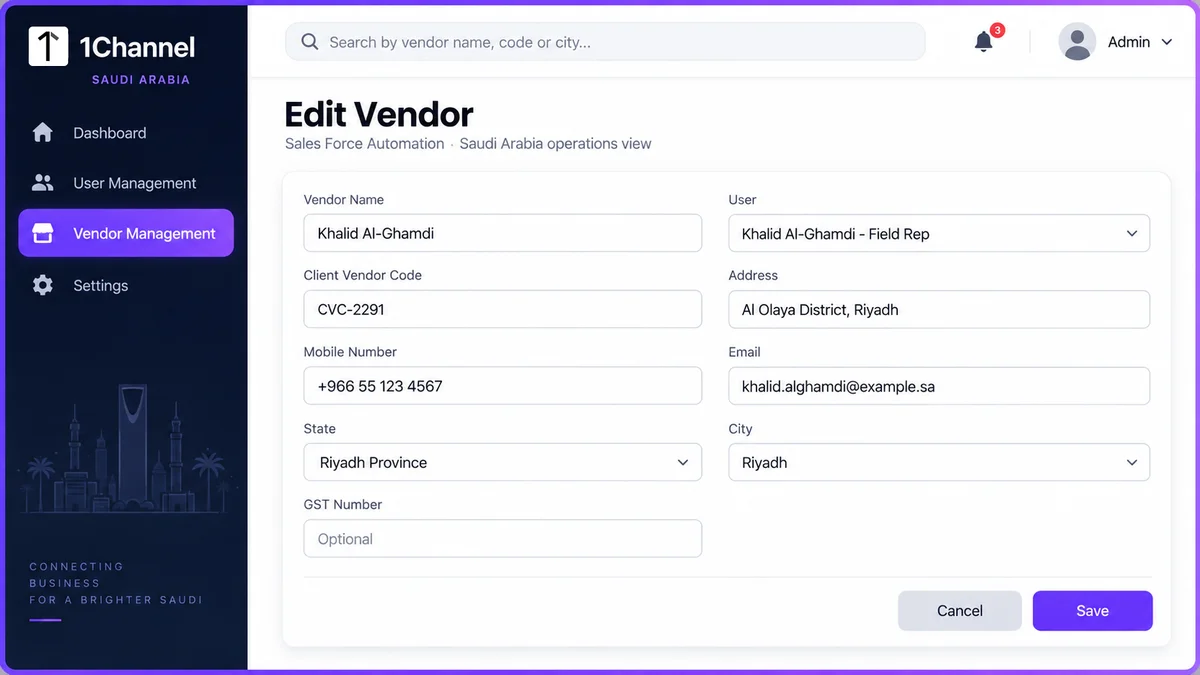
Setting Up a Vendor in Six Steps
- Open Vendor Management → Create Vendors, click + Add.
- Select the person's existing account from the User dropdown, rather than creating a new one.
- Fill in Vendor Name, Client Vendor Code, and Address.
- Add Mobile Number and Email. VAT Number is optional.
- Set State and City, then Save.
- The person now appears in the Create Vendors list alongside their original account, with the restricted mobile login layered on top.
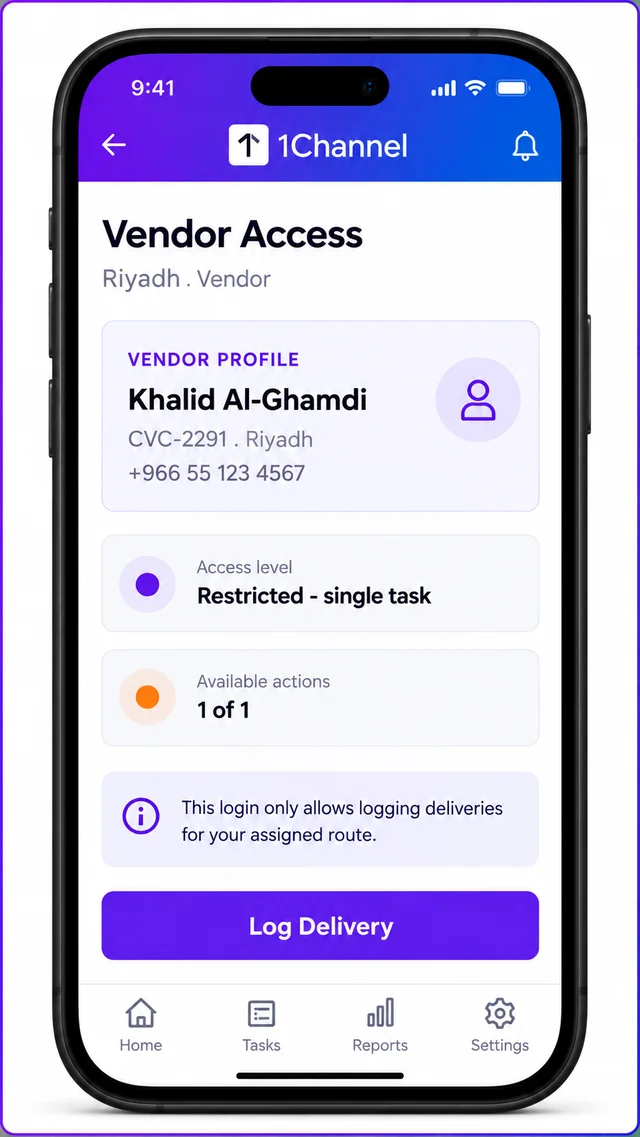
Two Examples From a Saudi Distribution Network
A sub-distributor's finance contact in Dammam only needs to see when a shipment left the warehouse.
That makes them a Client User with portal-only visibility, not a full account carved down with a limited role.
Even a limited role still sits inside the same reporting hierarchy and approval routing built for internal staff.
A delivery driver already exists as a full User for attendance and leave.
When that driver also needs a single-purpose delivery-logging login for routes around Jeddah, converting them to a Vendor keeps that function separate.
No second employee record is needed. The same discipline keeps distributor credit and collections tracked against the right account rather than a generic one.
How 1Channel Manages All Three Access Types
1Channel's Vendor Management and User Management modules handle all three access types from the same settings area, with no separate systems or manual workarounds.
An admin picks the right type when the record is created, and the platform applies the resulting permissions automatically from that point on.
Controlling Access Across Your Distribution Network with 1Channel
See how 1Channel's Sales Force Automation platform for Saudi Arabia separates full accounts, client-side visibility, and vendor logins, so every stakeholder across your distribution network gets exactly the access they need.
Explore Sales Force Automation →Decision Checklist
- Employee-side presence already (attendance, leave, reporting), but also needs one narrow, separate function? — Use a Vendor.
- Entirely external, with no reporting head or role of their own? — Use a Client User.
- Needs full role-based access across multiple modules? — Use a Full User.
- Would a cut-down role on a Full User just recreate what a Client User or Vendor already does more simply? — Use the lighter option instead.
Note: Software screens may vary based on your business structure and configured workflows.