Every dispatch line carries three numbers: what was ordered, what has already gone out, and what remains.
For distributors in Saudi Arabia, those numbers let a delivery note ship what is on the shelf today, rather than holding the whole order.
This post covers how a partial dispatch is raised, what the order status shows afterwards, and how the balance follows later.
It matters most to FMCG, Pharma, Retail & Modern Trade and Consumer Durables distributors, wherever stock moves faster than orders are cleared.
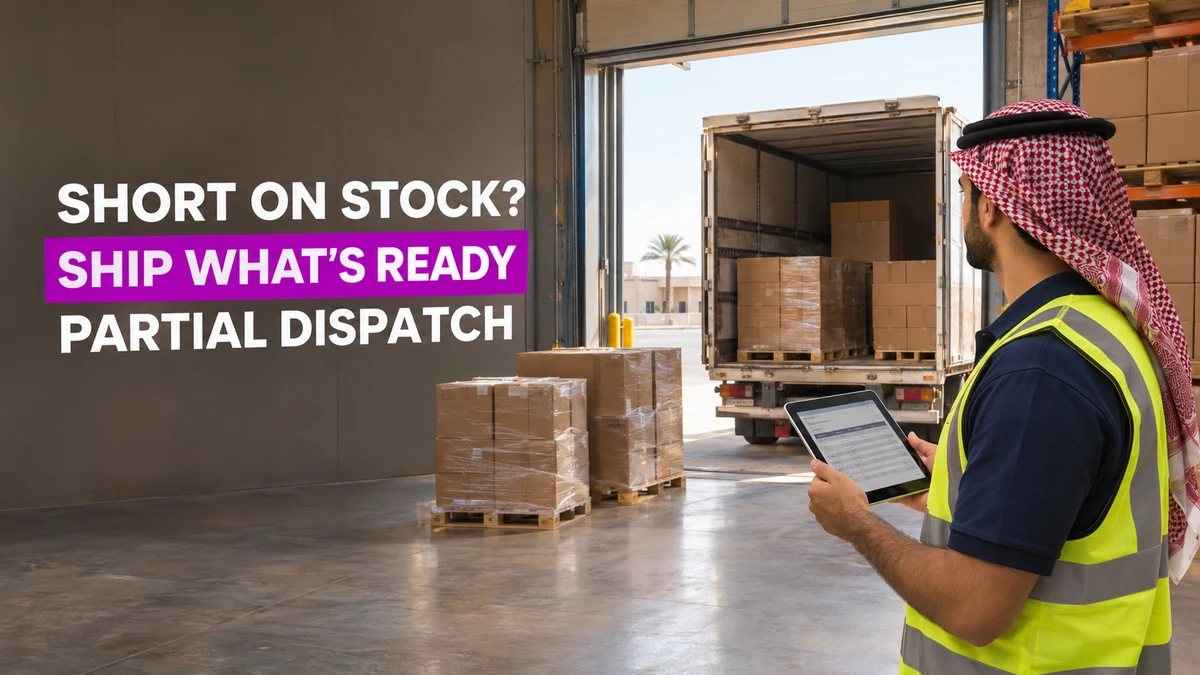
From Field Order to Delivery Note
An order booked on the field app is submitted for approval. It then appears in the distributor's Order Management list.
It sits under the Secondary tab, tagged "Order placed via SFA mobile app".
The distributor moves it through approval and confirmation. An invoice is generated automatically when the order is confirmed.
| Order Status | What Has Happened |
|---|---|
| PENDING_APPROVAL | The rep has submitted the order and it waits for the distributor |
| APPROVED | The distributor has accepted the order |
| CONFIRMED | The invoice is generated and the order is ready for a delivery note |
| PARTIALLY_DISPATCHED | Part of the order has left the warehouse and the rest stays open |
Reps book against the stock the field app shows for the mapped distributor, listed per SKU in pieces. That figure can change before the truck is loaded.
How a Partial Dispatch Is Raised
Dispatch starts from a confirmed order, on the distributor's Create Delivery Note screen. The screen names the warehouse the goods leave from.
- Open the confirmed order and start a delivery note.
- Check the warehouse shown under "Dispatching from".
- Read the ordered, already dispatched and remaining quantity for each line.
- Edit the dispatch quantity down to what the warehouse can load.
- Add a remark, then save. The delivery note begins as a Draft.
- Choose Confirm Dispatch. The items are then considered in transit.
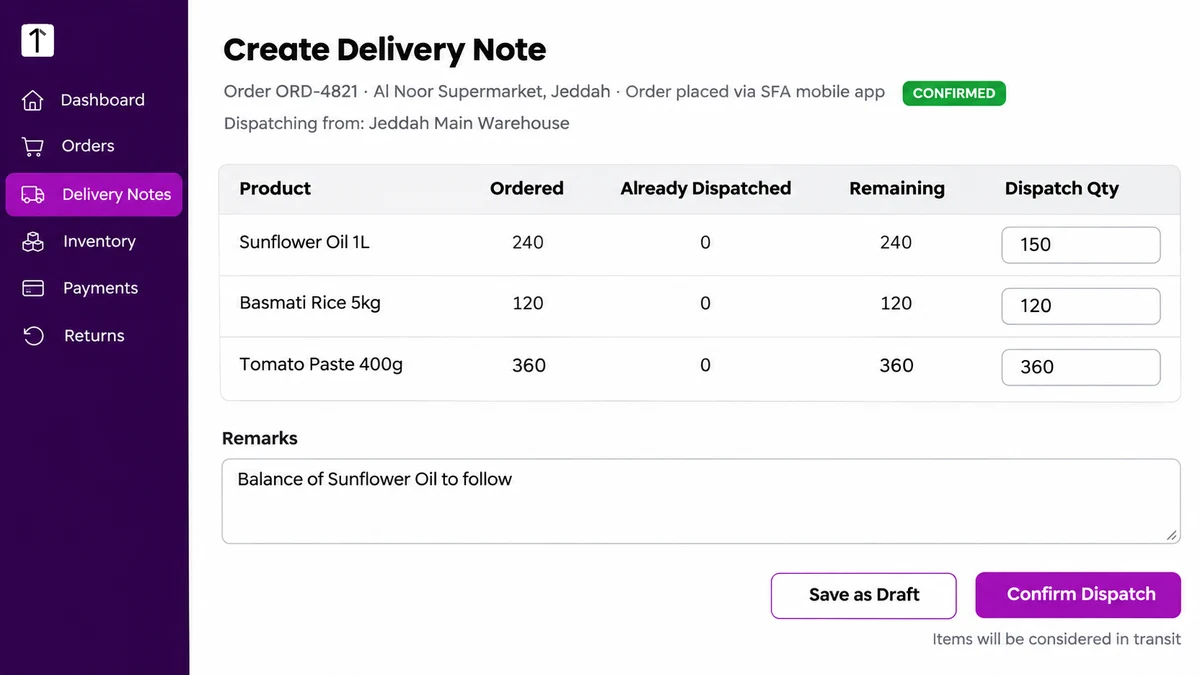
After a part dispatch, the order status becomes PARTIALLY_DISPATCHED. The open balance stays on the order, so the next delivery note starts from what remains.
Oil Runs Short in Jeddah
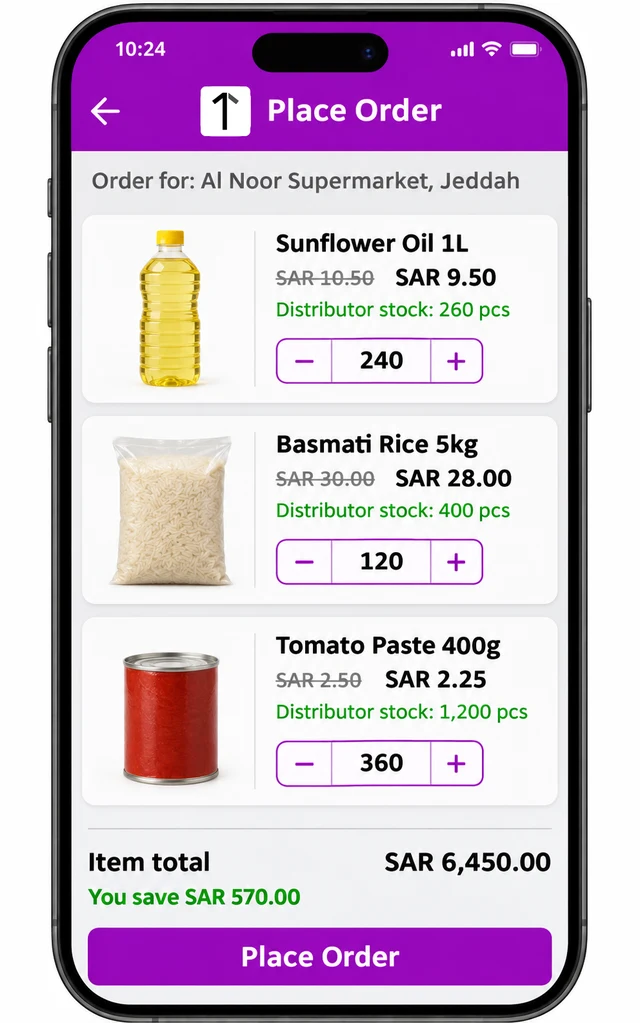
A Jeddah distributor confirms a supermarket order for 240 pieces of Sunflower Oil 1L, 120 of Basmati Rice 5kg and 360 of Tomato Paste 400g.
The rep saw 260 pieces of oil when booking. By dispatch day, other deliveries have left only 150 on the shelf.
The distributor enters 150 for oil and the full quantities for rice and tomato paste.
| Line | Ordered | Dispatched Now | Remaining |
|---|---|---|---|
| Sunflower Oil 1L | 240 pcs | 150 pcs | 90 pcs |
| Basmati Rice 5kg | 120 pcs | 120 pcs | 0 |
| Tomato Paste 400g | 360 pcs | 360 pcs | 0 |
Rice and tomato paste reach the supermarket today. The order shows PARTIALLY_DISPATCHED, with 90 pieces of oil still open.
The Balance Follows a Few Days Later
When the oil is restocked, the distributor raises a second delivery note. The oil line now reads 240 ordered, 150 already dispatched and 90 remaining.
Dispatching those 90 completes the quantity ordered. Nothing is re-keyed, because the order carries every earlier dispatch forward.
Why Splitting Beats Holding the Whole Order
Holding a full order for one short line delays every line that is ready. A partial dispatch ships those lines and keeps the shortfall visible on the order.
Order Management also carries tiles for Pending Approval and Pending Delivery, plus a status filter, so a distributor can find orders still waiting on stock.
Businesses can also configure ordering so that reps only book what the distributor can supply. That is a per-business setting, not a default.
How 1Channel Keeps Short-Stock Orders Moving
1Channel keeps ordered, dispatched and remaining quantities on one order, so a short line never blocks the lines that are ready.
Reps see distributor stock while booking, and distributors dispatch in parts from a single delivery note.
Ship What You Have and Track What Remains
See how 1Channel's order management lets Saudi distributors confirm, invoice and part-dispatch every order from one screen.
Explore Order Management →Points to Remember
- Every dispatch line shows ordered, already dispatched and remaining quantities.
- Status moves from PENDING_APPROVAL to APPROVED to CONFIRMED, then PARTIALLY_DISPATCHED after a part dispatch.
- The invoice is generated when the order is confirmed.
- A delivery note starts as a Draft, and Confirm Dispatch puts the items in transit.
- A stock check before booking is a per-business setting.
Note: Software screens may vary based on your business structure and configured workflows.