A missed check-in still has to be settled before payroll closes. Across Saudi Arabia, that settling is a configured workflow, not a phone call to a supervisor.
This post covers who can request a correction, what the request lets them choose, and who finally approves it.
The flow matters most to FMCG, Pharma, Retail & Modern Trade and Consumer Durables field teams, wherever reps work stores far from a supervisor's desk.

Five Settings Behind Every Status
An admin defines each attendance status once, under HR Management. The example project carries five: Half Day, On-Duty, Outlet Closed, Present and Sign Out.
| Setting | What It Controls |
|---|---|
| Attendance Type | Marks a status, such as On-Duty, as the one used for back-dated correction |
| User Roles | Which roles see the status in the app; left empty, it applies to every role |
| Attendance Remarks | The pick-list of reasons a rep can choose from |
| Remarks Mandatory | Whether the rep must select a remark before submitting |
| Approval Required | Whether the request waits for an approver before it counts |
Because roles filter the menu, reps never see statuses meant for someone else. In the walkthrough, a promoter's check-in sheet offered only Present and Outlet Closed.
What the Rep Does From the Calendar
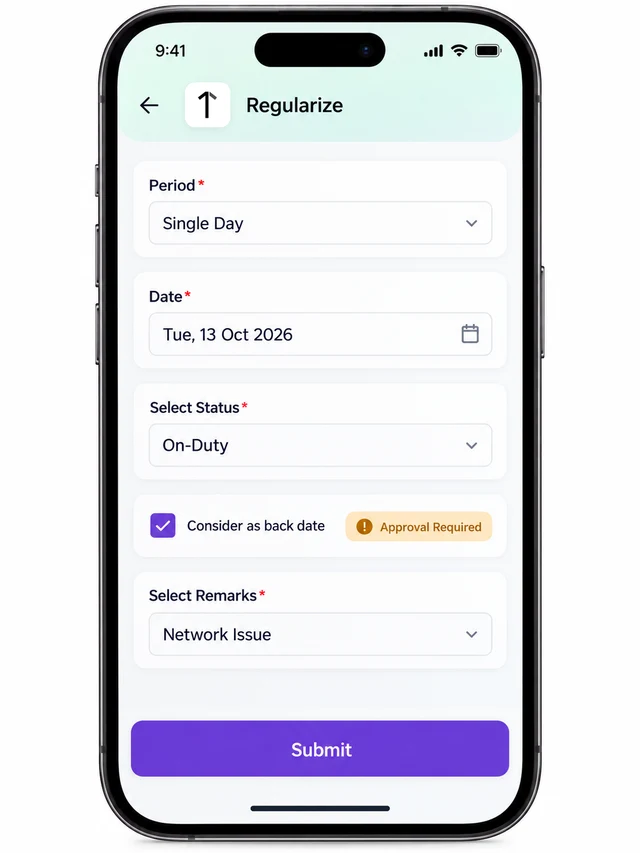
Corrections start from Attendance Summary in the mobile app, a month calendar where every date is colour-coded by its attendance status.
- Tap the past date that was missed. A correction form opens with the date already filled in.
- Choose a Period, such as Single Day.
- Select a status, for example On-Duty, and tick the back-date option.
- Pick a remark from the admin's list. Free-text typing isn't offered.
- Submit. A confirmation shows once the data uploads.
Where the Approver Decides
Nothing applies automatically. The request lands on the Approve Attendance screen, where the reporting head approves or rejects it.
Only after approval does the status appear against the employee for that date. Until then, the original gap stands.
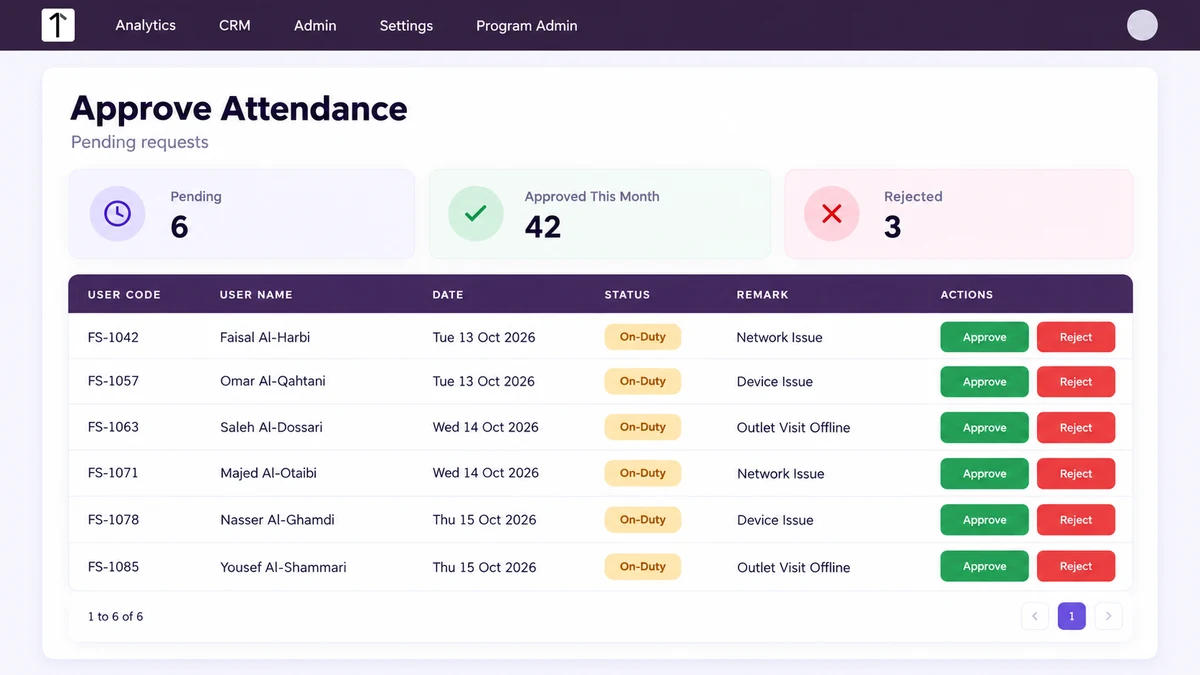
Approval authority follows the reporting hierarchy, the same one used for leave and claim approvals, so each request reaches the person who supervises that rep.
A Missed Check-In in Riyadh
A merchandiser finishes a Tuesday visit, but the check-in never saved. On Wednesday the merchandiser opens Attendance Summary, taps Tuesday and picks On-Duty.
A reason comes from the configured list, then the request is submitted. The reporting head sees it, approves it, and Tuesday shows On-Duty from that point.
Two Roles, Two Menus
A distributor runs Promoters and Team Leads. The admin ties On-Duty to the Promoter role and leaves another status role-free.
Promoters see On-Duty on their calendar. Team Leads don't, while the role-free status appears for both.
Keeping Corrections Ahead of Payroll
Attendance Closure locks attendance for a period ahead of payroll processing. A reporting head's review queue is best cleared before that lock.
The Attendance Dashboard helps here. Its compliance table counts days attendance was missed and defaulted days for each employee, so managers see who generates the most corrections.
How 1Channel Routes Corrections to the Right Approver
1Channel keeps the status list, the remark pick-list and the approver in one configuration, so every correction follows the same path.
Reps request from their own calendar, and managers decide from one queue.
Settle Every Missed Check-In Without a Phone Call
See how 1Channel's attendance module lets Saudi field teams request, approve and lock corrections ahead of payroll.
Explore Attendance Software →Key Takeaways
- Each status carries five settings: type, roles, remarks, mandatory remarks and approval.
- Roles decide which statuses a rep sees, so menus stay short.
- Remarks come from an admin list, never free text.
- A correction never applies on its own; the reporting head approves or rejects it.
- Clear the approval queue before Attendance Closure locks the period.
Note: Software screens may vary based on your business structure and configured workflows.