A distribution network in South Africa usually runs through more than one tier before an order reaches a shelf.
A master distributor buys from the company, a distributor buys from the master distributor, and a retailer buys from the distributor.
That structure shows up across FMCG, Pharma & Healthcare, Cosmetics & Personal Care, and Consumer Durables & Electronics distribution alike.
Each tier can reasonably say no to an order, whether the account is unverified or the customer is already over their credit limit.
An email thread or a WhatsApp message can carry that sign-off for a while.
But neither one stops a rep from placing the order while everyone waits for a reply.
This post covers how a configured approval chain routes that sign-off automatically, who gets notified, and what happens if nobody responds in time.
Where Manual Sign-Off Breaks Down
A manual chain works while the network is small enough for one admin to remember every pending approval.
It stops working once a company runs several master distributors, each managing their own distributors, each distributor carrying dozens of retailer accounts.
Nobody owns the escalation when an approver is on leave, and an order that has already shipped is far harder to unwind than one that was simply delayed.
Building the Approval Chain
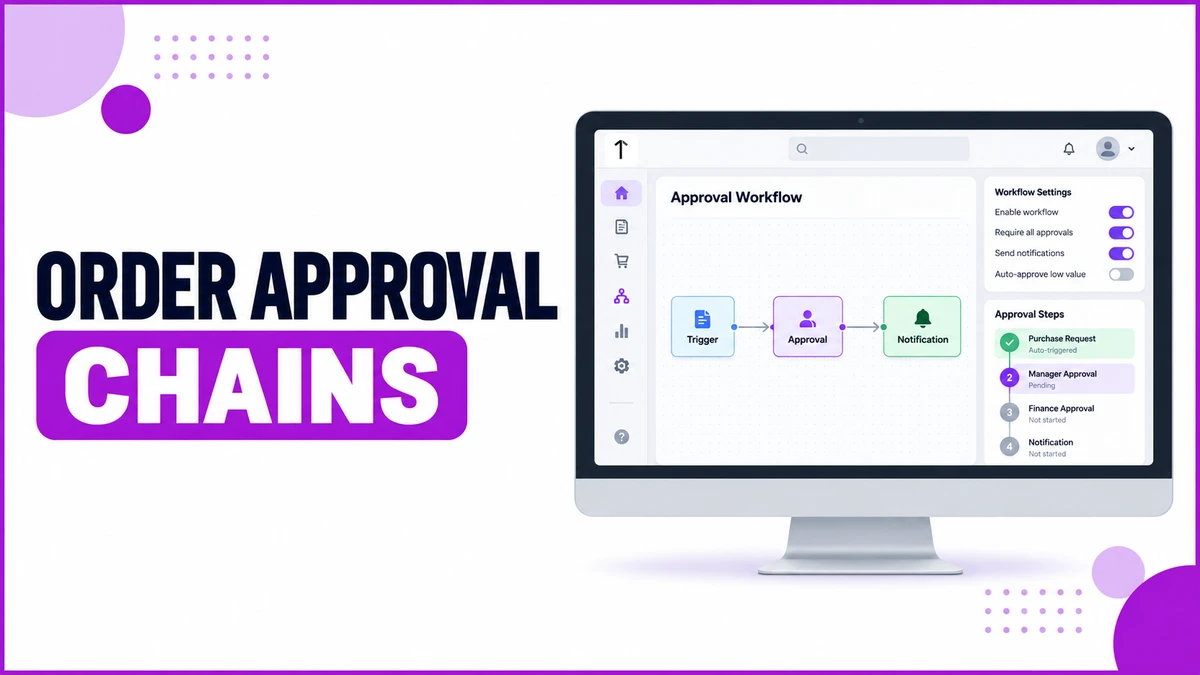
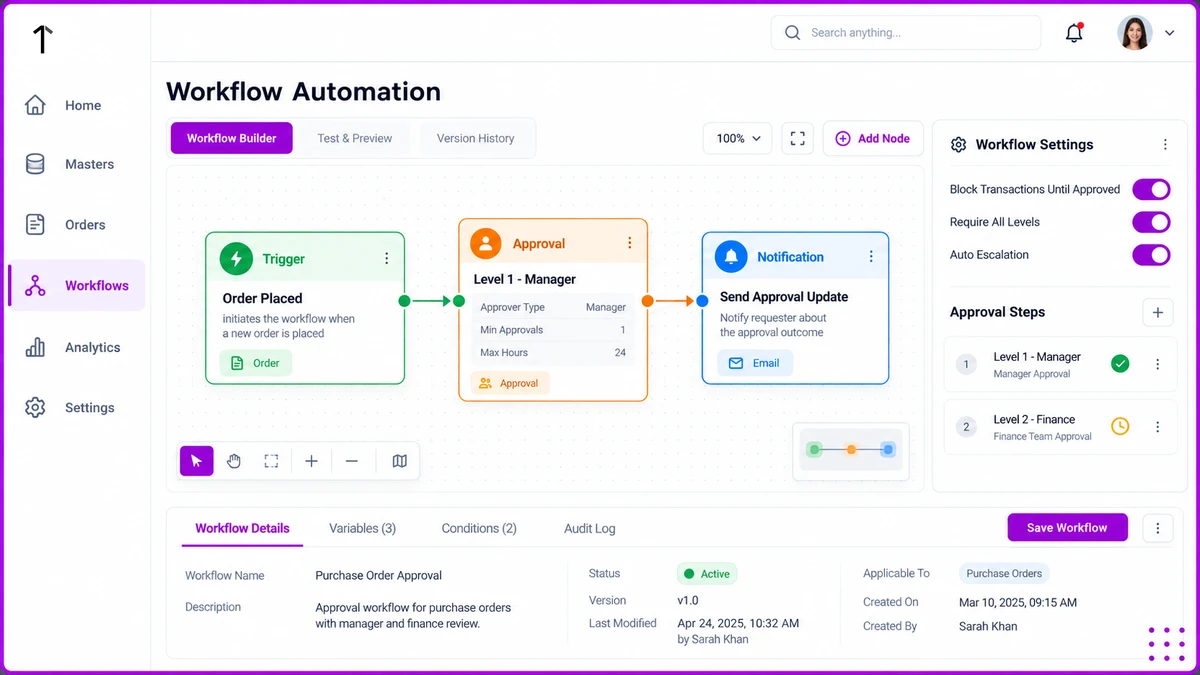
1Channel's Workflow Automation module replaces that manual chain with a drag-and-drop canvas of connected nodes: a Trigger, one or more Approval steps, and a Notification.
A Trigger such as "New Customer Created" or "Order Placed" starts the chain, and nothing beyond the trigger condition needs custom code to configure.
Configuring Each Approval Level
Each Approval node carries a Level Name, an Approver Type, a Min Approvals count, and a Max Hours window before the request times out.
Approver Type can point to a role in the reporting hierarchy, such as the requester's own manager, or to a specific named user instead.
A single Approval node can chain up to seven levels, so a request only reaches the master distributor's own manager once the distributor's manager has already signed off.
Toggles That Control the Outcome
A handful of toggles decide what actually happens to an order while its approval is still pending.
| Toggle | What It Does |
|---|---|
| Block Transactions Until Approved | The account cannot place another order until this request clears |
| Require All Levels | Every configured level must approve, not just the first one reached |
| Auto Escalation | An unanswered request moves to the next level once Max Hours passes |
| On Reject | Sets what happens to the record if an approver declines, such as reopening it for resubmission |
Two Ways Distributors Use This in Practice
New account onboarding. Highveld Distribution (Pty) Ltd onboards a new spaza shop account through the mobile app.
The "New Customer Created" trigger routes it straight to the area manager.
The account cannot transact until that single approval clears, enforced automatically by the Block Transactions Until Approved toggle.
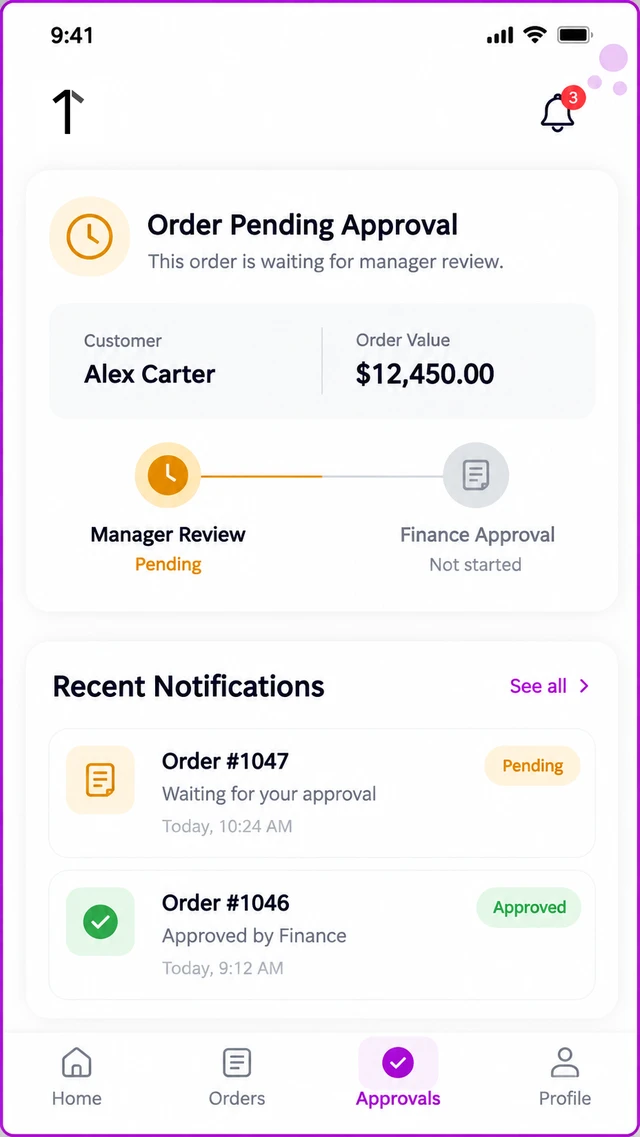
Over-limit orders. Garden Route FMCG Traders places an order worth R287,400 against a customer whose credit limit sits at R250,000.
The order routes to the credit controller for review.
If nobody actions it within the configured Max Hours, Auto Escalation moves the request to the regional manager instead of leaving it stuck.
Editing a Live Workflow Without Breaking It
A workflow already running order approvals cannot be edited carelessly, so changes are made as a Draft first.
The live, Published version keeps running exactly as configured until the new Draft is explicitly published, with a version history and a Runs log showing every past execution.
How 1Channel Routes Every Approval
1Channel's workflow builder covers approval chains for new customers, orders, returns, and credit requests from the same canvas, without a developer involved.
Each chain can mix role-based and named-user approvers, multi-level escalation, and a full execution history, configured once and reused across the entire distributor network.
Build Approval Chains That Match Your Hierarchy
See how 1Channel's Workflow Automation module routes new accounts, orders, returns, and credit requests to the right approver, with escalation built in.
Explore Workflow Automation →Decision Checklist Before Configuring Approval Chains
- Which actions actually need an approval gate: new customers, orders, returns, credit changes, or all four?
- Should the approver be a fixed role, such as the requester's manager, or a specific named person?
- How many levels does this chain actually need, and does every level have to approve, or just one?
- What should happen automatically if nobody responds within the configured window?
- What happens to the record if an approver rejects it outright?
Note: Software screens may vary based on your business structure and configured workflows.