Credit is how distributors in India win retailers. It is also how they lose money, when a limit lives in someone's head instead of in the system.
The pattern repeats across FMCG, building materials, pharma and consumer durables. The retailer orders on credit, and the dues build up between visits.
A DMS can hold the rules instead. Here are seven credit controls worth setting, and what each one does.

1. Set a Credit Limit for Every Retailer
A retailer with no limit has, in practice, an unlimited one. Every order goes through until someone notices the dues.
Add the limit to each retailer's record in the customer master, alongside phone, address and GSTIN. The customer list then shows every retailer's limit in its own column.
2. Let the First Order Through, Then Require a Limit
A new retailer shouldn't wait for paperwork before the first order. Blocking that order can lose the outlet before it starts.
So allow the very first order before a limit is set. From the second order on, nothing goes through until the limit is set and any earlier outstanding is cleared.
3. Decide What Happens When an Order Crosses the Limit
An order that goes over the limit needs a rule, not a phone call. Choose one of three: stop the order, allow it once, or send it for approval.
Every order is checked against the retailer's credit limit, along with stock, schemes and pricing, before it's accepted.
If an order would cross the available limit, the rep is flagged. A manager can review it and, if it's justified, raise the limit on the spot.
4. Send Exceptions Up a Clear Approval Chain
Once an over-limit order needs approval, the next question is who approves it. Leave that open and orders wait in someone's inbox.
Set an approval chain of up to seven levels, routed by role or hierarchy. Credit requests then sit in the same approvals queue as orders and returns, so nothing is approved off the record.
Credit Rules That Hold on Every Order
1Channel's payment and credit management checks every order against the retailer's limit, routes exceptions for approval and shows reps each outlet's outstanding before they order.
Explore 1Channel's Payment & Credit Management →5. Handle Limit-Change Requests in One Queue
Good retailers grow, and their limits should grow with them. The risk is limits that change through calls and messages nobody can trace.
Keep every limit-change request in one place. The credit management screen has a Requests tab that lists pending requests and shows "No Pending Requests" once they're cleared.
6. Show Credit on the Rep's Phone
A rep who can't see a retailer's dues may take an order the system then holds back. That wastes the visit.
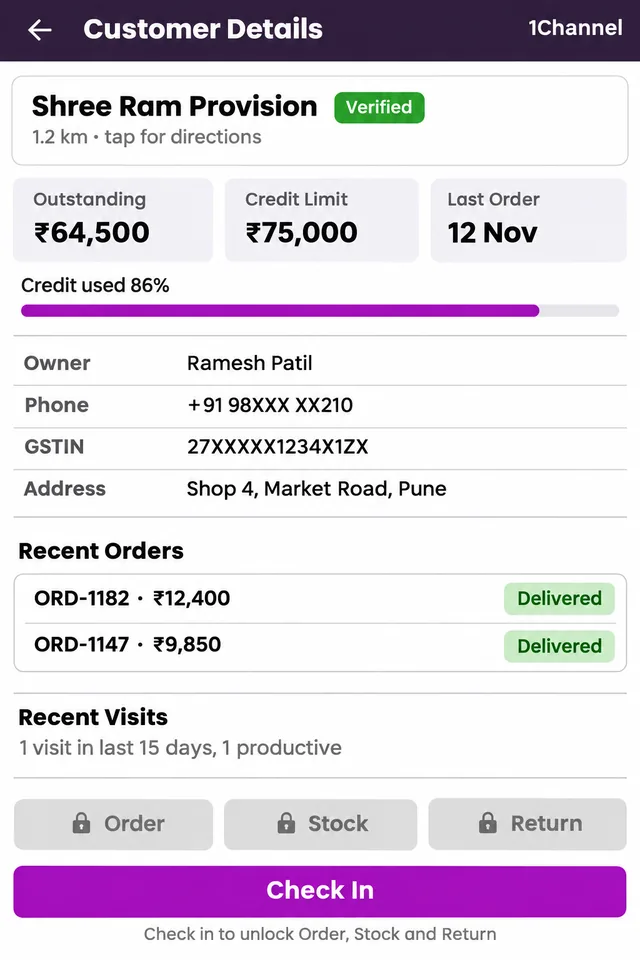
Each outlet card in the beat list shows the outstanding amount and the share of the credit limit already used.
The outlet's detail screen adds the credit limit and the last order. Order, stock and return actions unlock only after the rep checks in.
7. Review Overdue Accounts and Every Override
Limits only work if someone watches them. A weekly look catches what month-end closing finds too late.
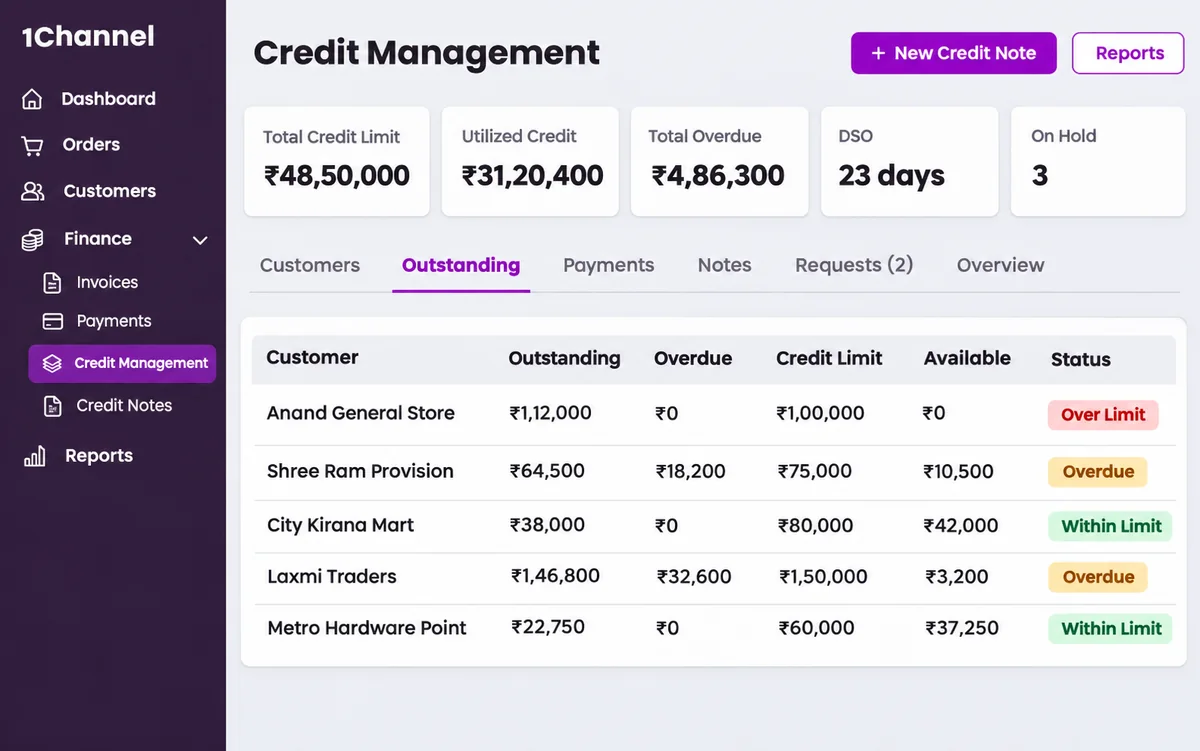
The credit management screen shows total credit limit, utilised credit, total overdue, DSO and the number of retailers on hold.
The outstanding view labels each retailer Over Limit or Overdue, with the credit still available. Two reports cover the rest: Overdue Aging and the Credit Override Audit Report.
Where to Start
- Add a credit limit to every active retailer first.
- Choose the rule for over-limit orders, and name who approves them.
- Make sure reps see outstanding and credit used on every outlet card.
Frequently Asked Questions
1. Can a new retailer order before a credit limit is set?
Yes, for the first order. From the second order, a limit must be set and earlier dues cleared.
2. What happens when an order goes over the credit limit?
It follows the rule you set: the order is stopped, allowed once or sent for approval. The rep is flagged so a manager can review it.
3. Can field reps see a retailer's credit position?
Yes. Outlet cards show the outstanding amount and credit used, and the outlet's detail screen shows the credit limit.
Note: Software screens may vary based on your business structure and configured workflows.