One free spreadsheet and about an hour are enough to rebuild your medical reps' leave balances under the rules that now apply.
Egypt's Labour Law No. 14 of 2025 took effect on 1 September 2025. It changed how much annual leave reps earn and how emergency leave is counted.
The same rules reach field teams in Pharma and Healthcare, FMCG, Cosmetics and Personal Care, and Consumer Durables and Electronics.
This guide sets out the rules, builds a five-step tracker in EtherCalc, a free spreadsheet that needs no sign-up, and ends with where the sheet stops coping.
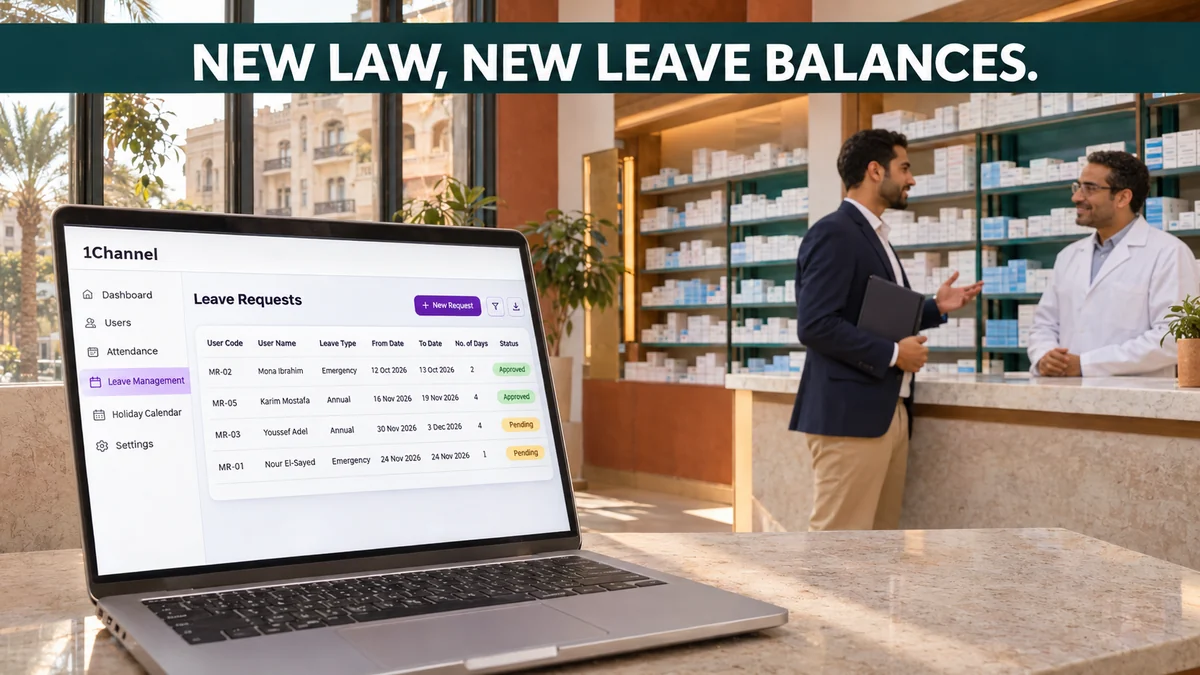
Four Leave Rules Your Reps Now Work Under
Most leave sheets were set up under the old Law No. 12 of 2003. These are the points that change the numbers in them.
| Rule | What the new law says | What it means for the tracker |
|---|---|---|
| Annual leave, first year | 15 days | New joiners start on 15 days |
| Annual leave, later years | 21 days | Reps move to 21 days after their first year |
| Long service or age | 30 days after more than 10 years' service, or above age 50 | Check service and age, not just job grade |
| Emergency leave | Up to 7 days a year, no more than 2 in a row, taken from the annual balance | Count it against annual leave and log each absence |
Summaries of the law differ on some details, such as when first-year leave starts.
Confirm the exact eligibility rules with your legal or HR adviser before you set balances.
Step 1: Open a Blank Sheet and Label the Columns
Go to ethercalc.net and choose Create spreadsheet. A new sheet opens at its own web address, with no account needed.
Anyone with that address can open and edit a standard sheet. Use rep codes, never names or national ID numbers.
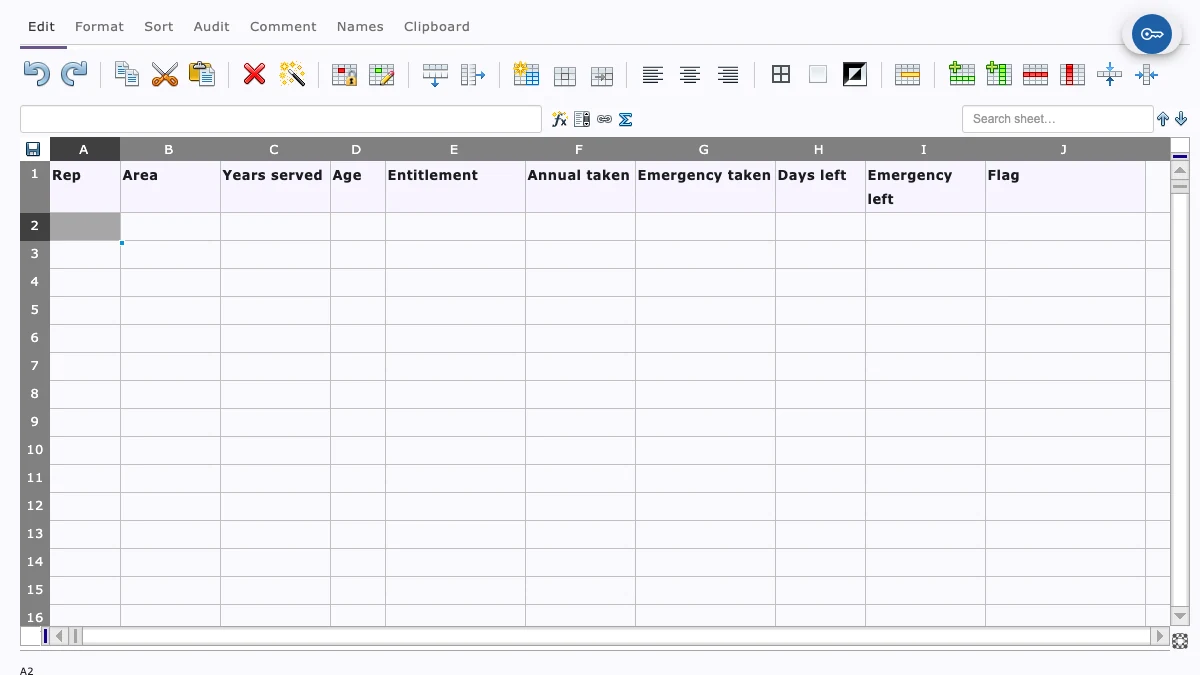
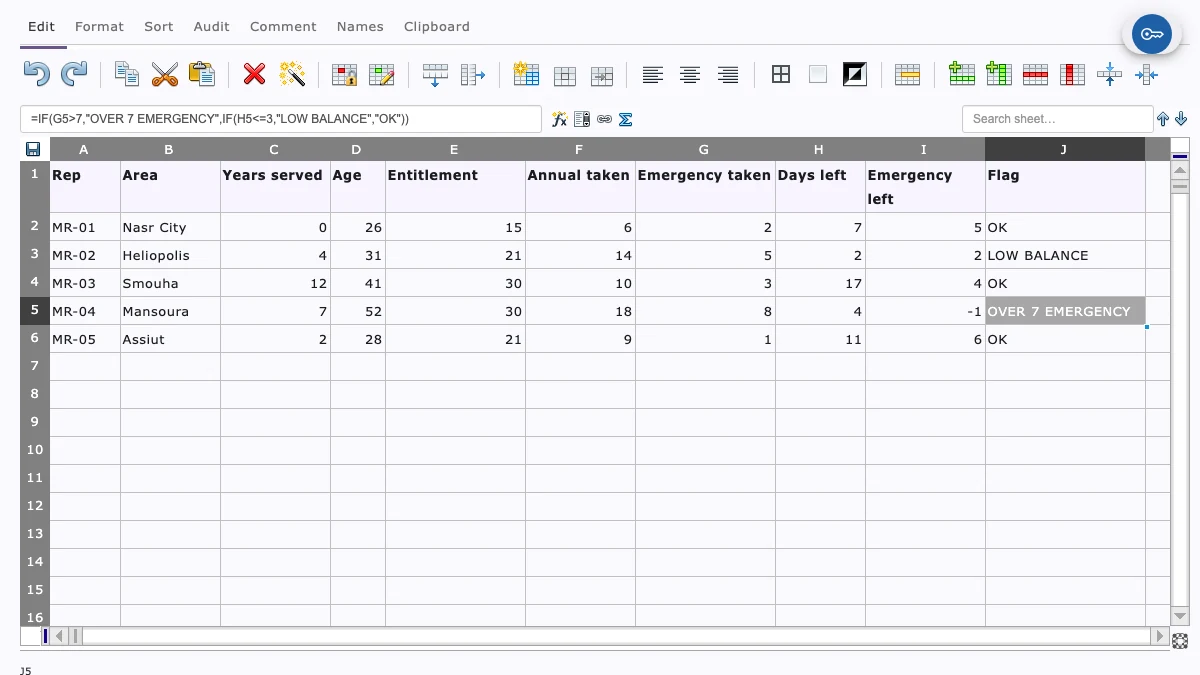
In row 1, type ten headings: Rep, Area, Years served, Age, Entitlement, Annual taken, Emergency taken, Days left, Emergency left and Flag.
Step 2: Let Service and Age Set the Entitlement
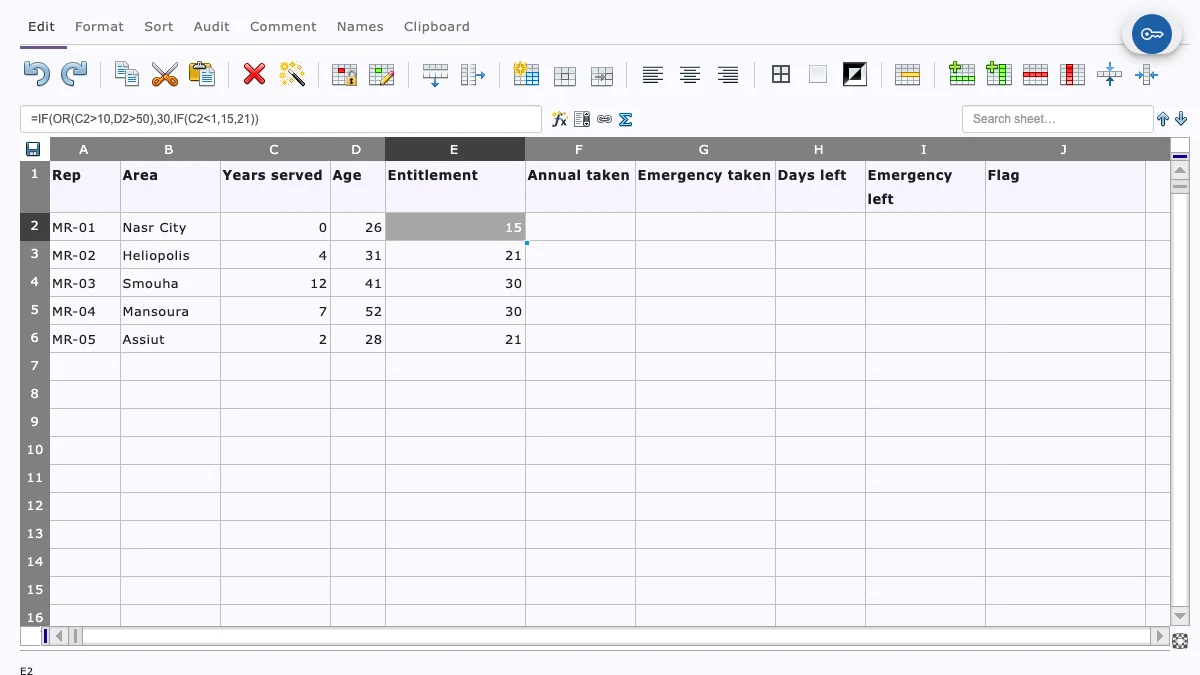
Add one row per rep: the code, the area they cover, completed years of service and age.
In E2, type this formula and copy it down the column:
=IF(OR(C2>10,D2>50),30,IF(C2<1,15,21))
MR-01, in the first year, gets 15 days. MR-02 and MR-05 get 21, and MR-03 and MR-04 get 30. MR-04 qualifies by age, not by service.
Step 3: Record Leave Taken and Work Out Days Left
Annual taken and Emergency taken hold the days each rep has used so far this leave year.
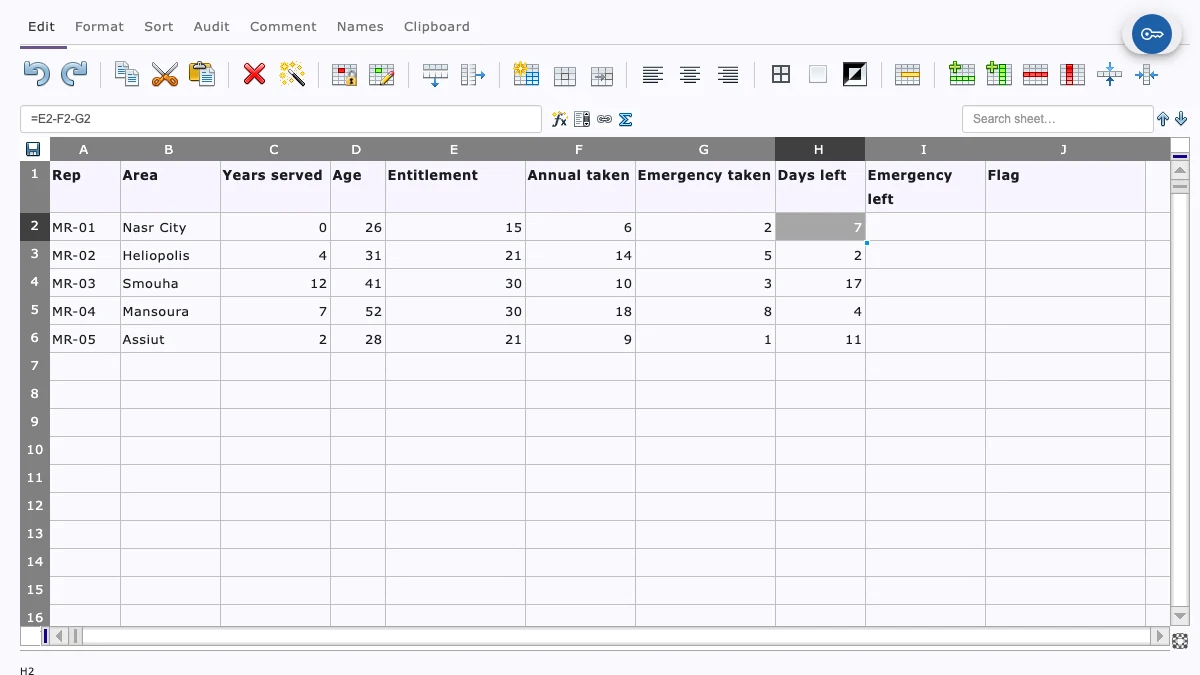
Emergency days come out of the annual balance, so Days left subtracts both:
=E2-F2-G2
MR-02 is entitled to 21 days and has used 14 annual and 5 emergency days, which leaves 2.
Step 4: Flag Emergency Leave Past Seven Days
Emergency left shows what remains of the yearly seven days:
=7-G2
The Flag column then names each problem in plain words:
=IF(G2>7,"OVER 7 EMERGENCY",IF(H2<=3,"LOW BALANCE","OK"))
MR-04 shows OVER 7 EMERGENCY with 8 days logged, and MR-02 shows LOW BALANCE. Both are worth a word with the area manager before the next request.
Step 5: Log Each Absence to Catch Long Runs
Totals cannot show whether a rep took emergency days back to back. Add a short log under the table, one line per absence.
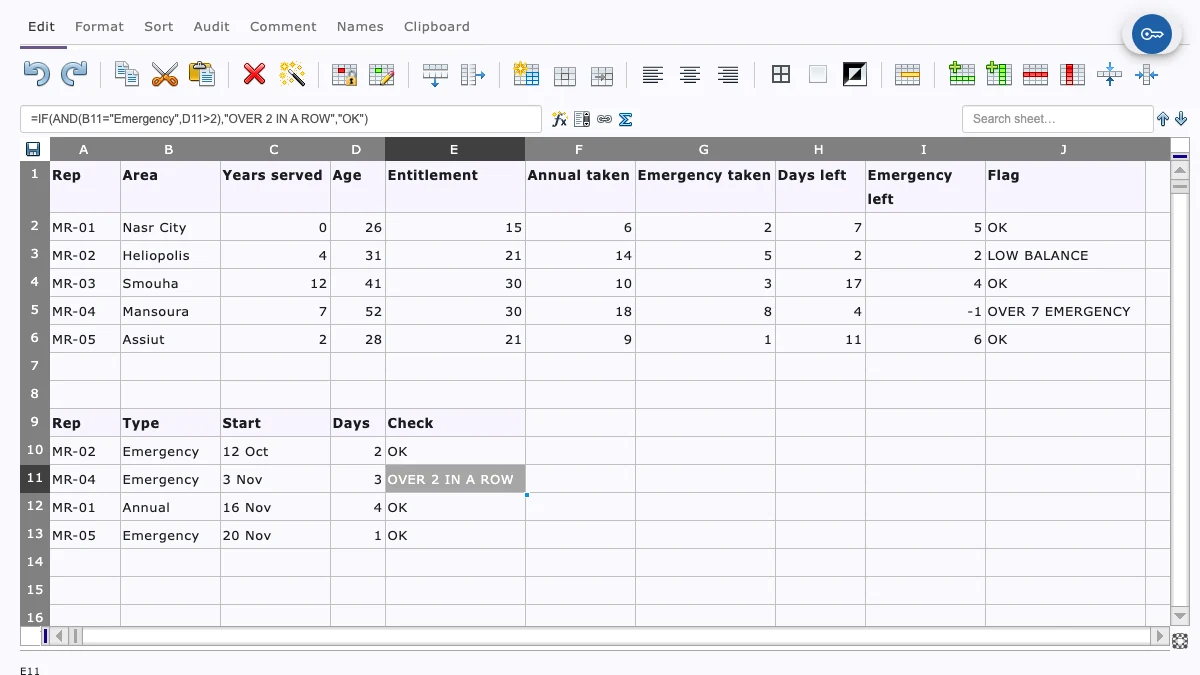
Use the columns Rep, Type, Start, Days and Check, with this rule in Check:
=IF(AND(B10="Emergency",D10>2),"OVER 2 IN A ROW","OK")
MR-04's three-day emergency absence from 3 November is flagged. MR-02's two-day absence in October passes.
Where a Shared Leave Sheet Stops Coping
The tracker works for a small team. As the team grows, these gaps start to cost time and accuracy.
- Every figure is typed by hand, so one missed update leaves a balance wrong until someone spots it.
- Approvals still happen by phone or chat, with no record next to the balance.
- Reps cannot see their own balance, so requests arrive for days they no longer have.
- Nobody moves a rep to 30 days unless someone updates Years served or Age.
- The two-day check only works if every single absence makes it into the log.
- A standard sheet is open to anyone with its address, which is a poor home for staff records.
How 1Channel Keeps Leave Balances and Approvals Together
In 1Channel's sales force automation, admins define leave types and a leave policy per user role.
Each policy sets the period, the number of days, carry forward and whether holidays count as leave.
Opening balances are uploaded once, for example from the tracker above, and monthly accrual then runs automatically.
Reps check their balance and apply from the mobile app. Each request goes to their reporting head, and the decision shows back in the rep's app.
The holiday calendar is visible to reps too, and the software and apps run in multiple languages, configured to each client's requirement.
Give Every Rep a Leave Balance They Can Trust
See how leave policies, app requests and manager approvals keep balances right for field teams across Egypt.
Explore Leave Management Software →Points to Remember
- New joiners start on 15 days, and reps move to 21 after their first year.
- 30 days applies after more than 10 years' service or above age 50, whichever comes first.
- Emergency days come out of the annual balance, up to 7 a year and never more than 2 in a row.
- Keep names and ID numbers out of any sheet shared by link.
- Check the final entitlements against the law's text with your adviser.
Note: Since the manual method was only tested once, consult a technical expert before running bulk operations.