Under Section 37 of Kenya's Employment Act, casual work that runs continuously for a month or more becomes a term contract with monthly pay.
Brands with casual in-store promoters feel this most in Consumer Durables & Electronics and Cosmetics & Personal Care, with FMCG and Retail & Modern Trade close behind.
For all of them, the attendance record, not the contract label, is what shows how long a promoter has really worked.
This guide builds a free promoter day log in EtherCalc in six steps, with no sign-up.
It then covers where a manual log falls short and how 1Channel keeps the record. It is a record-keeping guide, not legal advice.

Why the Record Matters More Than the Contract
Section 37 has two triggers. Casual work that continues for a month or more converts, and so does work that cannot reasonably be finished within three months.
Once converted, wages are paid monthly and the Act's notice and termination protections apply.
In July 2026 the Court of Appeal ruled on Embu County health workers kept on rolling contracts. It looked past the label to how long they had served.
Courts have also turned down conversion claims where the work was not continuous. So the days someone worked, and the gaps between them, carry weight on both sides.
A promoter rotated across stores rarely has one clean record. Shifts sit in store sign-in books, chat messages and a supervisor's memory.
What You Need Before You Start
- A code per promoter — such as PR-101, so the sheet never needs a name.
- The main store for each promoter — where they are usually placed.
- Days worked each week — taken from the store sign-in book or the supervisor's log.
- Each promoter's first week — so the weeks before they started stay blank.
- A review rule from HR — the roster length at which HR looks at a promoter's status, agreed with your lawyer.
The figures below are illustrative. They cover six casual promoters placed by an electronics brand in stores in Nairobi, Mombasa and Kisumu.
The log runs for eight weeks, from the week of 29 September to the week of 17 November.
How to Build the Promoter Day Log
Step 1: Open a New Sheet
Go to ethercalc.net and click Create spreadsheet. A blank sheet opens at its own web address, with nothing to install and no account.
Anyone with that address can open and edit the sheet. Use promoter codes only, and keep names, phone numbers and ID numbers in your HR file.
Step 2: Set Up the Promoter Register
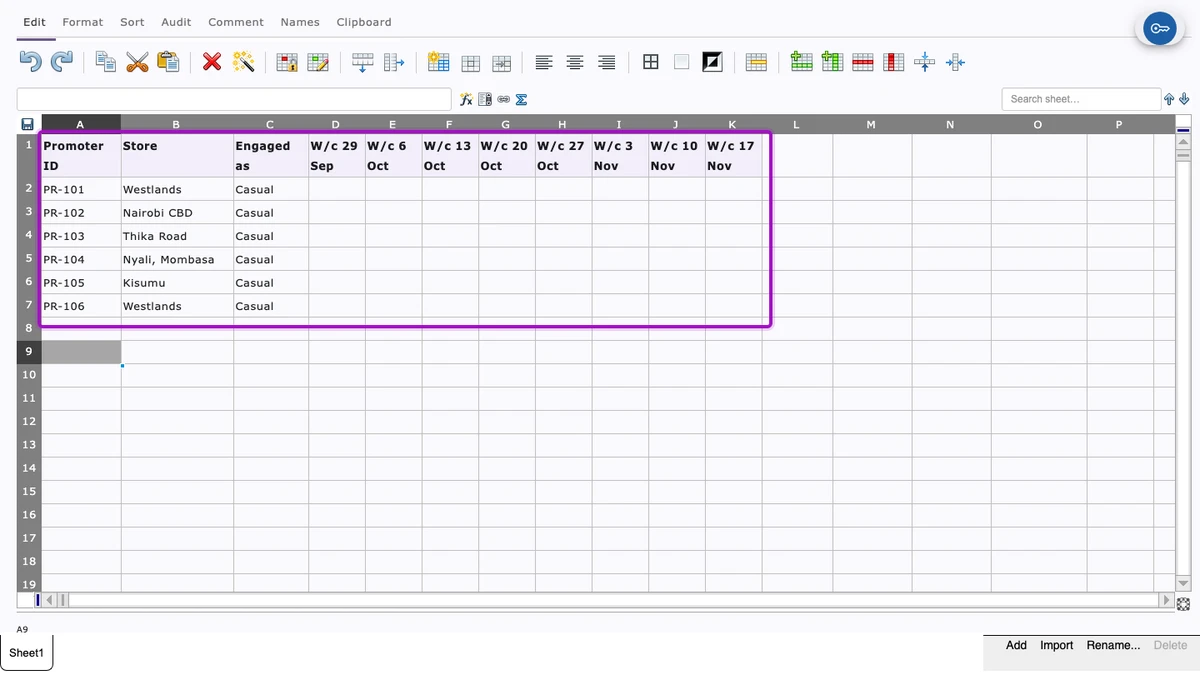
In row 1, type Promoter ID, Store and Engaged as in columns A to C. Add one column per week from D to K, headed by its Monday.
Add one promoter per row. Column C holds the contract label, Casual for all six here, so the label sits right next to the record.
Step 3: Enter Days Worked Each Week
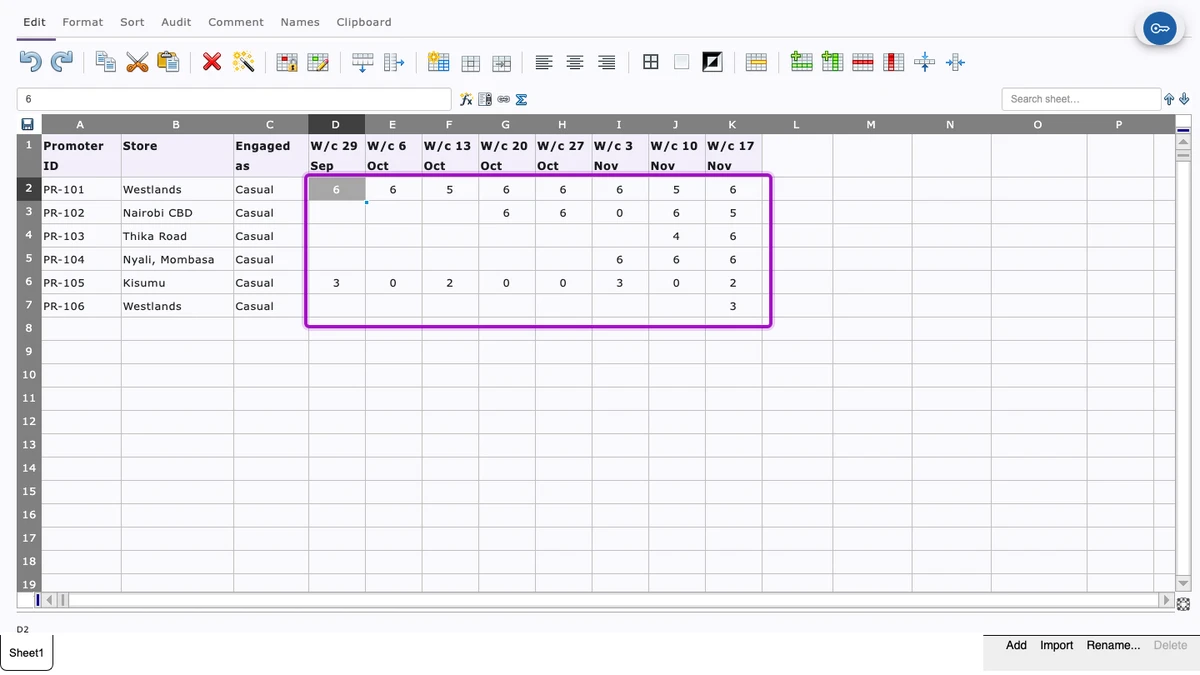
Each Monday, copy the days worked in the previous week from the store sign-in books into that week's column.
Leave a cell blank for weeks before a promoter started. Type 0 for a roster week with no shift, so the gap is recorded, not hidden.
PR-105 in Kisumu works some weekends only, so that row mixes small numbers with zeros.
Step 4: Total Days and Weeks on the Roster
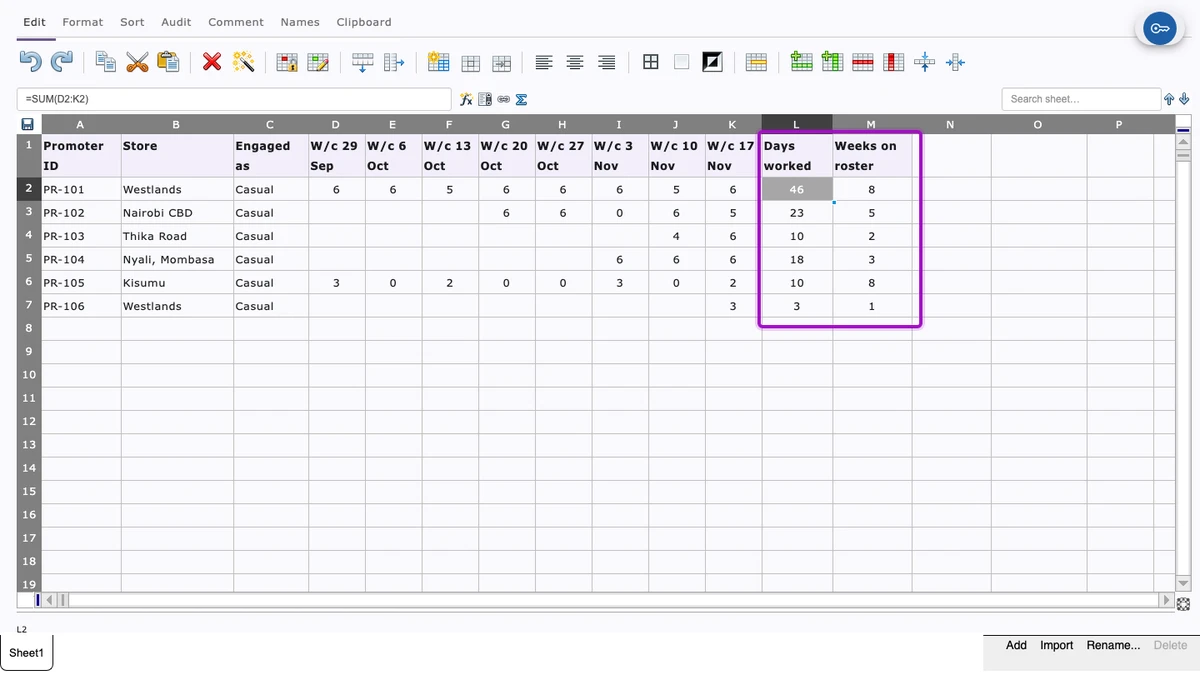
In L2, type =SUM(D2:K2) for days worked. In M2, type =COUNT(D2:K2) for weeks on the roster. Copy both down.
COUNT counts the zeros but skips the blanks, so it measures how long each promoter has been on the roster, worked or not.
PR-101 in Westlands shows 46 days across all 8 weeks. PR-104 in Nyali, Mombasa, shows 18 days across 3 weeks.
Step 5: Count Weeks With No Shift
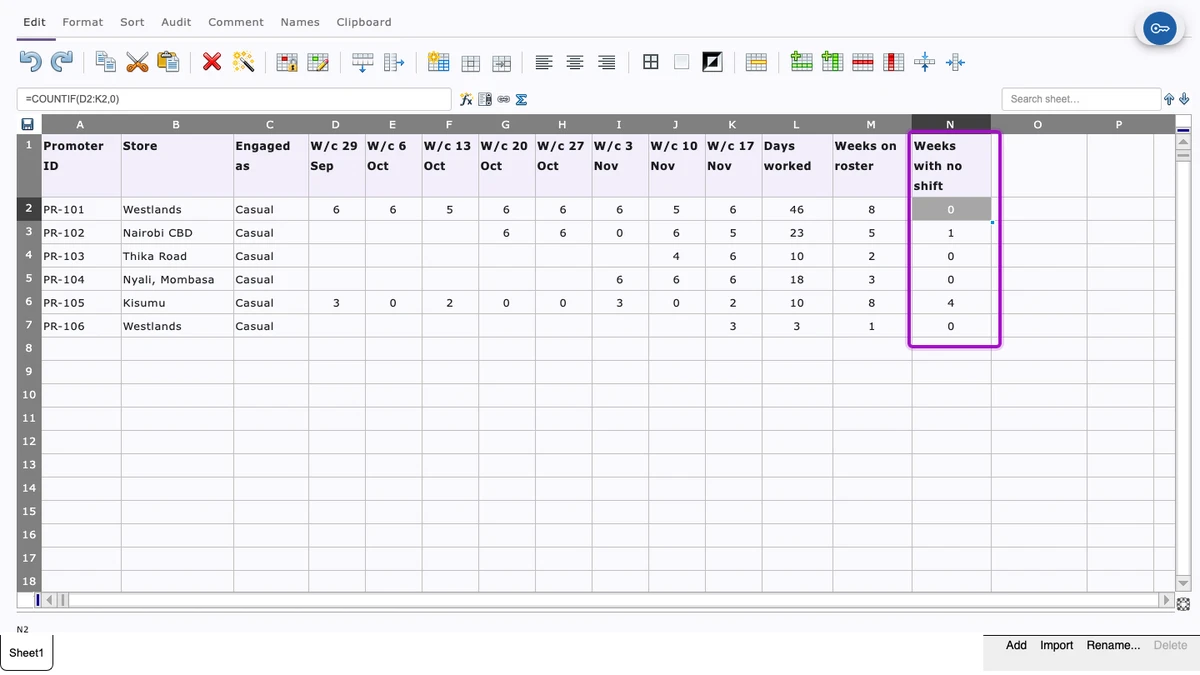
In N2, type =COUNTIF(D2:K2,0) and copy it down. It counts the zero weeks, which are the breaks in each promoter's run.
PR-102 has one break, in the week of 3 November. PR-105 has four, which tells HR the Kisumu work has been on and off.
Step 6: Flag Who Needs an HR Review
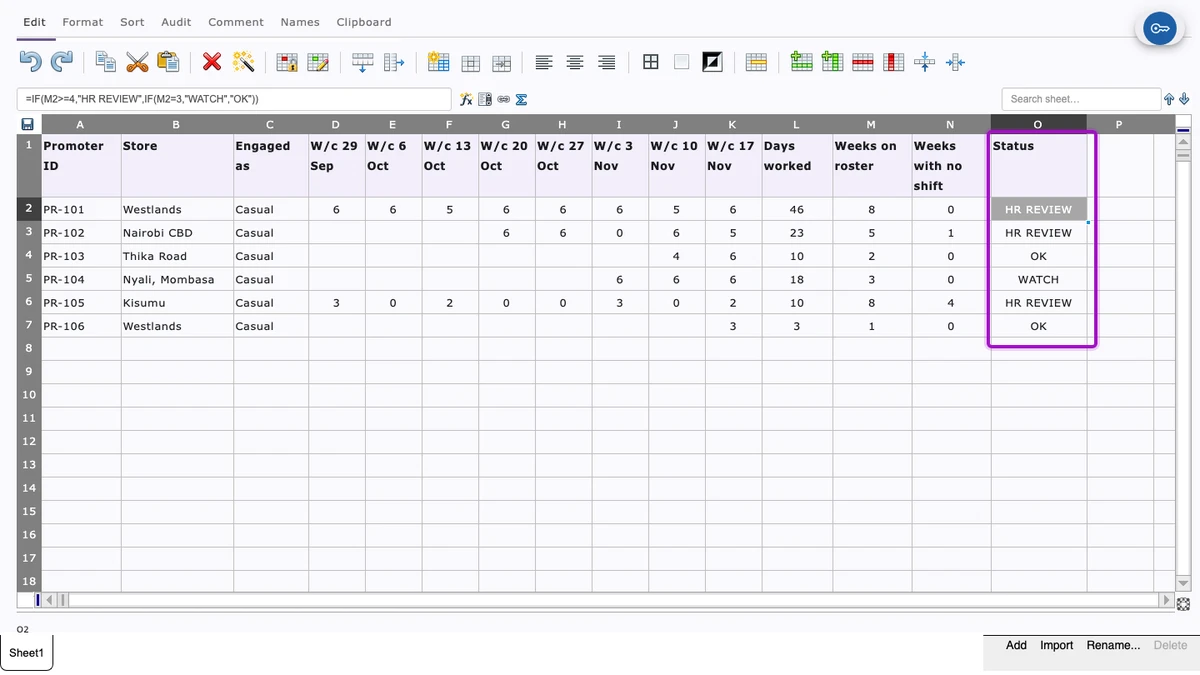
In O2, type =IF(M2>=4,"HR REVIEW",IF(M2=3,"WATCH","OK")) and copy it down. Four weeks on the roster is roughly a month.
The thresholds are prompts for HR, set with your lawyer, not the legal test. Three of the six promoters now read HR REVIEW, and one reads WATCH.
What the Log Tells HR About Three Promoters
The same flag can mean very different things, which is why the break count sits right beside it.
| Promoter | What the log shows | What HR checks next |
|---|---|---|
| PR-101, Westlands | 46 days over 8 weeks, no breaks | Two months of steady work under a casual label |
| PR-102, Nairobi CBD | 23 days over 5 weeks, 1 break | Whether the quiet week was agreed leave or a real break |
| PR-105, Kisumu | 10 days over 8 weeks, 4 breaks | Whether on-and-off weekend shifts were continuous at all |
The sheet cannot answer those questions. It only puts the weeks in front of the person who has to.
Where the Manual Log Falls Short
- Copied numbers — weekly counts come from sign-in books, so a missed copy turns into a missing week.
- No proof of presence — a tick in a book does not show the promoter was in the store, or that a colleague did not sign for them.
- Weeks, not dates — a count of 5 hides which days were worked, and exact dates are what a dispute turns on.
- Manual moves — a promoter who changes stores, or leaves and comes back, needs someone to edit the rows by hand.
- Edits without names — anyone with the link can change a count without signing in, so a change cannot be tied to a person.
- Scattered copies — each agency or region keeps its own sheet, so HR never sees every promoter at once.
How 1Channel Records Every Promoter Shift
In 1Channel's field app, a promoter marks attendance with a live selfie and their location. Store-level geofencing ties the check-in to the store.
AI matches the selfie against the promoter's stored reference image, so a colleague cannot check in for them.
Random attendance prompts during the shift confirm the promoter is still at the store they checked into.
Each day then appears on a colour-coded attendance calendar.
A past day can be regularised with a status and a remark. The request goes to an approver before it applies, so gaps are explained on the record.
Leave, week-offs and shifts sit in the same app. Attendance can be closed for a period before payroll, and payroll-ready reports give HR the days each promoter worked.
1View, 1Channel's app for retail execution, people and rewards, also connects with 1Office HRMS for people, leave and exits.
1Channel does not decide anyone's employment status. It gives HR a dated, verified record of every shift to decide from.
| Task | Free sheet | 1Channel |
|---|---|---|
| Recording a shift | A weekly count copied from a sign-in book | Selfie and location check-in at the store, every day |
| Proof it was the promoter | A tick or initials | AI match against a stored reference image |
| Gaps | A 0 typed for the week | Calendar view, with regularisation an approver signs off |
| Payroll | Days re-keyed from the sheet | Attendance closed for the period, payroll-ready reports |
| Access | Anyone holding the link | Role-based access to screens and reports |
Record Every Promoter Shift Where It Happens
Selfie and location check-ins, AI face matching and payroll-ready attendance reports for promoters across Kenya.
Explore Attendance Software →Key Takeaways
- Log days worked from each promoter's first week, and type 0 for weeks with no shift instead of leaving them blank.
- Read the break count next to the roster length before drawing any conclusion.
- Treat the review flag as a prompt for HR and your lawyer, not as the law.
- Keep names and ID numbers off a shared link; promoter codes are enough.
Note: Since the manual method was only tested once, consult a technical expert before running bulk operations.