Most approval delays in distribution aren't bad decisions. They're decisions nobody made when the workflow was set up.
Who approves a new retailer? How long can the request wait? Can the retailer order in the meantime? Leave those open, and every request finds its own path through calls and reminders.
Pharma and consumer durables distributors face the same questions as FMCG and building materials teams. Here are nine decisions to settle in a DMS workflow builder, using new customer approval as the example.

1. Choose What Starts the Workflow
Every workflow begins with a trigger: an entity and an event, such as a customer being created. Triggers can also fire on data updates and approval requests.
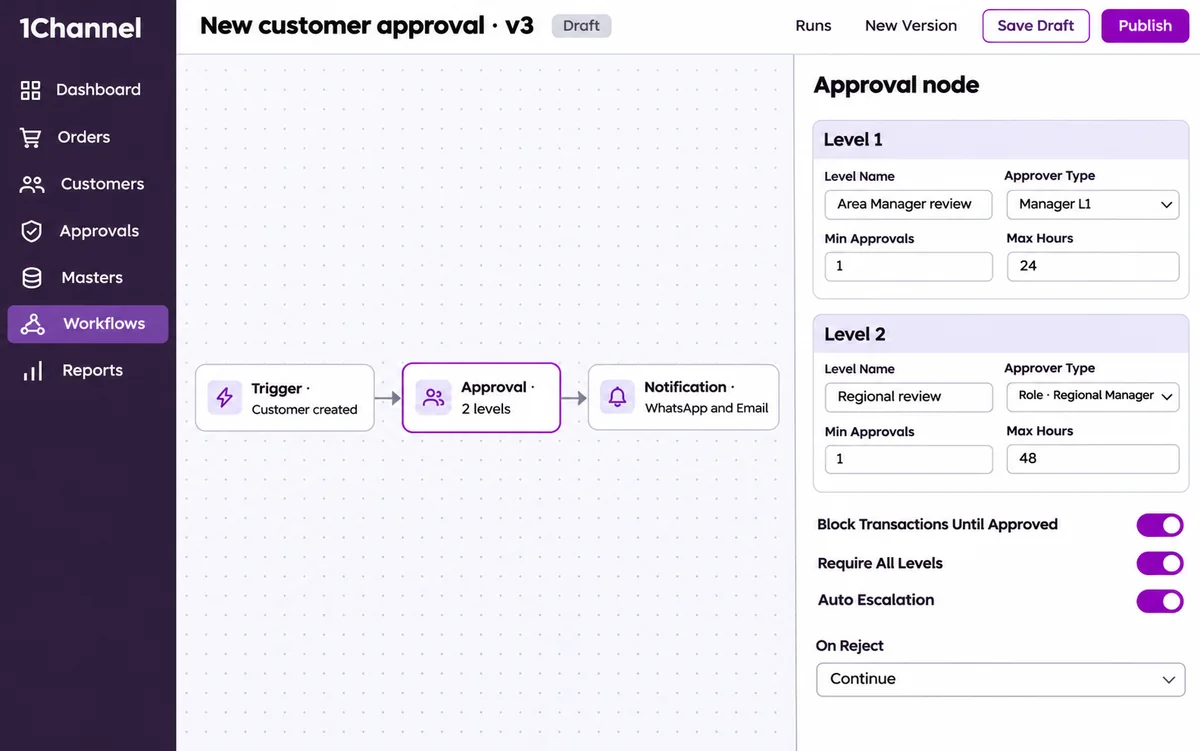
The example here has three steps. A new customer is created, the creator's manager approves, and a notification goes out by WhatsApp or email.
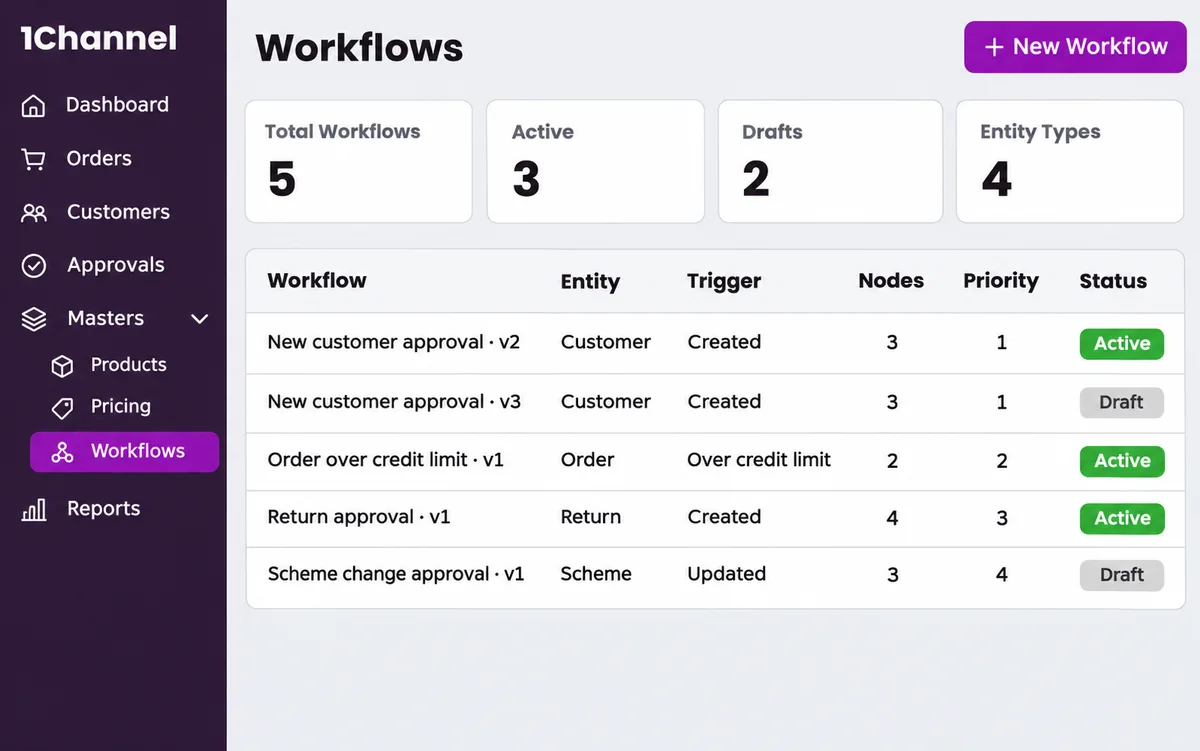
The workflow list shows each one's entity, trigger, number of steps and priority, along with how many are active and how many are drafts.
2. Decide Who Approves
Set an approver type for each level. Manager L1 sends the request to the creator's own manager in the reporting chain.
Where the hierarchy isn't the right fit, a role or a specific named person can approve instead.
3. Decide How Many Levels
One approval step can hold up to seven levels. Each level waits for the one before it, so level 2 sees a request only after level 1 approves.
More levels add control, but each one adds waiting time. Use them where the value or the risk justifies it.
4. Decide Whether Every Level Must Sign Off
Require All Levels is a switch on the approval step. Decide upfront whether a request needs every level's approval, and set it to match.
5. Set How Many Approvals a Level Needs
Min Approvals sets how many people at a level must approve. One is enough for routine requests, while a sensitive one may need two.
Build the Approval Chain Once, Then Let It Run
1Channel's workflow automation lets distribution teams build approval chains on a visual canvas, with up to seven levels, time limits, escalation and draft-and-publish versions, without writing code.
Explore 1Channel's Workflow Automation Software →6. Give Each Level a Time Limit
Max Hours sets how long a level can hold a request. Without a limit, a request can sit with an absent manager until someone notices.
Give a quick first check less time and a final sign-off more, so each level gets the time it actually needs.
7. Escalate Instead of Waiting
Pair the time limit with Auto Escalation, so a request can move from a manager to the manager's manager automatically rather than stalling.
8. Decide Whether the Record Can Act While It Waits
Block Transactions Until Approved stops the record from transacting while approval is pending. A new customer, for example, can't place orders until it's approved.
Use it where acting early is risky, and leave it off where a delay would cost more than the risk.
9. Decide What Happens on Rejection
The On Reject setting controls what happens to the record if a request is rejected, for example Continue.
Rejected requests can also be resubmitted, so a request can be corrected and sent back through the chain.
Every Distributor Approval in One DMS
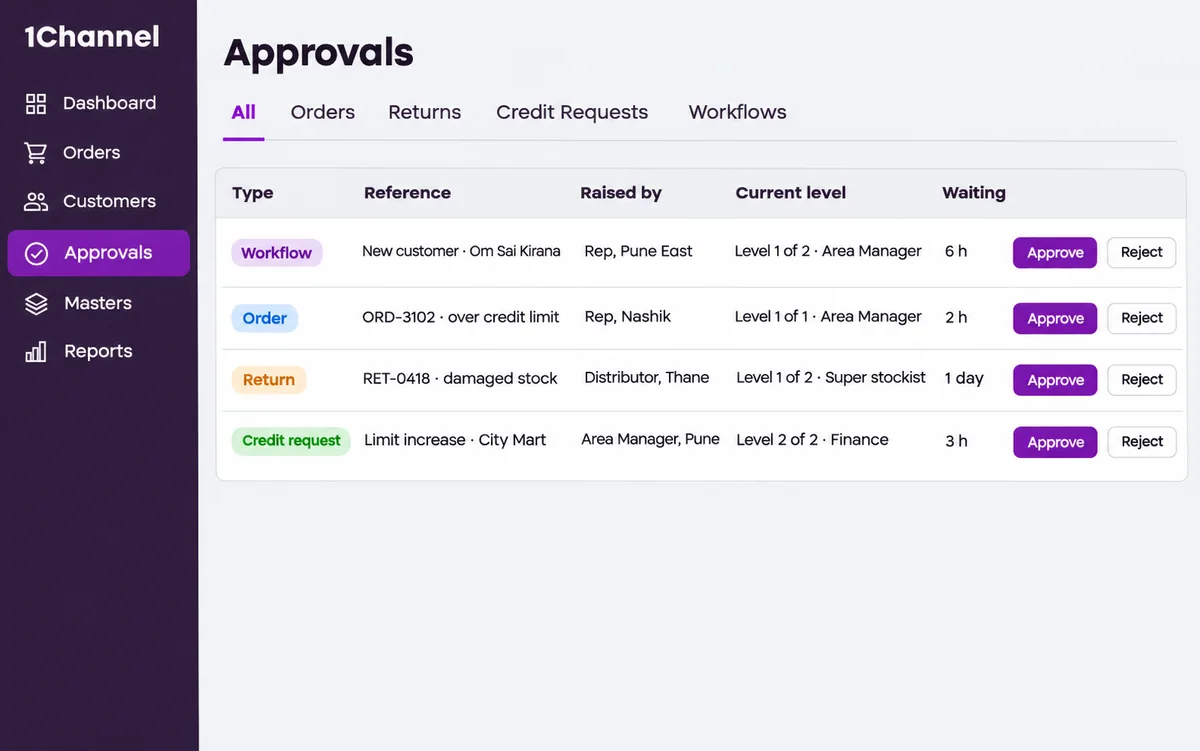
1Channel's distributor management software keeps orders, returns, credit requests and workflow approvals in one approvals queue, next to the orders and stock they belong to.
Explore 1Channel's Distributor Management Software →Before You Publish
Edits are saved as a draft, and the live workflow keeps running untouched until the new version is published.
Each version stays in the history, and the Runs log shows how the workflow has run.
Every pending request then lands in one approvals queue: orders, returns, credit requests and workflow approvals.
Frequently Asked Questions
1. Can a role or named person approve instead of a manager?
Yes. A level can go to the creator's manager, a role or a specific named user.
2. What happens if an approver doesn't act in time?
Each level has a Max Hours limit, and with Auto Escalation on, the request can move to the manager's manager.
3. Can a live workflow be changed without disrupting it?
Yes. Changes are saved as a draft, and the live workflow stays untouched until the new version is published.
Note: Software screens may vary based on your business structure and configured workflows.