In this blog post, we'll show you a completely free, step-by-step manual method to set up a Task & Project Management System using Google's suite of free tools like Google Forms, Sheets, and Calendar.
We'll be using Google's free tools including Google Forms & Google Sheets along with some simple automation ideas that can help you track tasks, follow-ups, and project progress effectively.
This free setup helps you assign, track, and manage team tasks or small projects without any paid software.
It's best suited for startups, freelancers, and small teams managing up to 10-15 daily tasks.

Benefits of Free Task & Project Management System
- 100% free and cloud-based
- Uses familiar Google tools (Forms, Sheets, Calendar)
- Simple and easy for all users
- Enables real-time task tracking and collaboration
- Accessible on both desktop and mobile
- Perfect for small businesses and teams
Step-by-Step Guide for Free Task & Project Management System Setup
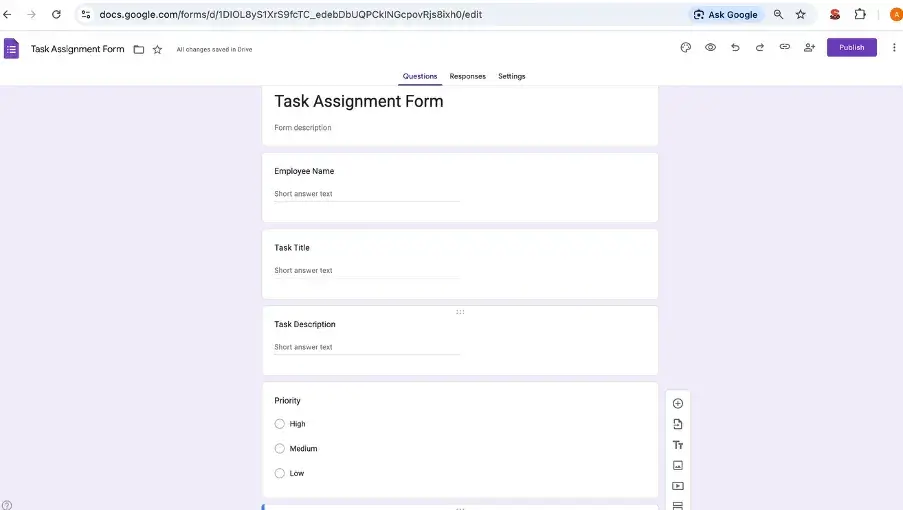
Step 1: Create a New Google Form for Task/Project Assignment
Visit Google Forms (https://docs.google.com/forms/u/0/) and click Blank Form.
Set the title as Task Assignment Form and add the following fields:
Employee Name, Task Title, Task Description, Priority (High / Medium / Low), Due Date
This form will be used by managers or team leads to assign new tasks.
Step 2: Connect Your Form to Google Sheets
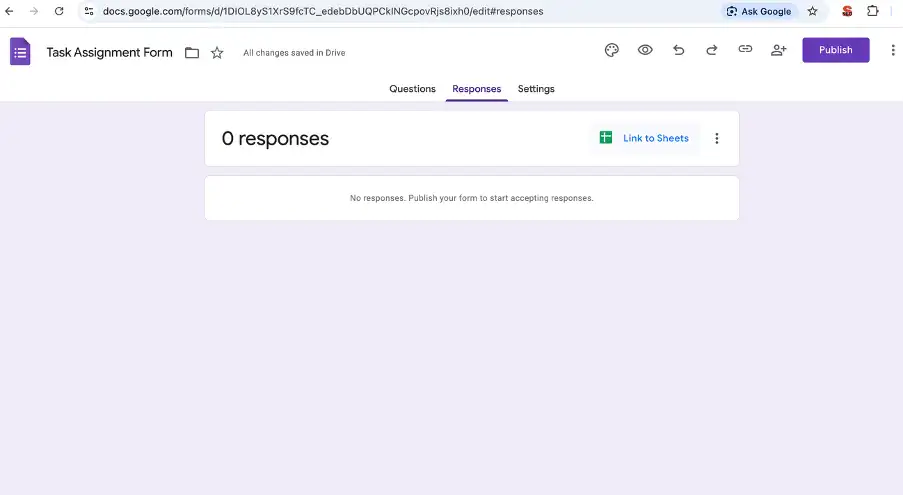
(Step 2.1) Go to the Responses tab and click the green Sheets icon (Link to Sheets).
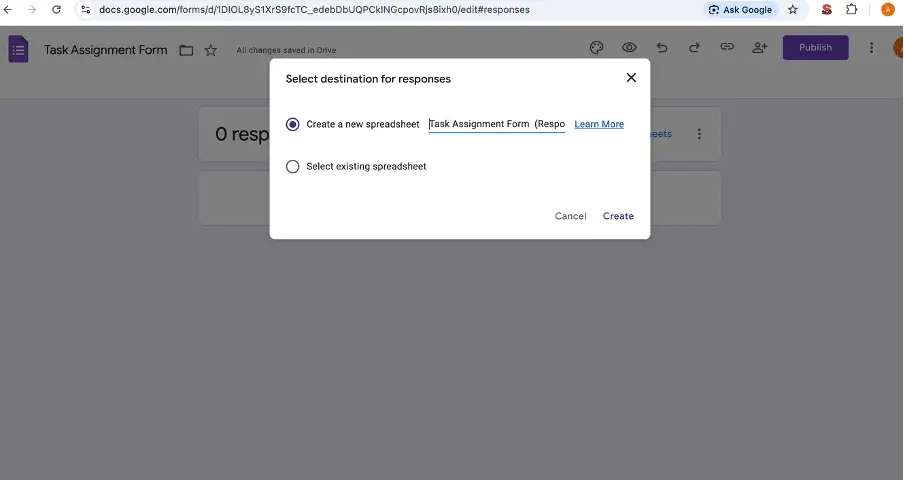
(Step 2.2) Select Create a New Spreadsheet to store all task submissions automatically.
Step 3: Add Task Tracking Columns
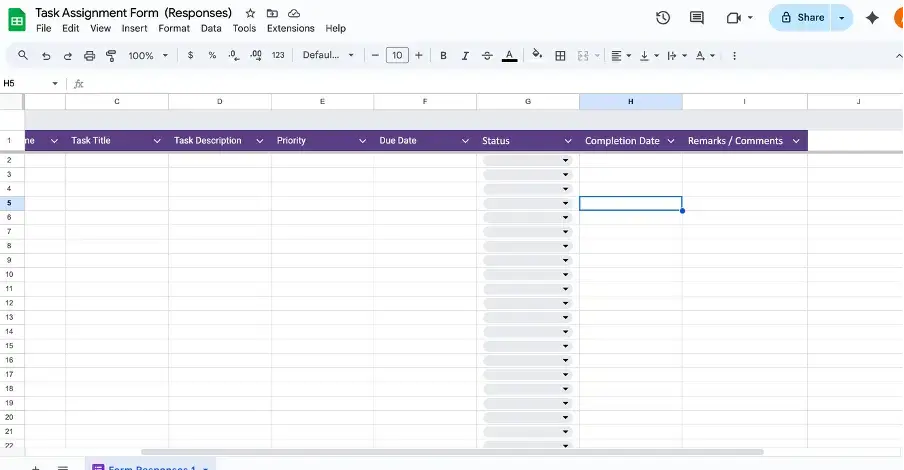
In the connected Google Sheet, add these columns after your form fields:
- Status (To Do / In Progress / Completed)
- Completion Date
- Remarks / Comments
These help your team track each task's progress easily.
Step 4: Add Dropdown for Status Tracking
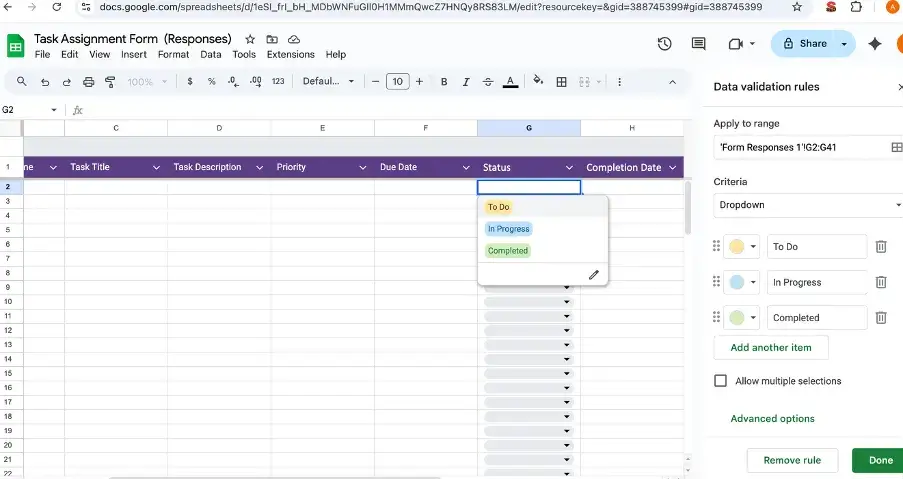
Highlight the Status column → Go to Data → Data validation.
Under "Criteria," select List of items and enter:
To Do, In Progress, Completed
Now every task entry can be updated with its current progress.
Step 5: Add Conditional Formatting for Visual Tracking
To make it visually clear:
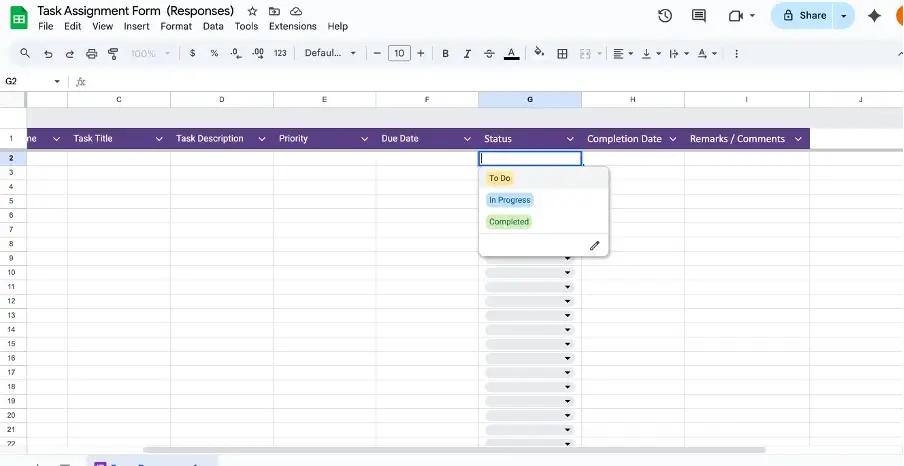
Highlight the Status column → Go to Format → Conditional formatting.
Set color rules:
- "To Do" → Yellow
- "In Progress" → Blue
- "Completed" → Green
This creates an instant color-coded view of all tasks.
Step 6: Create Calendar Reminders (Optional)
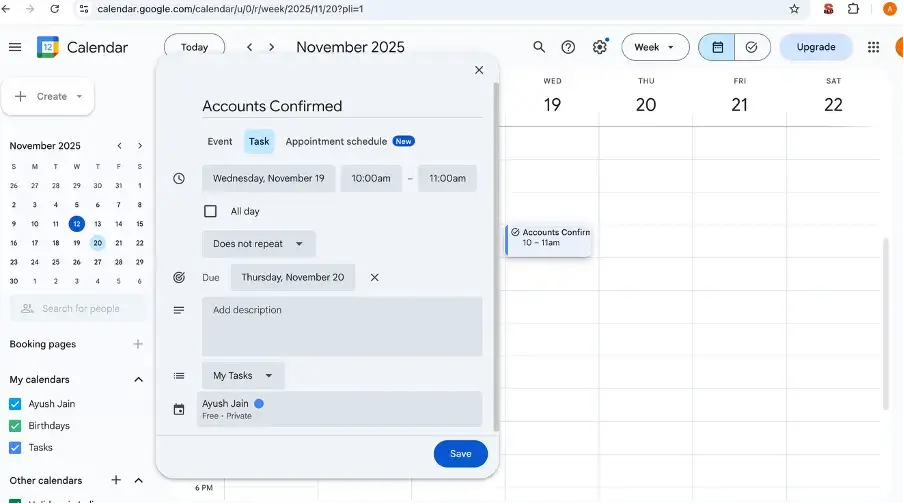
For each task's Due Date, you can link Google Calendar to remind the assignee:
Open Google Calendar (https://workspace.google.com/intl/en-US/products/calendar/) and click Create → Event. Enter the task name and due date.
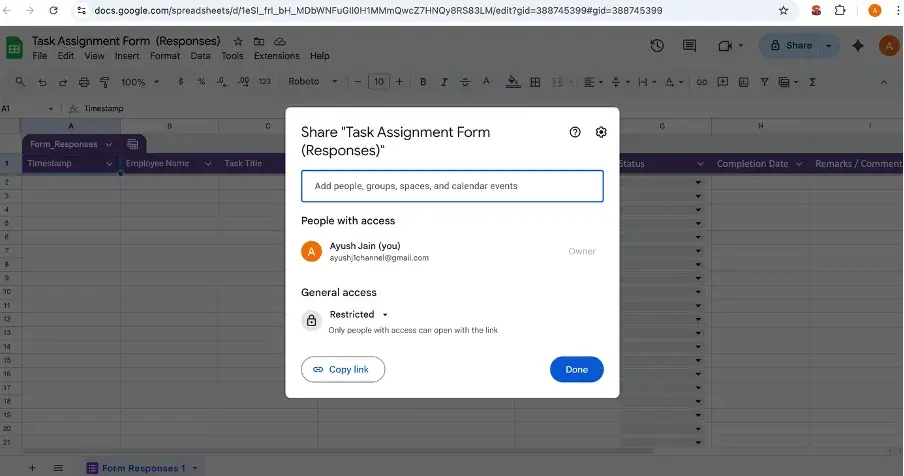
Step 7: Share the Task Sheet with Your Team
Click the Share button in Google Sheets and invite your team members by email.
You can give them "Editor" access to update status or "Viewer" access for managers to monitor progress.
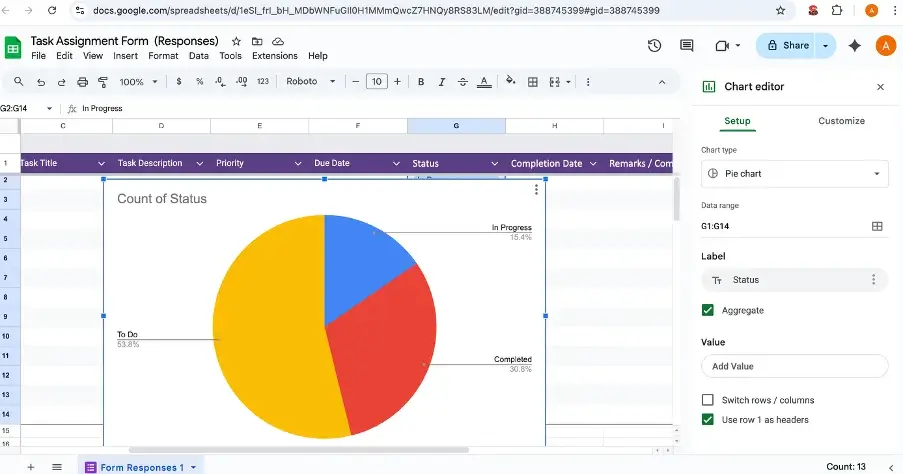
Step 8: Create a Simple Dashboard (Optional)
To visualize progress: Go to Insert → Chart and choose a Pie or Bar Chart showing the number of tasks per status (To Do, In Progress, Completed).
This gives you a quick overview of team performance.
Limitations of Free Task & Project Management System
- Manual updates required
- No automatic notifications or reminders
- Limited user roles or permissions
- No task dependencies or timelines
- No file attachments or activity logs
- Not ideal for large or complex projects
India's Best Automated Task & Project Management Solution - 1Channel SFA
If you want to move from a manual setup to a smart, automated task management system, explore 1Channel SFA, India's most trusted sales and field automation platform.
1Channel offers:
- Task creation and auto-assignment to employees
- Real-time progress tracking via mobile app
- Deadline alerts and notifications
- Configurable dashboards and analytics
- Integration with CRM, ERP, and attendance modules
- It's fully configurable for sales, marketing, and field operations teams of any size.
Explore Sales Force Automation
Empower your field teams with 1Channel's AI-powered SFA platform. Drive efficiency, boost sales, and gain real-time visibility across your entire sales operations.
Explore SFA Solutions →1Channel's Customers Across Industries
- Royal Enfield
- JSW Steel
- Kala Genset - Power & Energy
- Essentia Homes - Real Estate & Interiors
- Craftsmith - Manufacturing
- HDFC Bank
- Hindustan Unilever - FMCG
- Petronas - Oil & Energy
- ACC Cement
- Sharp Sight - Healthcare & Hospitals
FAQs - Manual Task & Project Management (Google Apps Method)
Is this system completely free?
Yes, it uses free Google tools like Forms, Sheets, and Calendar.
Can it handle large projects?
It's best for small teams or projects. Larger teams may face manual maintenance challenges.
Can I get notifications for new tasks?
Yes, by enabling "Notification Rules" in Google Sheets (Tools → Notification Rules).
Is mobile access supported?
Yes, both Google Forms and Sheets are accessible via mobile browsers or apps.
Can I attach files or notes?
Not directly, you can share Google Drive file links inside the Remarks column.