VisiMax
1ChannelRetail maintenance, visual merchandising and store audits
Every in-store issue becomes a ticket that is approved, costed in a recce, fixed with photo proof, checked and closed. One app for the field team, the vendor and the approver, with a web portal for the office.



Syncing Your Data
Loading beat plan...
Please wait while we prepare your data...
18.5074, 73.8077↻
About this app
VisiMax is 1Channel's app for retail maintenance, visual merchandising and store audits. It replaces the WhatsApp groups, calls, spreadsheets and paper approvals that store upkeep usually runs on with one workflow that every person in the job shares.
- Raise a maintenance ticket from inside the store with the product, subject, description, issue count and photos
- Send every ticket, recce estimate and execution through configurable approval levels before money or time is spent
- Survey and cost the job in a recce: element types, quantities and prices add up to an estimated total automatically
- Execute with proof: before, work-in-progress, old element, new element and after photos, plus a retailer sign-off
- Check in at stores from inside a geofence, mark attendance with a selfie and location, and follow your plan for the day
- Deploy campaign material, run scored store audits and fill activity forms on the same app
- Keep working with no network: drafts and photos are saved on the phone and sync in order when the signal returns
- Get notified the moment something is assigned to you or waiting for your approval
For field teams and merchandisers
The home screen shows today's progress, quick actions for attendance, your stores and your tickets, the sync status of your data and your recent activity. Stores are split into planned and unplanned visits. Inside a store you check in, open the store's tickets and campaigns, log activity, run an audit and check out.
For approvers and managers
One approvals inbox has separate tabs for tickets, recce estimates and executions. An approver opens the full record with its photos and store details, assigns the vendor while approving a ticket, can edit quantities and prices on a recce before approving it, and approves with an optional comment or rejects. A recce can pass through several approval levels. Each manager sees their own reporting line; leadership sees the whole programme.
For vendors and execution crews
Outside crews log in to the same flow. Execution stays locked until the recce is approved; then the approved recce loads into the execution screen with its products, prices and quantities, so the crew records what was done against what was approved, with photos at every stage and the retailer's sign-off.
For brand and operations teams
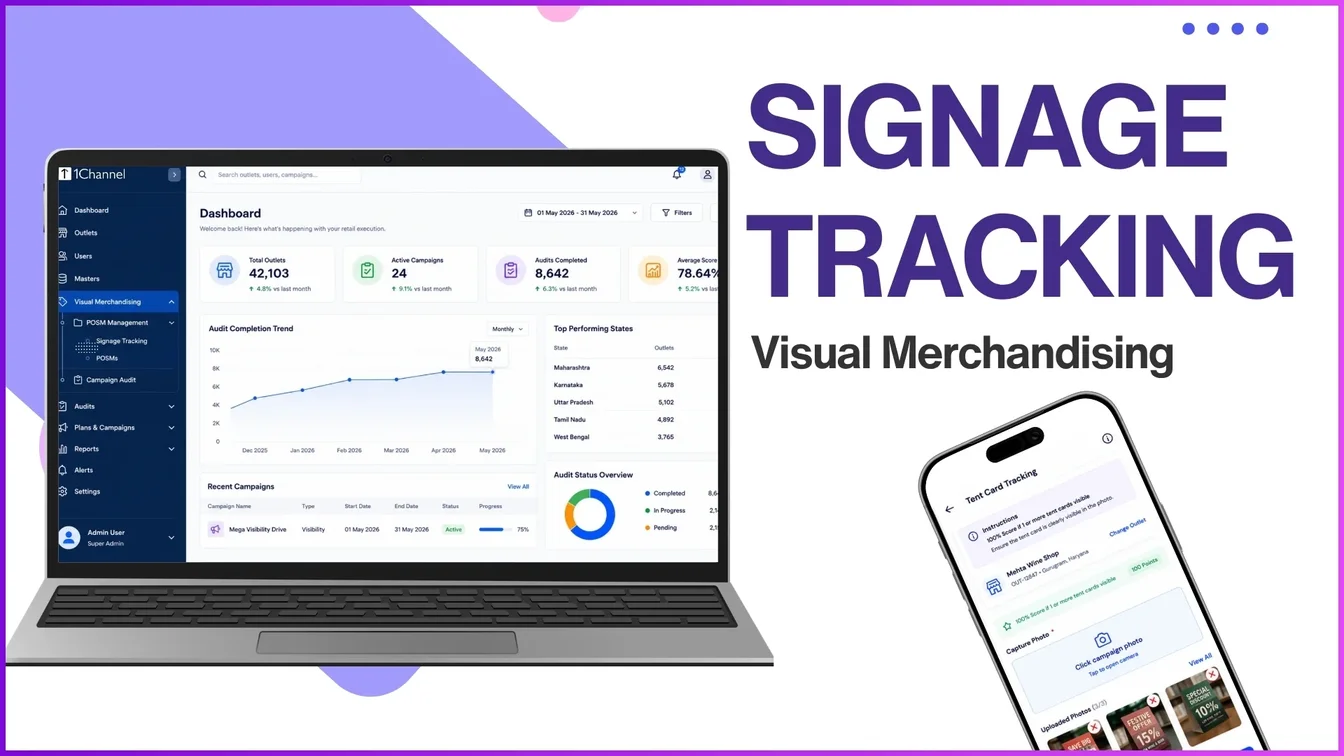
Every ticket keeps an activity timeline from creation to closure. Coverage, turnaround time, audit scores and campaign reach are available in 19 ready reports and a report builder on the web portal, and a partner API lets a brand's own system raise tickets and read their status.
One app, every person in the job
Each login sees only the screens its role needs. Roles, permissions and module access are set per project.
Field rep or merchandiser
- Marks attendance and checks in at stores
- Raises tickets with photos from the store
- Deploys campaign material and runs audits
- Works offline and syncs later
Approver
- Separate tabs for tickets, recce and execution
- Assigns the vendor while approving a ticket
- Edits recce quantities and prices before approving
- Sees only their own reporting line
Vendor crew
- Gets the approved job on the same ticket
- Submits the costed recce with photos
- Executes against the approved quantities
- Uploads proof at every stage
Brand and operations team
- Follows every ticket's activity timeline
- Tracks coverage, turnaround and audit scores
- Uses 19 ready reports and a report builder
- Raises tickets from its own system by API
How a ticket moves through VisiMax
One ticket carries the whole job. Each stage has an owner and a record, so a brand can see where every rupee and every day went.
Raise the ticket in the store
Pick the store and its code, zone and city fill in. Add the store contact number, ticket name, subject and product (the product list follows the subject you pick), a description, the issue count and issue photos, then create the ticket.
Field repApprove and assign a vendor
The ticket goes through the approval levels the programme has set. The approver checks the photos and store details, assigns the vendor and approves with an optional comment, or rejects.
ApproverSurvey and cost it in a recce
Choose the element types needed, such as AC, locks, MCBs, paint or panel lights, and enter quantity and price for each product. At least one recce photo is required, notes are optional, and VisiMax adds up the estimated total as you type.
Vendor or field teamApprove the estimate
The reviewer sees the rate-card price, the entered price and the totals side by side. In edit mode they can change quantities and prices or remove a line and see the adjusted total, then approve. A recce can move through several approval levels, and execution stays locked until it is approved.
ApproverExecute with photo proof
The approved recce loads into the execution screen, with its photos as a reference. The crew adds before, work-in-progress, old element, new element and after photos, records the retailer's sign-off with sign-off photos, and adds notes.
Vendor or field teamReview the work
The execution review shows the grand total, the work summary, every photo group, the recce reference and the retailer's sign-off, so the job is checked by someone who was not there before it is approved.
Approver or QCClose it with a full trail
The ticket moves to completed and its activity timeline keeps each step, from creation and each approval level to execution, for audit and reporting.
Everyone
Everything VisiMax can run
Switch on what each programme needs. Every module works on the app, the web portal or both, and every project keeps its own configuration. VisiMax also works alongside 1Channel's retail merchandising software, so merchandisers can report an issue without switching apps.
Maintenance and service
From a reported issue to a closed, verified job.
- Tickets with turnaround-time tracking by stage
- Multi-level approval before work starts
- Recce with element types, rate cards and a bill of quantities
- Execution with before and after photos and material used
- Quality check: pass, fail or rework with remarks
- Vendor logins and store approvers per outlet
Visual merchandising and campaigns
Point-of-sale material tracked to the store wall.
- Store lists and product allocations per campaign
- Deployment photos and quantities per outlet
- Mandatory campaigns that gate check-out
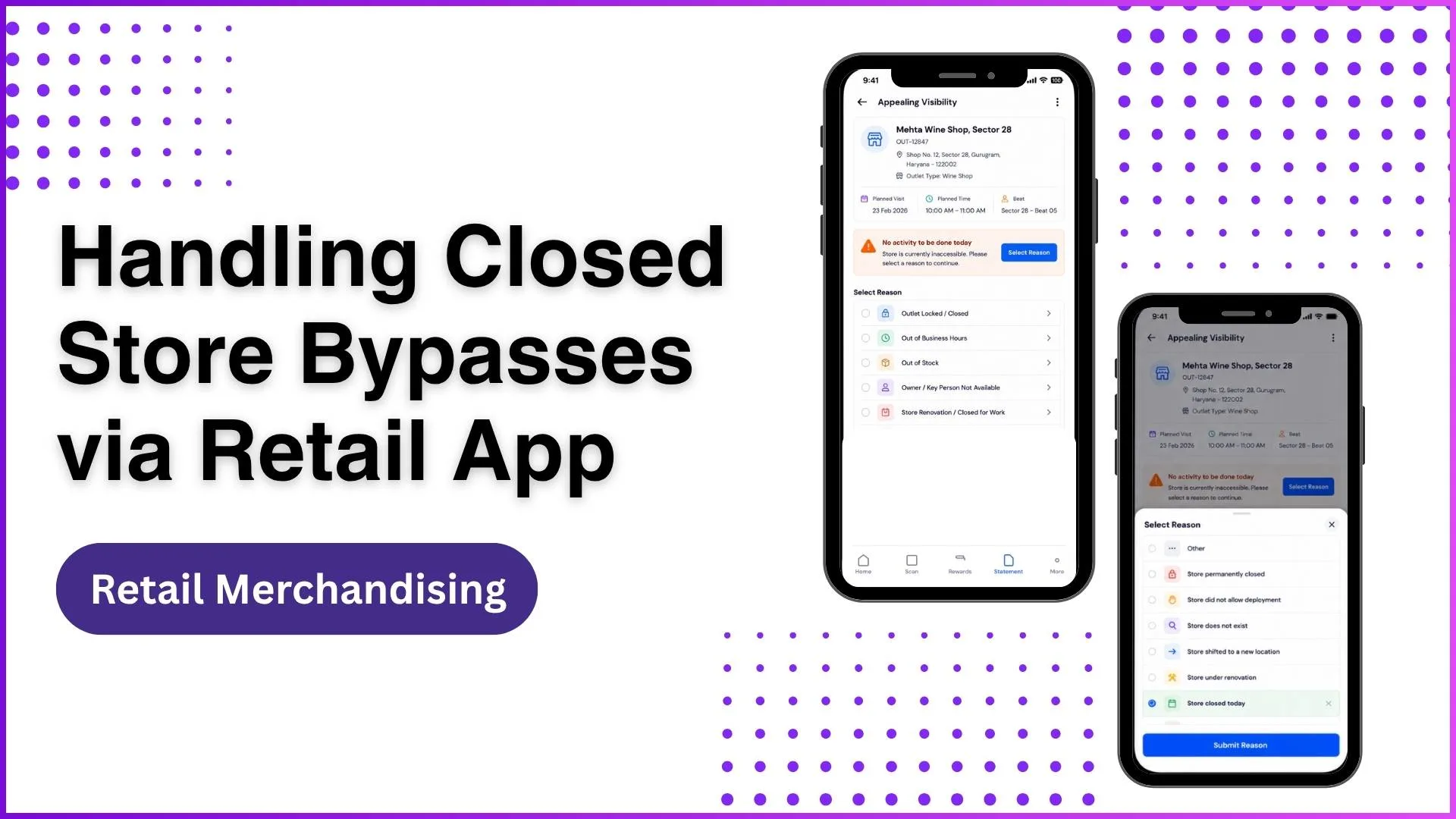
- "Store not operational" skip with a reason NEW
- VM inventory: allocated, received, deployed, in hand
- Campaign coverage by region and store
Store visits and the field day
Where the rep is, which stores they covered, what they did.
- Geofenced check-in with a store photo, and visit duration on check-out
- Attendance with location and a selfie; sections can stay locked until it is marked
- Leave, comp-off and regularisation
- Daily plans and beat plans, planned and unplanned stores
- Add-store requests and GPS correction
- Coverage targets per person, tracked live
Audits and forms
Any checklist, survey or scored audit, filled in store.
- Scored store audits with sections, weightage and a passing score
- Quality check on every answer before the score is final
- Major and minor findings raise maintenance tickets
- Activity forms built in the portal, filled on the phone
- Audio recording questions NEW
- Availability checks by product
Sales and orders
Demand captured at the counter.
- Order intent from a product catalogue with rate cards
- Distributor fulfils, part-fulfils or rejects
- Status returned to the rep
People and governance
Who may do what, and who sees whose data.
- Approval types and levels per project
- Roles, permissions and a reports-to hierarchy
- KPIs and team performance in the app
- Email alert rules, notifications and a documents library
- HRMS sync for users and attendance
AI, reports and dashboards
Less typing in the store, more insight in the office.
Voice note to ticket
A rep describes the issue aloud in their own language and VisiMax turns it into a clean English ticket description.
Clean comments
Ticket descriptions and approval remarks tidied with one tap, keeping the author's meaning.
19 ready reports
Coverage, store visits, tickets, execution, POSM, campaign coverage, audit scores, time spent, untouched stores and more, each with Excel export.
The report the brand asked for
Pick the module, columns and filters in the portal and save it. Exports follow the viewer's role and reporting line.
In the app too
Ticket analytics, category, investment and activity timeline dashboards for managers on the move.
Photo audit and partner API
Visit photos can be passed to an external photo-audit service, and brand systems can raise tickets and read their status.
Data safety
Safety starts with knowing how an app collects and shares data. This is what 1Channel has declared for VisiMax on Google Play.
No data shared with third partiesThe app does not share user data with other companies or organisations.
Data the app may collectPhotos; messages (emails); precise location; device or other IDs; personal info (name, email address, user IDs and phone number); app info and performance (crash logs).
Data is encrypted in transitYour data is transferred over a secure connection.
Ratings and reviews
Ratings as shown on Google Play and the App Store on 16 Nov 2026. See all reviews on Google Play
Who uses VisiMax
Retail maintenance, visual merchandising and store-audit programmes run by brands and the agencies that serve them.
Consumer electronics
Backlit logos, demo fixtures and brand walls kept lit, clean and current across multi-brand outlets.
Appliances and durables
Dealer-store branding, display units and campaign material tracked to the outlet.
Mobile and telecom retail
Exclusive and partner stores audited on a scored standard, with findings fixed on tickets.
FMCG and beverages
Coverage, availability checks and point-of-sale deployment at scale.
Retail services and VM agencies
Recce, costing, vendor execution and quality check for several brands on one platform.
Distribution-led channels
Order intent at the counter, fulfilled by the distributor, visible to the brand.
From the blog
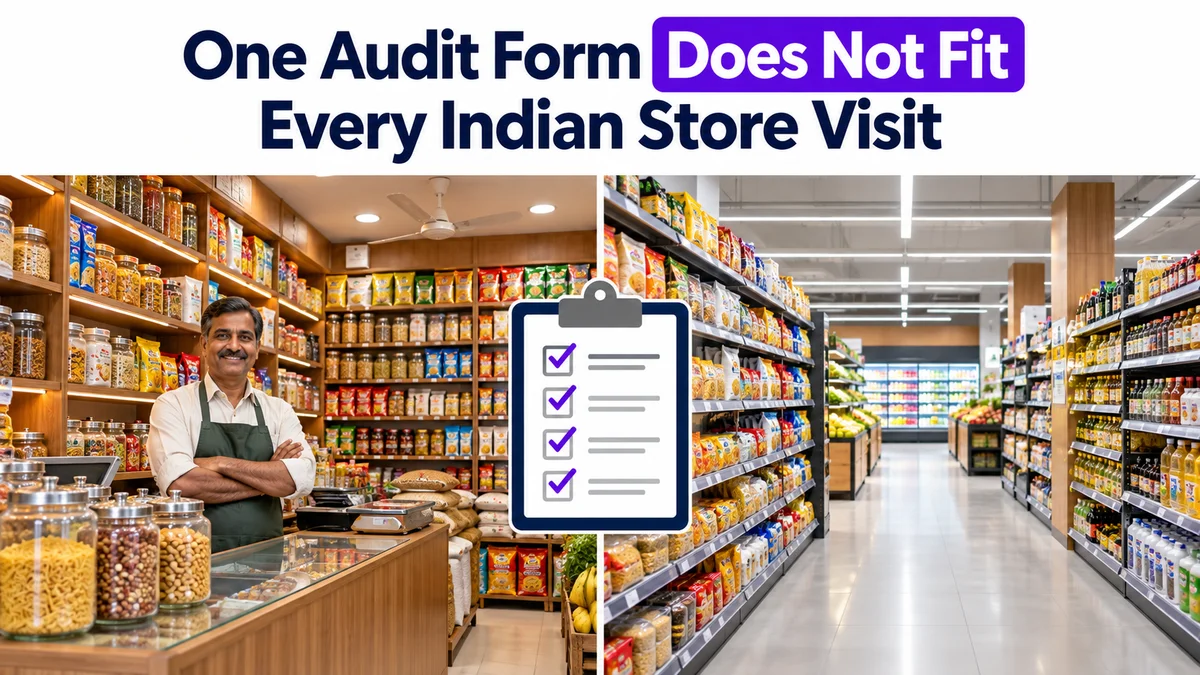
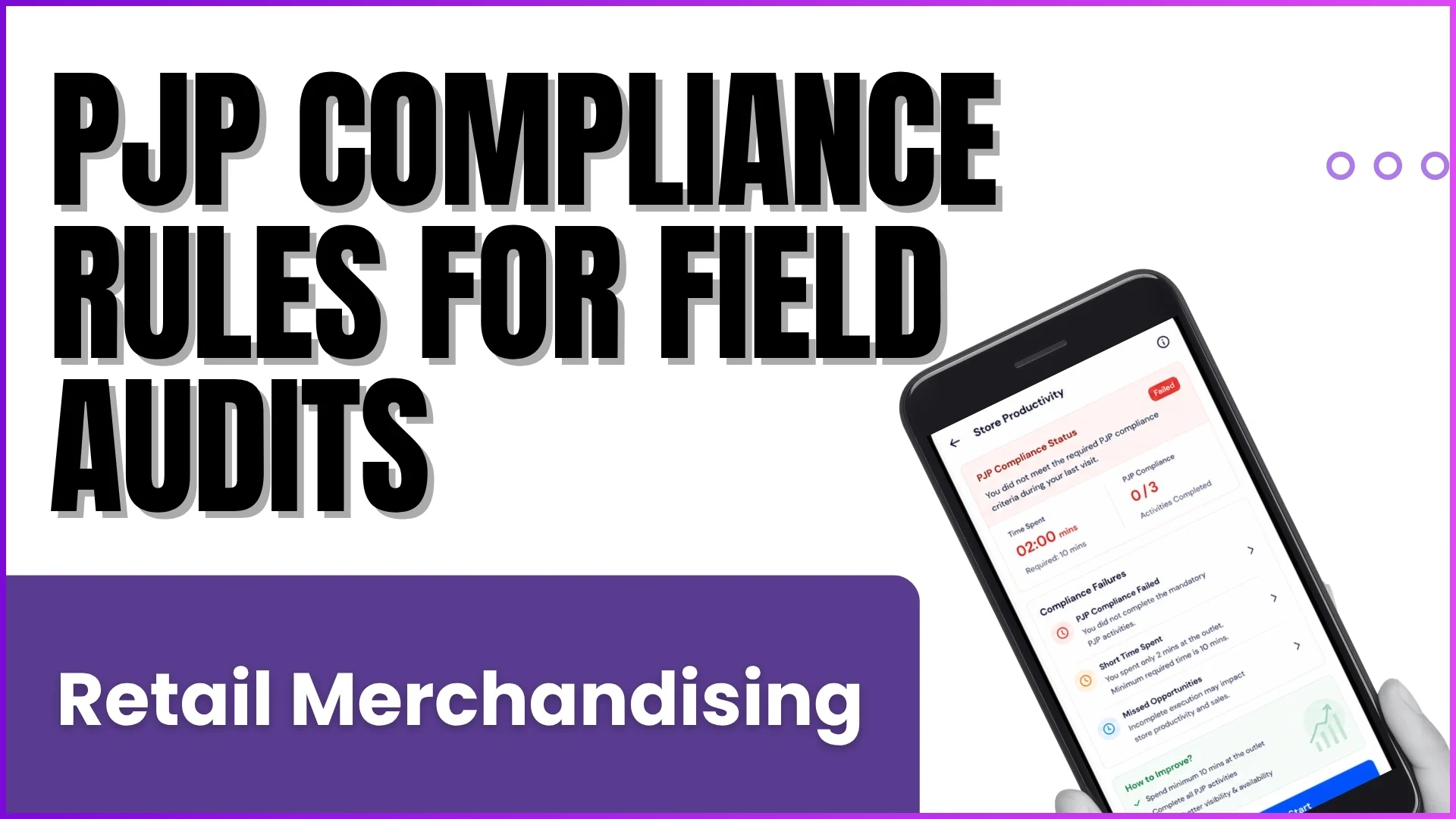
How brands run store maintenance, audits and field visits, from the 1Channel blog.

Frequently asked questions
What is VisiMax?
VisiMax is 1Channel's mobile app and web portal for retail maintenance, visual merchandising and store audits. It takes an in-store issue from a reported ticket through approval, a costed recce, execution with photo proof and quality check to closure, and the same field team uses it for store visits, campaigns and audits.
Is the VisiMax app free to download?
Yes. VisiMax is free on Google Play and the App Store. It is a work app, so your organisation's administrator gives you your sign-in details and decides which modules your role can use.
How do users sign in to VisiMax?
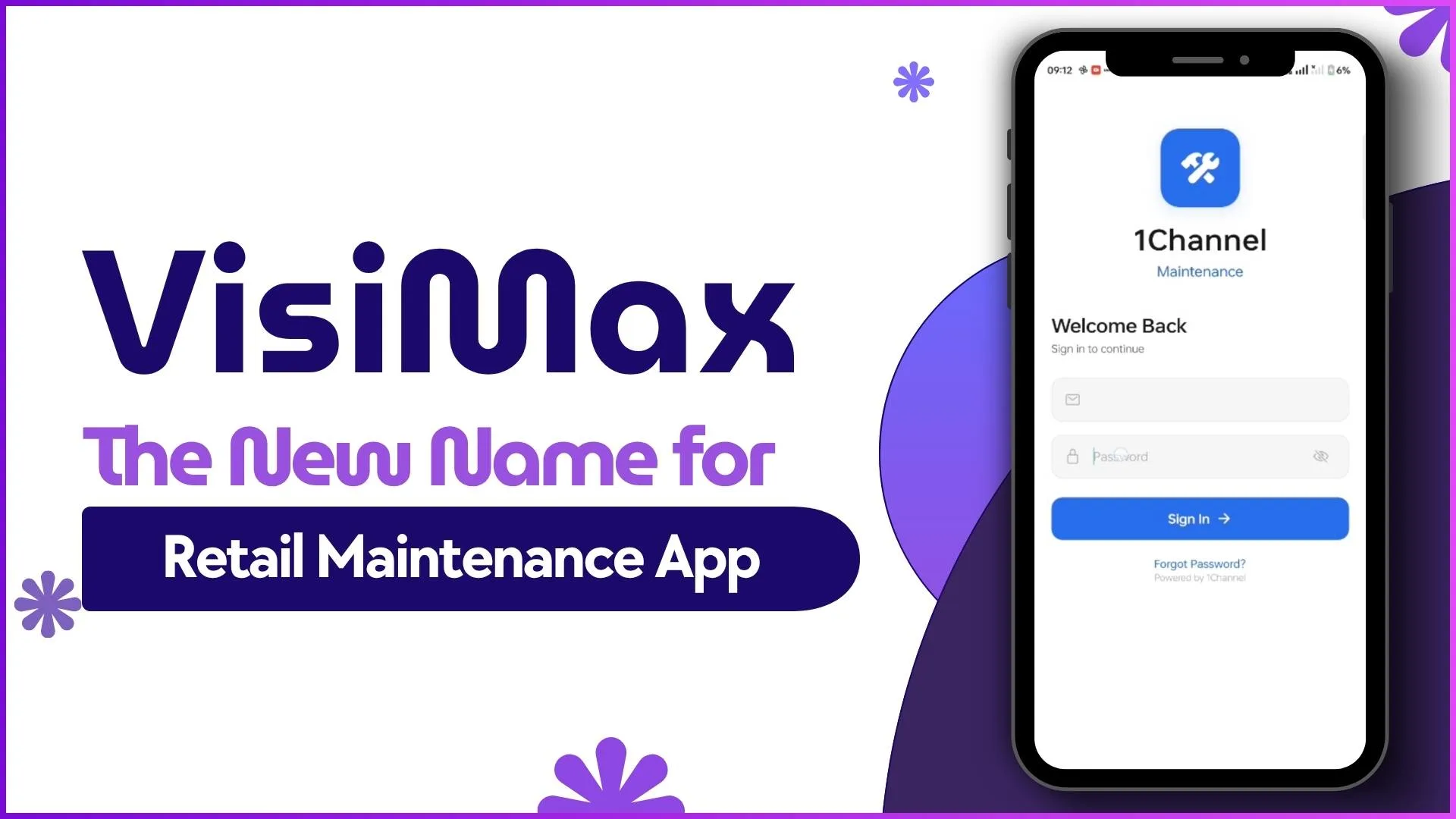
With the email address and password set up by their administrator, or with their company's single sign-on through the "Continue with SSO" option. After sign-in, the app syncs attendance, the beat plan, stores, tickets and campaigns to the phone before the home screen opens.
Which phones does VisiMax support?
VisiMax needs Android 7.0 or later, or iOS 15.1 or later on iPhone and iPad. Managers and brand teams also get a web portal.
Does VisiMax work without an internet connection?
Yes. Photos, forms and tickets are saved on the phone and sync automatically when the network returns. Drafts survive the app being closed, and queued work is sent in order without duplicates.
How do approvals work in VisiMax?
Each project sets its own approval types and levels. Tickets, recce estimates and executions can each need approval, and approvers act from one inbox on the app or the portal. Execution stays locked until the recce for that ticket is approved.
Can our vendors use VisiMax?
Yes. Vendor crews get their own logins and work on the same ticket as the brand and the field team, submitting the recce and the execution with photos.
Can VisiMax connect to our own systems?
Yes. A partner API lets a brand's system create tickets with store and photos and read their status, with one key per partner scoped to its project. User and attendance data can sync with an HRMS.
What data does the VisiMax app collect?
According to its Google Play declaration, VisiMax may collect photos, emails, precise location, device IDs, personal info such as name, email, user IDs and phone number, and crash logs. Data is encrypted in transit and is not shared with third parties.
See VisiMax run on your stores
Bring one store-maintenance problem to the demo: a dark logo, a broken fixture, a campaign that never reached the wall. We will walk it through VisiMax from ticket to closure.